Have any questions? +1 646.844.5712 (US)

  • Facebook
  • LinkedIn
  • Twitter
HiTech ServiceHiTech Service
  • Home
  • About
  • Services
    • Software Development
    • Customer Support
    • Quality Assurance
    • Managed Services
    • Compliance Audit
    • GDPR Compliance
    • Competency Center
    • Emergency IT Support
    • Software as medical device
    • Local AI Agent Development
  • Projects
  • GDPR
  • Articles
  • Case Studies
  • Contact
Menu
  • Home
  • About
  • Services
    • Software Development
    • Customer Support
    • Quality Assurance
    • Managed Services
    • Compliance Audit
    • GDPR Compliance
    • Competency Center
    • Emergency IT Support
    • Software as medical device
    • Local AI Agent Development
  • Projects
  • GDPR
  • Articles
  • Case Studies
  • Contact
Webcam is not working after Windows 10 Anniversary Update: Fixed!

Webcam is not working after Windows 10 Anniversary Update: Fixed!

Windows 10 Anniversary Update brought not only minor visual changes and small improvements. There were numerous issues reported all over the world. But one of the most serious at this point is the problem with web camera failures after the recent update.


Millions of users have their cameras not working and camera related apps crash when one tried to get the image from a webcam. The root cause here lies in the fact that Microsoft stopped supportingMJPEG and H264 streams. So any camera that uses one of these codecs will cause errors and app crashes. If you have the same issue, one option is to wait till Microsoft releases another update supposedly in September 2016.

Also, there are a few ways to try and resolve the issue on your own.

First solution is for advanced users as it requires to make changes in Windows registry. If you are not sure about your skills, we would recommend to scroll down to the next part of this article to proceed with the alternative fix.

Adding record to the registry

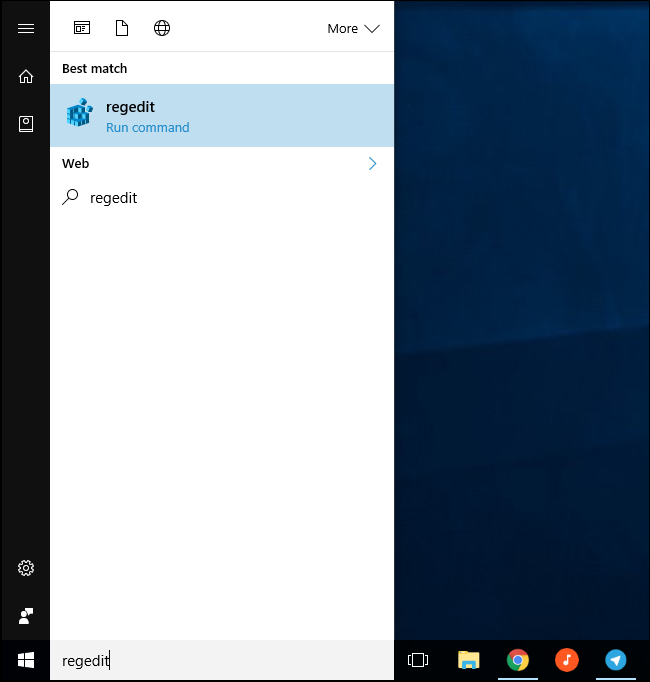
In order to fix webcam issue in Windows 10, you will need to create an additional registry record. To do this go ahead and run registry editor by opening start menu and typing “Regedit”. When found, press enter and Windows will launch registry editor app.
Webcam stopped working after windows 10 anniversary update 02 — Webcam is not working after Windows 10 Anniversary Update: Fixed!

Now, on the left side of the Regedit screen, follow the path:

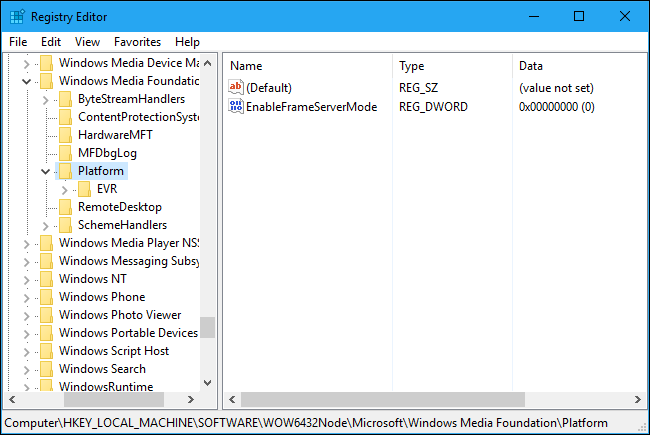
HKEY_LOCAL_MACHINE\SOFTWARE\Microsoft\Windows Media Foundation\Platform

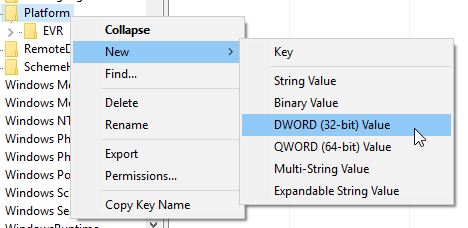
Next, right click on “Platform” registry folder and go to “New” and click on “DWORD (32-bit) Value” option.
Webcam stopped working after windows 10 anniversary update 03 — Webcam is not working after Windows 10 Anniversary Update: Fixed!

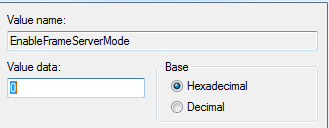
Name new registry record as “EnableFrameServerMode”.Double click on created record to edit it’s properties. Set Data Value as “0”  and hit OK.
Webcam stopped working after windows 10 anniversary update 04 — Webcam is not working after Windows 10 Anniversary Update: Fixed!


Webcam stopped working after windows 10 anniversary update 05 — Webcam is not working after Windows 10 Anniversary Update: Fixed!

If you are using a 32-bit version of Windows, that would be it. You can reboot your PC and the issue should be resolved.

If you are running a 64-bit machine, you should create another record in Windows registry. Just open another path:

HKEY_LOCAL_MACHINE\SOFTWARE\WOW6432Node\Microsoft\Windows Media Foundation\Platform

And create “EnableFrameServerMode” DWORD record with “0” data value.

Using existing registry files

You can also find already created registry files on the Internet. They work using the same method as we did above. One file to enable the fix, another – to disable it. You can click here  in order to download them.

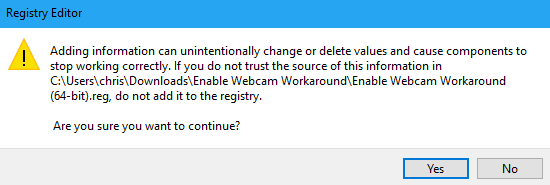
What needs to be done here is to open the downloaded archive and run Enable Webcam Workaround file. Make sure that you click YES on the message that will pop up.
Webcam stopped working after windows 10 anniversary update 06 — Webcam is not working after Windows 10 Anniversary Update: Fixed!

As mentioned earlier, Microsoft should release another update that will resolve the described issue in September 2016. With the new update releases you most likely will need deactivate the temporary fix. To do this, you will need to delete the created above registry records or run the Disable Webcam Workaround file from the downloaded archive.

Remember that you can always start a chat on the bottom right corner of this screen in order to request immediate assistance.

Also check out more details on Windows 10 Anniversary update and other WIndows 10 related articles.

First sight at Windows 10 Anniversary Update

Windows 10: Anniversary update – What’s new? (Part 2)

How to upgrade Windows 10 from 32 bit up to 64 bit

Windows 10: Anniversary Update

How to set shutdown or restart timer in Windows

Windows 10 – Lifehacks!


  • On August 22, 2016
  • 0 Comment

Leave Reply Cancel reply

Your email address will not be published. Required fields are marked *

Recent Posts
  • How AI and Automation Are Changing IT Service Delivery
  • Managed IT Services vs. In-House IT: What Should You Choose?
  • When the Model Is the Vendor: What Happens to Compliance When You Don’t Own the Weights
  • The Edge Device Is the Perimeter: Why the Box You Bought to Keep Them Out Is How They Get In
  • The Password Memo Was Honest. The Checklist Wasn’t.
Categories
  • ai (10)
  • android (18)
  • apple (36)
  • chart (18)
  • cloud (1)
  • fix (42)
  • games (11)
  • google (31)
  • hardware (73)
  • healthcare (3)
  • how to (231)
  • internet (92)
  • ios (23)
  • macos (3)
  • microsoft (82)
  • mobile (36)
  • news (74)
  • optimization (17)
  • osx (4)
  • outsourcing (9)
  • qa (3)
  • regulation (8)
  • review (120)
  • security (41)
  • software (160)
  • windows (150)
Archives
  • September 2026
  • August 2026
  • July 2026
  • June 2026
  • May 2026
  • August 2025
  • March 2025
  • February 2025
  • April 2023
  • March 2023
  • February 2023
  • January 2023
  • March 2022
  • January 2022
  • December 2021
  • November 2021
  • October 2021
  • September 2021
  • August 2021
  • July 2021
  • June 2021
  • May 2021
  • April 2021
  • March 2021
  • February 2021
  • January 2021
  • December 2020
  • November 2020
  • October 2020
  • September 2020
  • August 2020
  • July 2020
  • June 2020
  • May 2020
  • April 2020
  • March 2020
  • February 2020
  • January 2020
  • December 2019
  • November 2019
  • October 2019
  • September 2019
  • August 2019
  • April 2019
  • March 2019
  • February 2019
  • January 2019
  • December 2018
  • November 2018
  • October 2018
  • September 2018
  • June 2018
  • May 2018
  • April 2018
  • February 2018
  • January 2018
  • December 2017
  • November 2017
  • October 2017
  • June 2017
  • May 2017
  • April 2017
  • March 2017
  • February 2017
  • January 2017
  • December 2016
  • November 2016
  • October 2016
  • September 2016
  • August 2016
  • July 2016
  • June 2016
  • May 2016
  • April 2016
  • March 2016
  • February 2016
  • January 2016
  • December 2015
  • November 2015
  • October 2015
  • September 2015
  • July 2015
  • January 2015
Archives
  • September 2026
  • August 2026
  • July 2026
  • June 2026
  • May 2026
  • August 2025
  • March 2025
  • February 2025
  • April 2023
  • March 2023
  • February 2023
  • January 2023
  • March 2022
  • January 2022
  • December 2021
  • November 2021
  • October 2021
  • September 2021
  • August 2021
  • July 2021
  • June 2021
  • May 2021
  • April 2021
  • March 2021
  • February 2021
  • January 2021
  • December 2020
  • November 2020
  • October 2020
  • September 2020
  • August 2020
  • July 2020
  • June 2020
  • May 2020
  • April 2020
  • March 2020
  • February 2020
  • January 2020
  • December 2019
  • November 2019
  • October 2019
  • September 2019
  • August 2019
  • April 2019
  • March 2019
  • February 2019
  • January 2019
  • December 2018
  • November 2018
  • October 2018
  • September 2018
  • June 2018
  • May 2018
  • April 2018
  • February 2018
  • January 2018
  • December 2017
  • November 2017
  • October 2017
  • June 2017
  • May 2017
  • April 2017
  • March 2017
  • February 2017
  • January 2017
  • December 2016
  • November 2016
  • October 2016
  • September 2016
  • August 2016
  • July 2016
  • June 2016
  • May 2016
  • April 2016
  • March 2016
  • February 2016
  • January 2016
  • December 2015
  • November 2015
  • October 2015
  • September 2015
  • July 2015
  • January 2015

How save and open bookmark bundles?

Previous thumb

Windows 10: Virtual Desktop

Next thumb
Scroll

Services

  • Software Development
  • Quality Assurance
  • Customer Support
  • Managed Services
  • 24/7 Emergency IT Support
  • Competency Center
  • Local AI Agent Development
  • Software as a Medical Device

Compliance

  • Compliance Audit
  • GDPR Compliance
  • What is GDPR
  • ISO 9001:2015 Certification

Company

  • About Us
  • All Services
  • Projects
  • Case Studies
  • Articles
  • Contact
About HiTech Service

With 10 year experience of working together, we have reached tangible synergetic effect in performance and productivity, which results in highest quality services and satisfied clients.

Privacy Policy   Cookie Policy


  • Facebook
  • X
  • LinkedIn
CONTACT INFO
  • 900 Foulk Rd, Suite 201, Wilmington, DE, USA, 19803
  • Kudryavs’kyi descent 5b, Kyiv, Ukraine, 04053
  • +1 646.844.5712 (US)
ISO 9001:2015 certificate issued to HiTech Service LLC by Veritas
RIPE Atlas logo, the network measurement community HiTech Service takes part in
BrainBasket Foundation logo, IT education initiative HiTech Service supports
HiTech Service LLC membership badge of the Hi-Tech Office Ukraine association Dun & Bradstreet verified business badge for HiTech Service LLC
YouTeam partner badge for HiTech Service LLC
Hitech Service LLC

Copyright 2026