Have any questions? +1 646.844.5712 (US)

  • Facebook
  • LinkedIn
  • Twitter
HiTech ServiceHiTech Service
  • Home
  • About
  • Services
    • Software Development
    • Customer Support
    • Quality Assurance
    • Managed Services
    • Compliance Audit
    • GDPR Compliance
    • Competency Center
    • Emergency IT Support
    • Software as medical device
    • Local AI Agent Development
  • Projects
  • GDPR
  • Articles
  • Case Studies
  • Contact
Menu
  • Home
  • About
  • Services
    • Software Development
    • Customer Support
    • Quality Assurance
    • Managed Services
    • Compliance Audit
    • GDPR Compliance
    • Competency Center
    • Emergency IT Support
    • Software as medical device
    • Local AI Agent Development
  • Projects
  • GDPR
  • Articles
  • Case Studies
  • Contact
Wifi ping spikes on Windows 11 – Solved!

Wifi ping spikes on Windows 11 – Solved!

This article solves your Wifi ping spikes problem in Windows 11! We will cover the significant Wifi connectivity issue and show you how to deal with it. To get a deeper dive into the topic, you can read our research on that issue with the opening history: PING SPIKES ON WI-FI EVERY 10 SECONDS.

First of all, you need to reboot every device you have an issue with: desktop, laptop, phone, and router. This is corny, but sometimes it helps!

Diagnostics

Once you reboot your devices, we will use a more complicated approach – diagnostics on Windows 11. We need to check and diagnose our patient – internet connection – to see if the issue persists and how bad it is.

  • We would use the Command Prompt to check the connectivity. Type ‘cmd’ in the search and hit Enter.
Wifi ping spikes on Windows 11 – Solved! — illustration 1
  • Once the new window opens, type the following command ‘ping www.google.com -t’
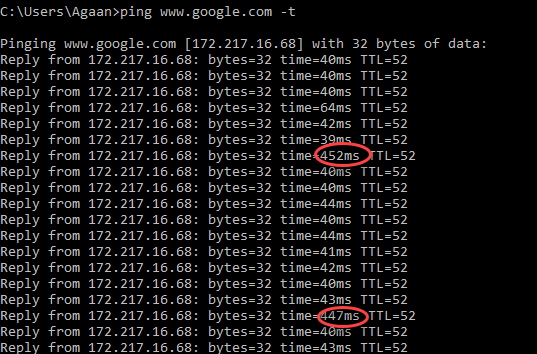
High ping — Wifi ping spikes on Windows 11 – Solved!
  • If you have a similar situation, take our congratulations – we have successfully diagnosed our patient’s illness.
  • You need to restart the device and boot in a safe mode. To do this, type ‘Advanced Startup’ in the search bar and click on ‘Restart now’ in the opened window. After the reboot, you will be able to choose the mode you want to boot up. Do not forget to use the safe mode that allows you to access the internet.
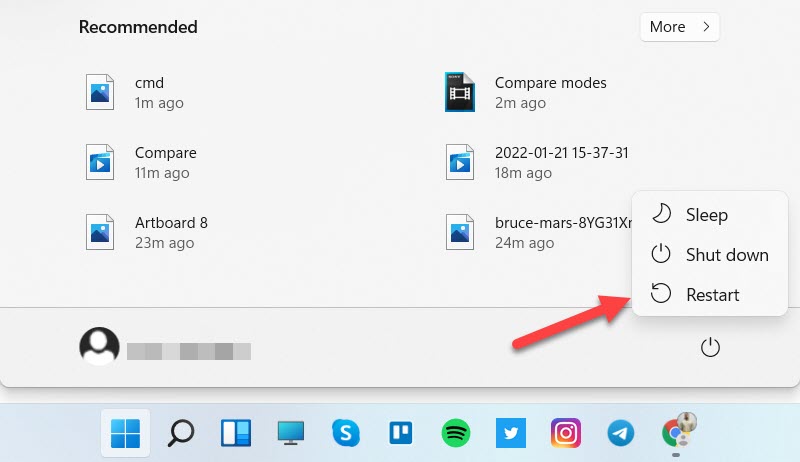
Restart button — Wifi ping spikes on Windows 11 – Solved!
  • After the restart, ping Google once more and check if you see the same situation or vice versa – no ping spikes.

*If there are no ping spikes after that, it proves that you have a software issue, and your ISP or router are OK.

Solution

Delivery optimization

  • Go to the Settings by clicking on the right lower bar with WiFi, sound, and battery → gear icon.
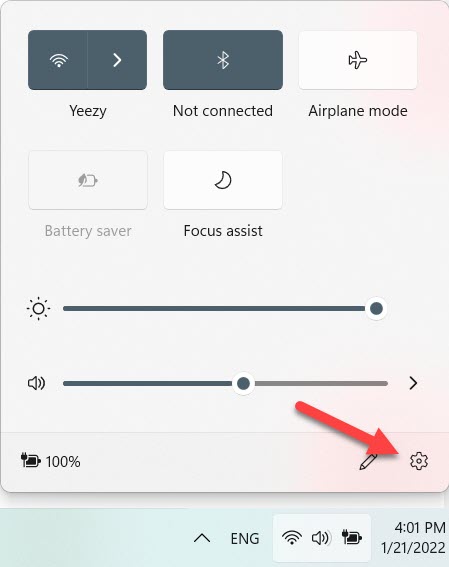
Settings button — Wifi ping spikes on Windows 11 – Solved!
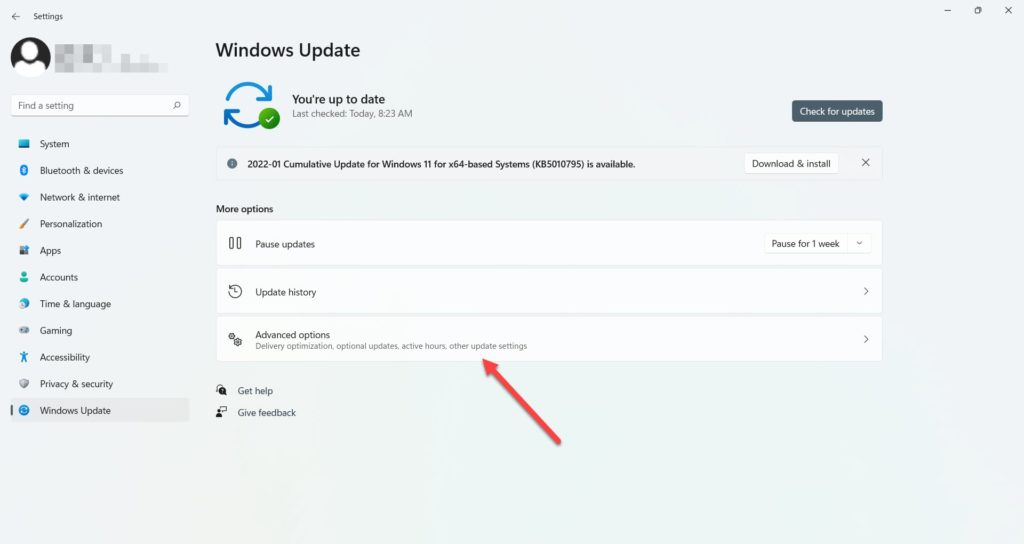
  • After that, go to the Windows Update section
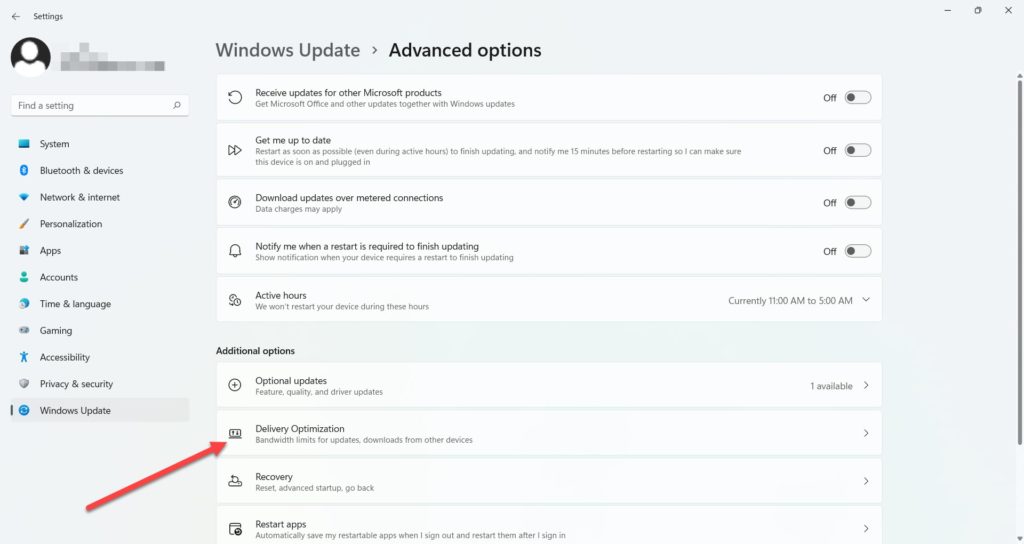
Advanced update options — Wifi ping spikes on Windows 11 – Solved!
  • Go to the Advanced options menu
Windows update setting — Wifi ping spikes on Windows 11 – Solved!
  • Find there the ‘Delivery optimization’ title and click on it
Advanced update options — Wifi ping spikes on Windows 11 – Solved!
  • In the opened window, make sure that you unchecked the ‘Allow downloads from other PCs’ option
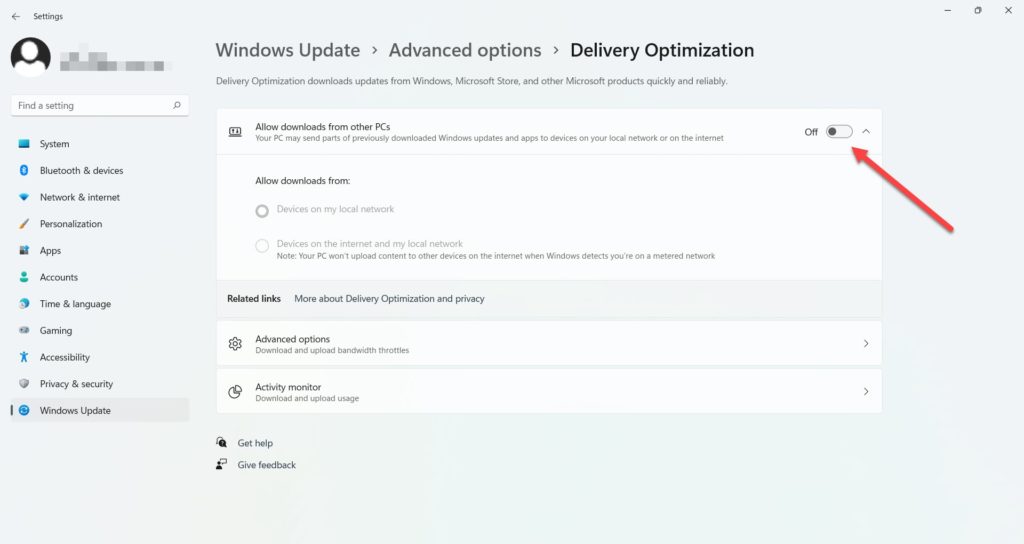
Delivery optimization — Wifi ping spikes on Windows 11 – Solved!

After the manipulations, you need to restart your Windows 11. It is crucial that you do it. If you want to run the test before restarting, you might see the ping is lower but still high enough. Thus, go and reboot your device.

OneDive sync

This might be another option of WiFI ping spikes on Windows 11, even if you are not using this app. The software is built-in in Windows 11 OS and still can influence the internet performance and stability of your connection.

  • Run the following command – gpedit.msc – by pressing Win+R. You will be prompted to the Group Policy Editor. (If the system shows an error, you can find the solution at the end of our article)
Edit group policy — Wifi ping spikes on Windows 11 – Solved!
  • Find and expand the Administrative Templates folder.
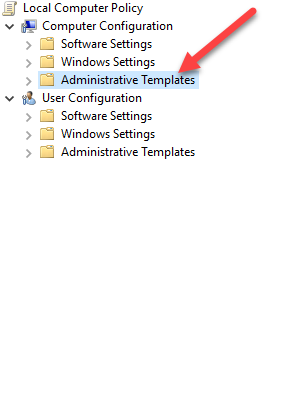
Administrative Templates — Wifi ping spikes on Windows 11 – Solved!
  • Then do the same to the Windows Components.
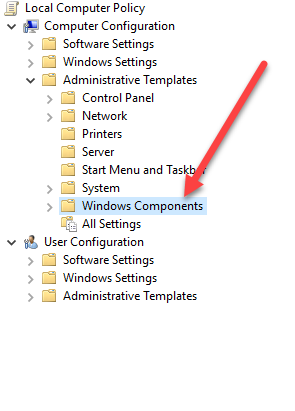
Windows Components — Wifi ping spikes on Windows 11 – Solved!
  • Find the OneDrive option and expand it as well.
  • Take a look at the screenshot below and set them to ‘Enabled.’ The only option you should not touch is ‘Save documents in OneDrive by default.
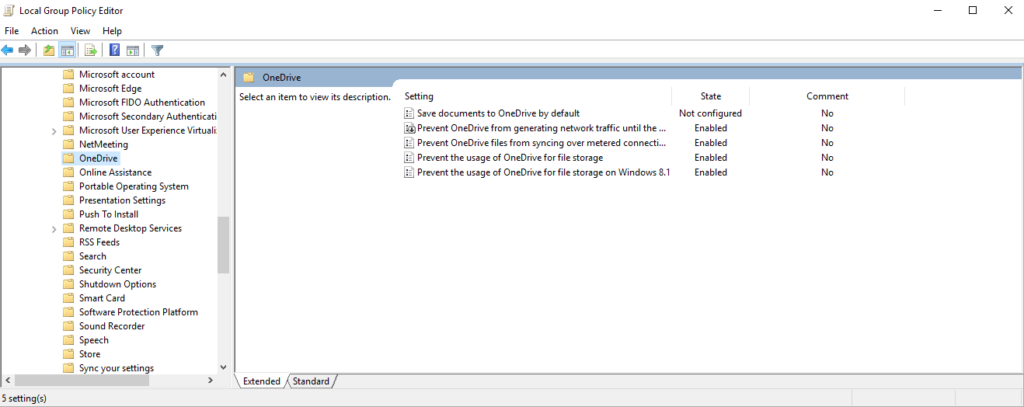
One drive option — Wifi ping spikes on Windows 11 – Solved!
  • The window of the option will look like this. Choose ‘Enable.’
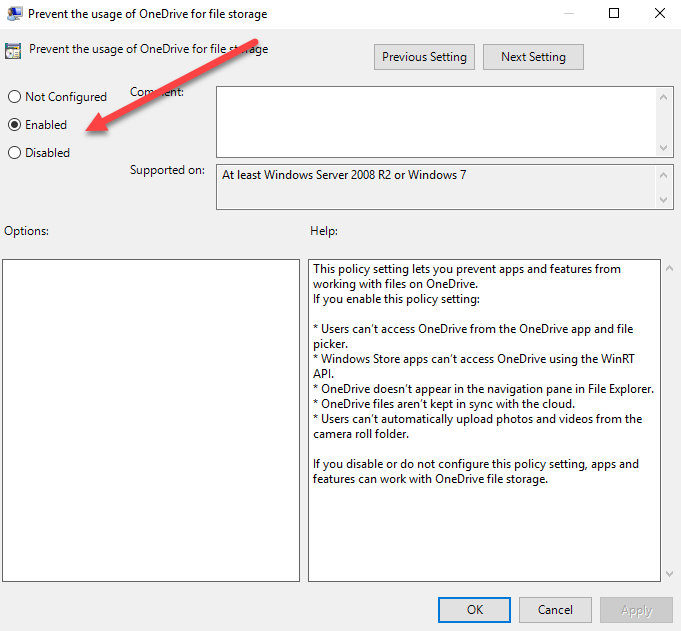
One drive settings — Wifi ping spikes on Windows 11 – Solved!

After these manipulations, you need to reboot your Windows 11 and check if the issue persists. In most cases, this should help you get rid of ping spikes on Windows 11. If you notice that the ping is still skyrocketing, you might want to go and perform the same manipulations to other cloud services.

How to install the Group Policy Editor in Windows 11

Sometimes, Windows 11 can tell you that it cannot find gpedit.msc. This happens if you have the Home version of Windows OS. What can you do there? You can download the utility via this link.

After running the downloaded file, the user account control will ask for your permission. Click ‘Yes’ to let the command prompt execute the queries. Once the process is complete, press any button to close the command prompt.

Although the restart of the system is not required, you should better reboot Windows 11 to make sure every policy is working fine.


  • On January 27, 2022
  • 0 Comment

Leave Reply Cancel reply

Your email address will not be published. Required fields are marked *

Recent Posts
  • As Is: How Software Became the Only Product You Could Legally Sell Broken
  • The Production Incident Class Your Postmortem Template Doesn’t Have
  • Why Load Test Numbers Lie
  • When Config Became Executable: The Twenty-Year Pattern Behind Supply Chain Attacks
  • How Software Became a Medical Device
Categories
  • ai (8)
  • android (18)
  • apple (36)
  • chart (18)
  • cloud (1)
  • fix (42)
  • games (11)
  • google (31)
  • hardware (73)
  • healthcare (3)
  • how to (231)
  • internet (92)
  • ios (23)
  • macos (3)
  • microsoft (82)
  • mobile (36)
  • news (74)
  • optimization (17)
  • osx (4)
  • outsourcing (8)
  • qa (3)
  • regulation (7)
  • review (120)
  • security (39)
  • software (160)
  • windows (150)
Archives
  • August 2026
  • July 2026
  • June 2026
  • May 2026
  • August 2025
  • March 2025
  • February 2025
  • April 2023
  • March 2023
  • February 2023
  • January 2023
  • March 2022
  • January 2022
  • December 2021
  • November 2021
  • October 2021
  • September 2021
  • August 2021
  • July 2021
  • June 2021
  • May 2021
  • April 2021
  • March 2021
  • February 2021
  • January 2021
  • December 2020
  • November 2020
  • October 2020
  • September 2020
  • August 2020
  • July 2020
  • June 2020
  • May 2020
  • April 2020
  • March 2020
  • February 2020
  • January 2020
  • December 2019
  • November 2019
  • October 2019
  • September 2019
  • August 2019
  • April 2019
  • March 2019
  • February 2019
  • January 2019
  • December 2018
  • November 2018
  • October 2018
  • September 2018
  • June 2018
  • May 2018
  • April 2018
  • February 2018
  • January 2018
  • December 2017
  • November 2017
  • October 2017
  • June 2017
  • May 2017
  • April 2017
  • March 2017
  • February 2017
  • January 2017
  • December 2016
  • November 2016
  • October 2016
  • September 2016
  • August 2016
  • July 2016
  • June 2016
  • May 2016
  • April 2016
  • March 2016
  • February 2016
  • January 2016
  • December 2015
  • November 2015
  • October 2015
  • September 2015
  • July 2015
  • January 2015
Archives
  • August 2026
  • July 2026
  • June 2026
  • May 2026
  • August 2025
  • March 2025
  • February 2025
  • April 2023
  • March 2023
  • February 2023
  • January 2023
  • March 2022
  • January 2022
  • December 2021
  • November 2021
  • October 2021
  • September 2021
  • August 2021
  • July 2021
  • June 2021
  • May 2021
  • April 2021
  • March 2021
  • February 2021
  • January 2021
  • December 2020
  • November 2020
  • October 2020
  • September 2020
  • August 2020
  • July 2020
  • June 2020
  • May 2020
  • April 2020
  • March 2020
  • February 2020
  • January 2020
  • December 2019
  • November 2019
  • October 2019
  • September 2019
  • August 2019
  • April 2019
  • March 2019
  • February 2019
  • January 2019
  • December 2018
  • November 2018
  • October 2018
  • September 2018
  • June 2018
  • May 2018
  • April 2018
  • February 2018
  • January 2018
  • December 2017
  • November 2017
  • October 2017
  • June 2017
  • May 2017
  • April 2017
  • March 2017
  • February 2017
  • January 2017
  • December 2016
  • November 2016
  • October 2016
  • September 2016
  • August 2016
  • July 2016
  • June 2016
  • May 2016
  • April 2016
  • March 2016
  • February 2016
  • January 2016
  • December 2015
  • November 2015
  • October 2015
  • September 2015
  • July 2015
  • January 2015

Hitech Service wishes you a Happy New Year!

Previous thumb

Hitech Service stands with Ukraine💙💛!

Next thumb
Scroll

Services

  • Software Development
  • Quality Assurance
  • Customer Support
  • Managed Services
  • 24/7 Emergency IT Support
  • Competency Center
  • Local AI Agent Development
  • Software as a Medical Device

Compliance

  • Compliance Audit
  • GDPR Compliance
  • What is GDPR
  • ISO 9001:2015 Certification

Company

  • About Us
  • All Services
  • Projects
  • Case Studies
  • Articles
  • Contact
About HiTech Service

With 10 year experience of working together, we have reached tangible synergetic effect in performance and productivity, which results in highest quality services and satisfied clients.

Privacy Policy   Cookie Policy


  • Facebook
  • X
  • LinkedIn
CONTACT INFO
  • 900 Foulk Rd, Suite 201, Wilmington, DE, USA, 19803
  • Kudryavs’kyi descent 5b, Kyiv, Ukraine, 04053
  • +1 646.844.5712 (US)
ISO 9001:2015 certificate issued to HiTech Service LLC by Veritas
RIPE Atlas logo, the network measurement community HiTech Service takes part in
BrainBasket Foundation logo, IT education initiative HiTech Service supports
HiTech Service LLC membership badge of the Hi-Tech Office Ukraine association Dun & Bradstreet verified business badge for HiTech Service LLC
YouTeam partner badge for HiTech Service LLC
Hitech Service LLC

Copyright 2026