In one of our previous articles we discussed how to run multiple applications with one icon /articles/entry/131/Run-mulltiple-programs-with-one-icon. To do that we created a batch file, double click on which you would run as many applications as you want.
A bit later we were contacted by a Windows user, who wanted to know if he could create a similar file, but to close the apps at once.
We created another batch file to terminate the programs, but it turned out that we didn’t go through all the automated WIndows startup features that can make life easier. Yesterday we were asked how to add selected programs to startup.
So to sum up all the the efforts, we can create the following scenario. You come to the office and launch Windows with all your business programs starting automatically, at lunch you hit the icon that terminate all the business programs and run the entertainment icons you use at lunch. At the end of the break you hit another icon that terminates your “lunch set” and reopens business apps.
As a result, we can clean our desktop completely and leave there just 3 icons – Lunch Time, Back to work and Time to go Home! (This one would close all the apps and turn off\lock your computer.)
So today we will discuss how to add the apps to Windows startup, so they would run together with your Windows 10.
First of all you would need to create shortcuts to all the apps you want to start automatically. To do that, just right click on the icon of the program and select Create Shortcut.
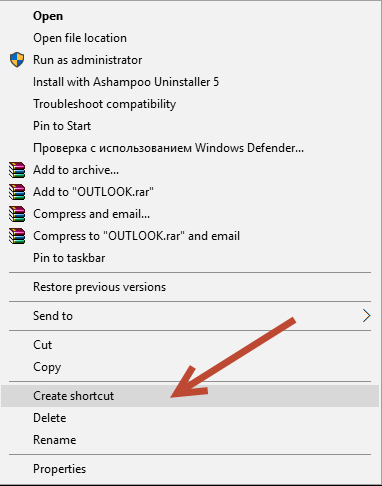
You will need all these shortcuts later.
Now let’s add these shortcuts to the Startup folder.
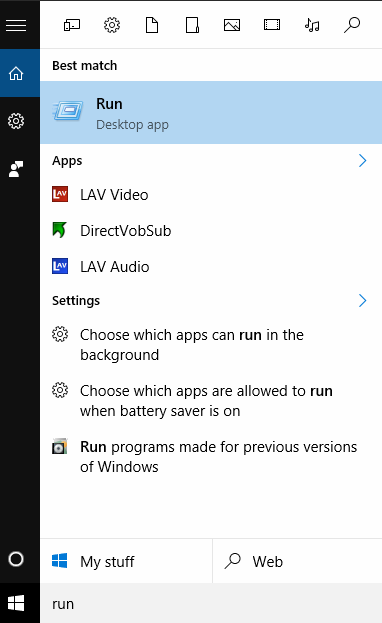
Type Run in the Search bar or push Windows + R
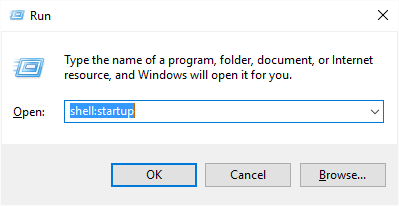
In Run command line type shell:startup and hit enter
Once you have the Startup folder, just paste the shortcuts you’ve created earlier to this folder and close it.
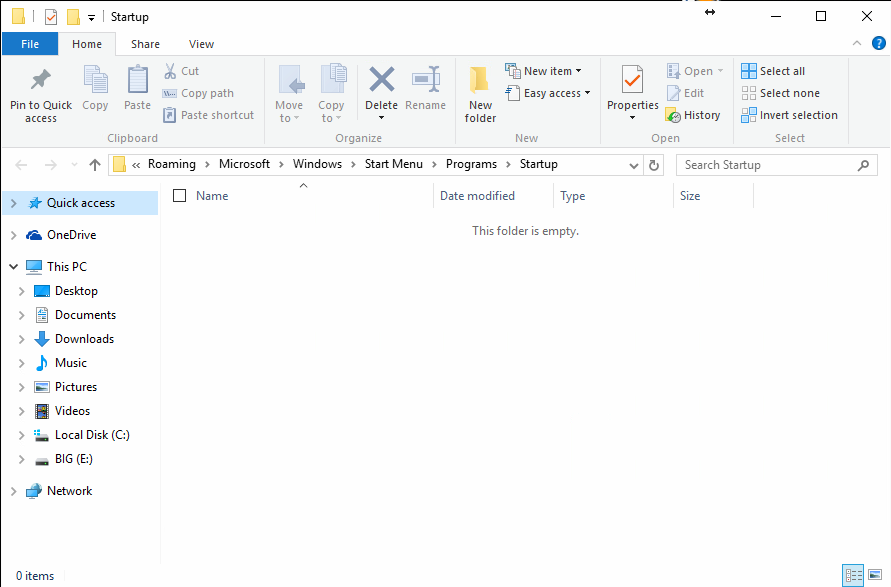
Done. Next time when you start your Windows, these programs will start automatically. Now combine these knowledge with our previous articles on batch files creation, and you will be able to clean up your desktop. In addition, you can change the icons for batch files to look fancier and make your desktop unique. If you don’t know how, we will tell you in one of our next articles, or just contact our support line.