Have any questions? +1 646.844.5712 (US)

  • Facebook
  • LinkedIn
  • Twitter
HiTech ServiceHiTech Service
  • Home
  • About
  • Services
    • Software Development
    • Customer Support
    • Quality Assurance
    • Managed Services
    • Compliance Audit
    • GDPR Compliance
    • Competency Center
    • Emergency IT Support
    • Software as medical device
    • Local AI Agent Development
  • Projects
  • GDPR
  • Articles
  • Case Studies
  • Contact
Menu
  • Home
  • About
  • Services
    • Software Development
    • Customer Support
    • Quality Assurance
    • Managed Services
    • Compliance Audit
    • GDPR Compliance
    • Competency Center
    • Emergency IT Support
    • Software as medical device
    • Local AI Agent Development
  • Projects
  • GDPR
  • Articles
  • Case Studies
  • Contact
How to force close a program or close multiple programs in click?

How to force close a program or close multiple programs in click?

Sometimes, it happens that a program may stop responding and does not even react to to user’s intention to close it. The frozen application may also affect computer performance and it is necessary to have a way to force close it. One option is to do this from task manager, but today we will tell you how to do this from Windows command prompt, as it may happen that you can’t stop the program in task manager. It is a more reliable way to force close applications in some cases. Also we are going to show you how to close multiple programs in one click. This is extremely useful and time saving in case you need to close lots of programs and do not want to do that one by one every time, let’s say in the end of your working day.


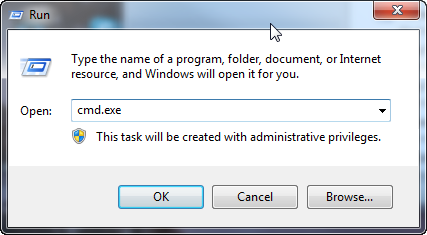
First thing to do is to start Windows command prompt. Press combination of “Windows + R” keys, type in cmd.exe and hit enter. Command prompt window will then open and will be automatically granted with administrative rights.
How to force close a program or to close multiple programs in one click 02 — How to force close a program or close multiple programs in click?

Next thing is to identify the program that needs to be closed. Type in tasklist in command prompt and hit Enter. This will show you the list of all programs, currently running in your OS.

How to force close a program or to close multiple programs in one click 03 — How to force close a program or close multiple programs in click?

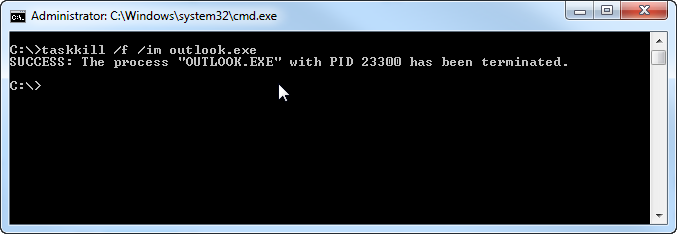
Once you identified your problem application, you need to execute taskkill command. If I take MS Outlook as example it will look like:  taskkill /f /im outlook.exe . Just copy and paste the line to the command prompt and substitute “outlook.exe” with the name of the application that you want to close. The name should be exactly the same as it appears in “tasklist” grid above.


You can also use the process ID instead of name (it is shorter and may appear to be more convenient) to terminate the application. The command in this case will look like taskkill /f /pid XXXX, where XXXXis the Process ID taken from “tasklist” grid (second column). Once you execute the command, the cmd window should return you the success message.
How to force close a program or to close multiple programs in one click 04 — How to force close a program or close multiple programs in click?

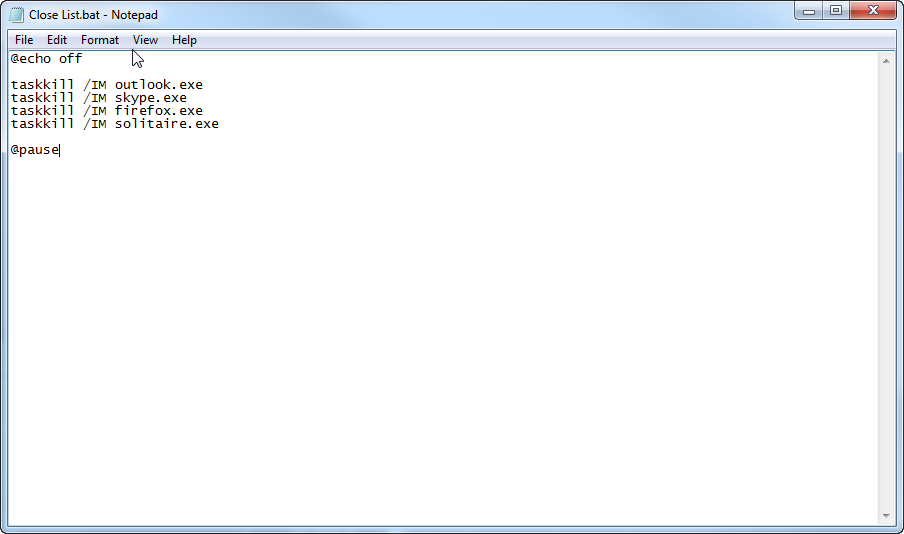
Another way to use this command is to create a list of programs that you need to close on regular basis, like at the end of your working day, and have Windows close them all with a single action.

Just create a *.bat file and enlist your programs there. You can read about how to create *.bat files in our previous article. When all the programs are listed, file should look like shown below.
How to force close a program or to close multiple programs in one click 05 — How to force close a program or close multiple programs in click?

Once you double click on your *.bat file, it will close all the programs. In case some documents or files need to be saved before closing, they will give you a warning, just like during regular program termination.


  • On March 24, 2016
  • 0 Comment

Leave Reply Cancel reply

Your email address will not be published. Required fields are marked *

Recent Posts
  • How AI and Automation Are Changing IT Service Delivery
  • Managed IT Services vs. In-House IT: What Should You Choose?
  • When the Model Is the Vendor: What Happens to Compliance When You Don’t Own the Weights
  • The Edge Device Is the Perimeter: Why the Box You Bought to Keep Them Out Is How They Get In
  • The Password Memo Was Honest. The Checklist Wasn’t.
Categories
  • ai (10)
  • android (18)
  • apple (36)
  • chart (18)
  • cloud (1)
  • fix (42)
  • games (11)
  • google (31)
  • hardware (73)
  • healthcare (3)
  • how to (231)
  • internet (92)
  • ios (23)
  • macos (3)
  • microsoft (82)
  • mobile (36)
  • news (74)
  • optimization (17)
  • osx (4)
  • outsourcing (9)
  • qa (3)
  • regulation (8)
  • review (120)
  • security (41)
  • software (160)
  • windows (150)
Archives
  • September 2026
  • August 2026
  • July 2026
  • June 2026
  • May 2026
  • August 2025
  • March 2025
  • February 2025
  • April 2023
  • March 2023
  • February 2023
  • January 2023
  • March 2022
  • January 2022
  • December 2021
  • November 2021
  • October 2021
  • September 2021
  • August 2021
  • July 2021
  • June 2021
  • May 2021
  • April 2021
  • March 2021
  • February 2021
  • January 2021
  • December 2020
  • November 2020
  • October 2020
  • September 2020
  • August 2020
  • July 2020
  • June 2020
  • May 2020
  • April 2020
  • March 2020
  • February 2020
  • January 2020
  • December 2019
  • November 2019
  • October 2019
  • September 2019
  • August 2019
  • April 2019
  • March 2019
  • February 2019
  • January 2019
  • December 2018
  • November 2018
  • October 2018
  • September 2018
  • June 2018
  • May 2018
  • April 2018
  • February 2018
  • January 2018
  • December 2017
  • November 2017
  • October 2017
  • June 2017
  • May 2017
  • April 2017
  • March 2017
  • February 2017
  • January 2017
  • December 2016
  • November 2016
  • October 2016
  • September 2016
  • August 2016
  • July 2016
  • June 2016
  • May 2016
  • April 2016
  • March 2016
  • February 2016
  • January 2016
  • December 2015
  • November 2015
  • October 2015
  • September 2015
  • July 2015
  • January 2015
Archives
  • September 2026
  • August 2026
  • July 2026
  • June 2026
  • May 2026
  • August 2025
  • March 2025
  • February 2025
  • April 2023
  • March 2023
  • February 2023
  • January 2023
  • March 2022
  • January 2022
  • December 2021
  • November 2021
  • October 2021
  • September 2021
  • August 2021
  • July 2021
  • June 2021
  • May 2021
  • April 2021
  • March 2021
  • February 2021
  • January 2021
  • December 2020
  • November 2020
  • October 2020
  • September 2020
  • August 2020
  • July 2020
  • June 2020
  • May 2020
  • April 2020
  • March 2020
  • February 2020
  • January 2020
  • December 2019
  • November 2019
  • October 2019
  • September 2019
  • August 2019
  • April 2019
  • March 2019
  • February 2019
  • January 2019
  • December 2018
  • November 2018
  • October 2018
  • September 2018
  • June 2018
  • May 2018
  • April 2018
  • February 2018
  • January 2018
  • December 2017
  • November 2017
  • October 2017
  • June 2017
  • May 2017
  • April 2017
  • March 2017
  • February 2017
  • January 2017
  • December 2016
  • November 2016
  • October 2016
  • September 2016
  • August 2016
  • July 2016
  • June 2016
  • May 2016
  • April 2016
  • March 2016
  • February 2016
  • January 2016
  • December 2015
  • November 2015
  • October 2015
  • September 2015
  • July 2015
  • January 2015

How to change notification center icons on Windows Phone 8.1?

Previous thumb

Your desktop in Virtual Reality

Next thumb
Scroll

Services

  • Software Development
  • Quality Assurance
  • Customer Support
  • Managed Services
  • 24/7 Emergency IT Support
  • Competency Center
  • Local AI Agent Development
  • Software as a Medical Device

Compliance

  • Compliance Audit
  • GDPR Compliance
  • What is GDPR
  • ISO 9001:2015 Certification

Company

  • About Us
  • All Services
  • Projects
  • Case Studies
  • Articles
  • Contact
About HiTech Service

With 10 year experience of working together, we have reached tangible synergetic effect in performance and productivity, which results in highest quality services and satisfied clients.

Privacy Policy   Cookie Policy


  • Facebook
  • X
  • LinkedIn
CONTACT INFO
  • 900 Foulk Rd, Suite 201, Wilmington, DE, USA, 19803
  • Kudryavs’kyi descent 5b, Kyiv, Ukraine, 04053
  • +1 646.844.5712 (US)
ISO 9001:2015 certificate issued to HiTech Service LLC by Veritas
RIPE Atlas logo, the network measurement community HiTech Service takes part in
BrainBasket Foundation logo, IT education initiative HiTech Service supports
HiTech Service LLC membership badge of the Hi-Tech Office Ukraine association Dun & Bradstreet verified business badge for HiTech Service LLC
YouTeam partner badge for HiTech Service LLC
Hitech Service LLC

Copyright 2026