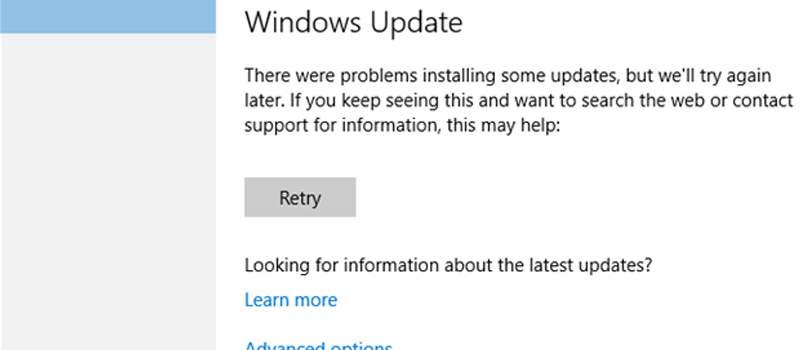
With the arrival of Windows 10 OS, Windows update works silently in the background. Updater downloads necessary updates automatically, installs the ones it can, and saves others to be installed after Windows restarts. In fact this is even more convenient for a regular user compared to previous Windows operating systems. Advanced users may turn off automatic updates and downloads if desired, so that’s not a problem. But what if update installation fails? Well that’s a problem now, as this will prevent other updates from being installed as well. This article covers a solution for a situation when update is stuck in the pipe restricting all other updates from being installed.
How to fix windows update failure?
As ironic as it may sound Windows developers included Troubleshooter for this kind of situations, and it actually works very well with Windows 10. It will be able to fix a stuck update (too bad OS doesn’t do it by itself). Troubleshooter performs 3 actions:
- Shuts down Windows Update Services
- Renames necessary files and folders, clearing Update download cache
- Restarts Windows Update Services
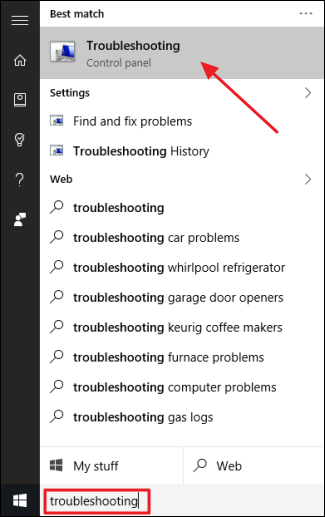
To access a troubleshooter, click on Start and search for troubleshooting:
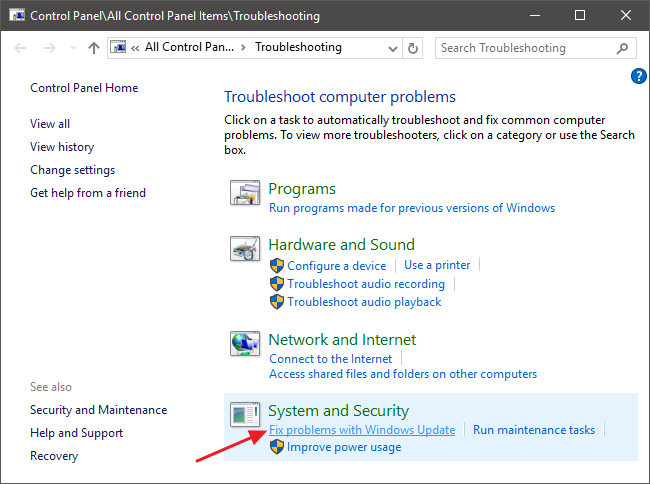
In the Control Panel list of troubleshooters, in the “System and Security” section, click “Fix problems with Windows Update.”
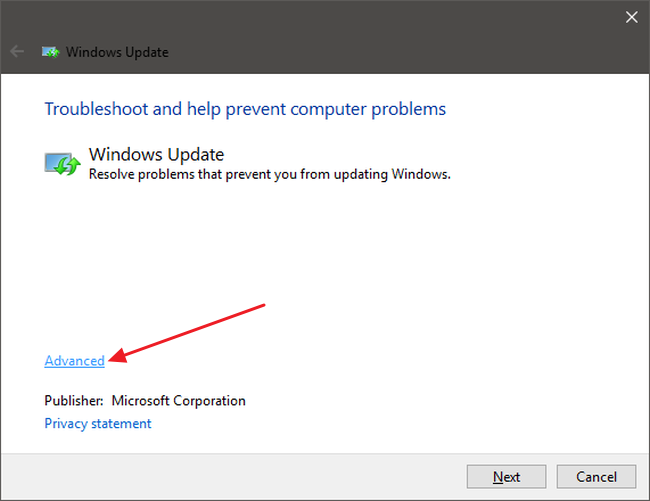
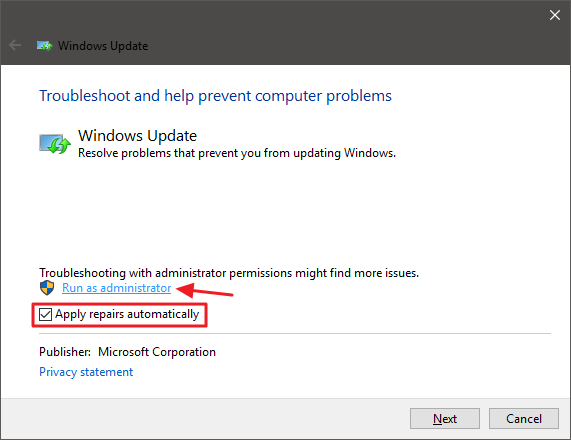
In the Windows Update troubleshooting window, click “Advanced.”, and Run as administrator, choosing apply repairs automatically.
In majority of cases Troubleshooter will successfully remove a stuck update, and running Windows Update again will initiate updates’ installation over again, hopefully this time allowing them to go through. Even if the troubleshooter says it couldn’t identify the problem, it’s possible that restarting the service and clearing out the cache did the trick.