Have any questions? +1 646.844.5712 (US)

  • Facebook
  • LinkedIn
  • Twitter
HiTech ServiceHiTech Service
  • Home
  • About
  • Services
    • Software Development
    • Customer Support
    • Quality Assurance
    • Managed Services
    • Compliance Audit
    • GDPR Compliance
    • Competency Center
    • Emergency IT Support
    • Software as medical device
    • Local AI Agent Development
  • Projects
  • GDPR
  • Articles
  • Case Studies
  • Contact
Menu
  • Home
  • About
  • Services
    • Software Development
    • Customer Support
    • Quality Assurance
    • Managed Services
    • Compliance Audit
    • GDPR Compliance
    • Competency Center
    • Emergency IT Support
    • Software as medical device
    • Local AI Agent Development
  • Projects
  • GDPR
  • Articles
  • Case Studies
  • Contact
Partition of Your Hard Drive in Windows 10

Partition of Your Hard Drive in Windows 10

Not so much time ago, I bought a new computer and decided to go through the whole process of OS installation by myself. However, being inattentive, I have totally forgotten to divide my hard drive (the whole memory usually goes as one piece in new machines) into two disks. The process is not that complicated but after you have set the system up, you will need to use the command prompt.


Why do you need to separate your HDD?

First of all, I love having everything in order so that my hard drive does not look like a trash bin. Second – we need to leave the system alone. I am the guy who believes that if you do not install any heavy programs or just do not spoil the Disk C with the films, photos, or other stuff, then your OS will thank you for that with the smoother workflow. Having talked to many colleagues about that, I may confidently claim – I am not the only one with such a position.


How to divide your HDD into two logical volumes?

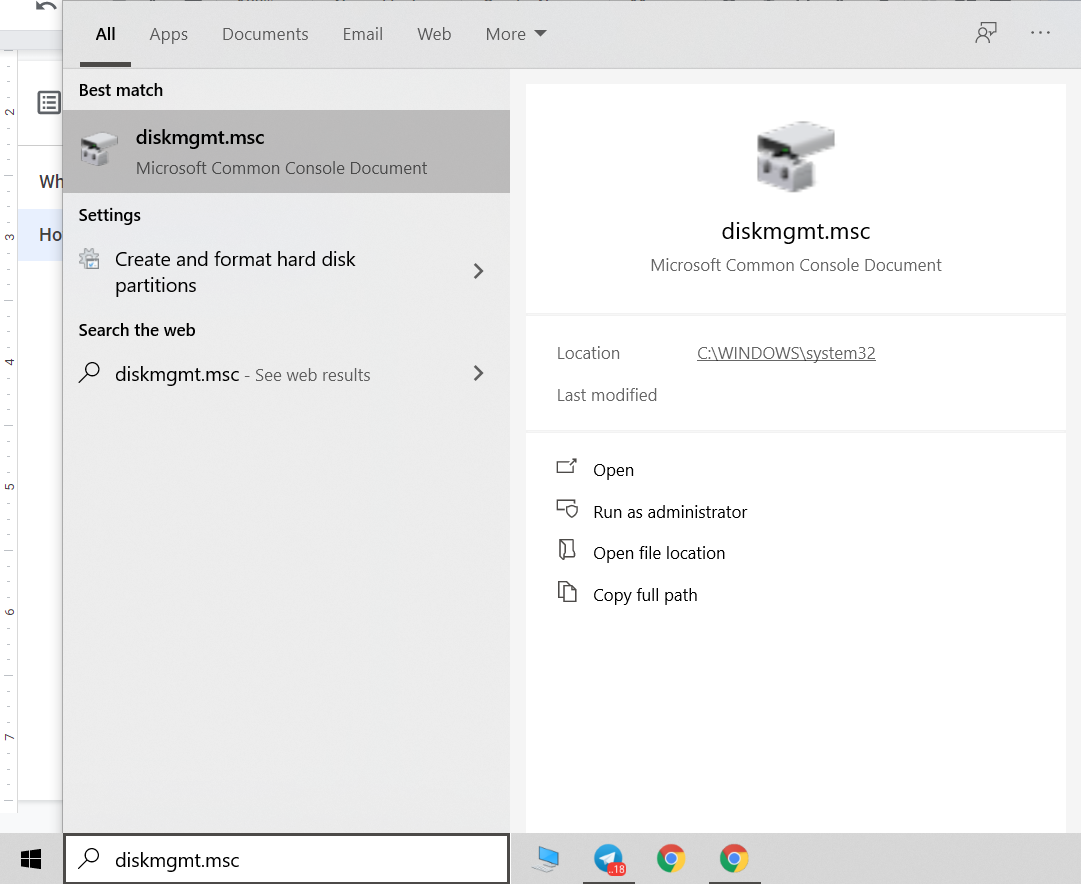
  • Right-click on the “Start” button and select “Disk Management”. You can also start this utility by pressing the Win+ R and running diskmgmt.msc or just pasting the command to the search string. The Windows 10 Disk Management will be opened.
Partition of Your Hard Drive in Windows 10 — illustration 1

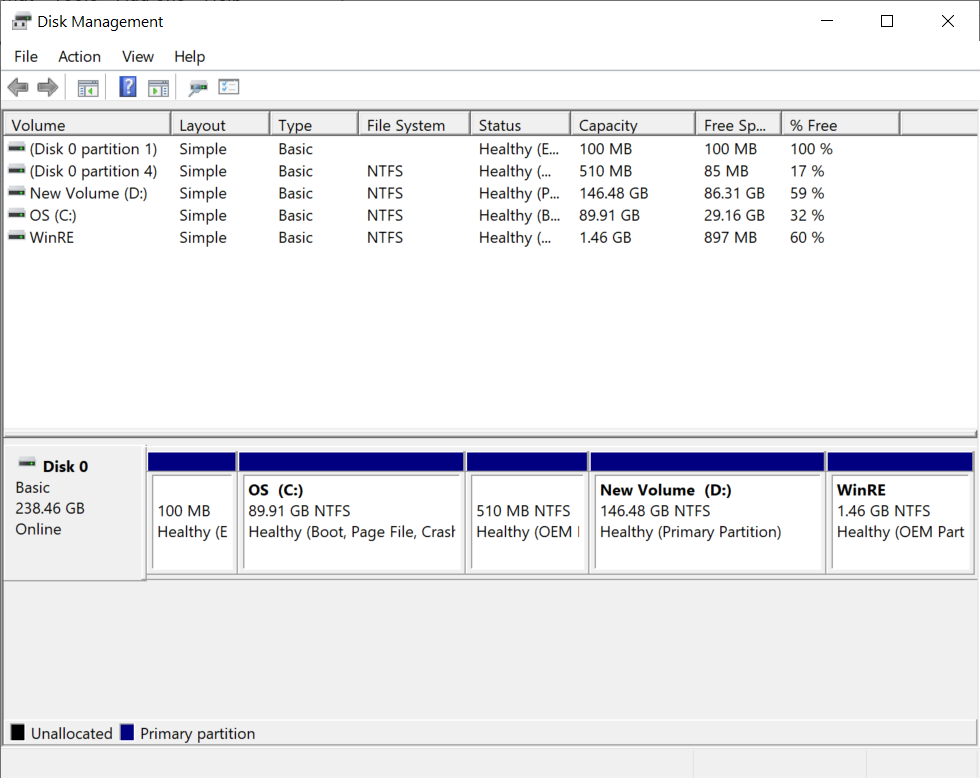
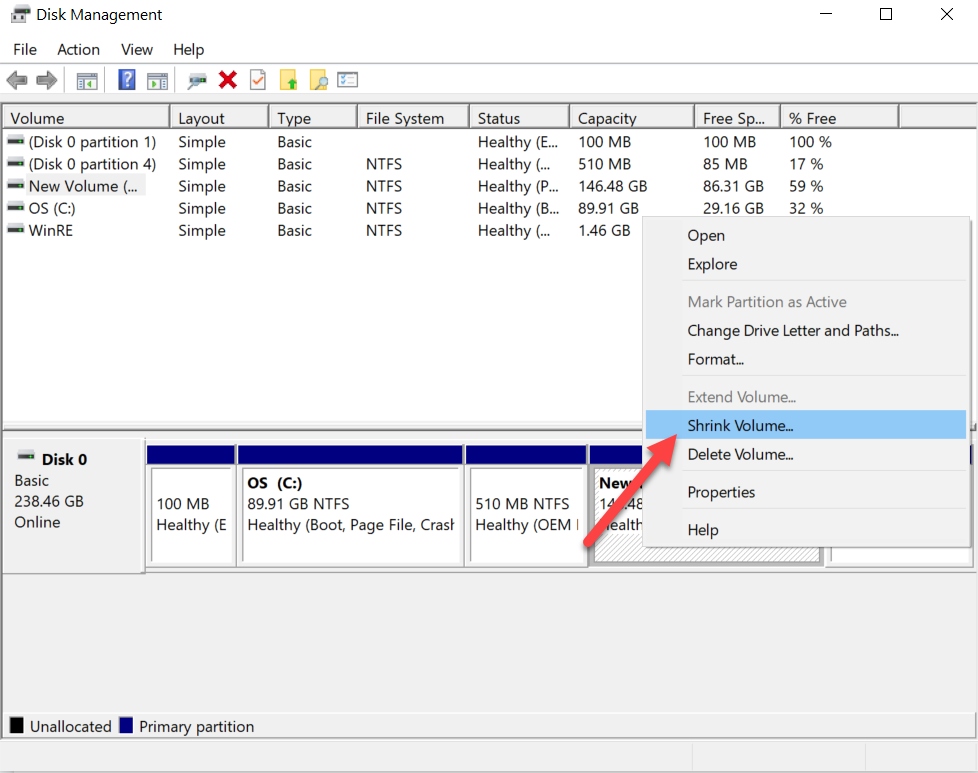
  • At the top, you will see a list of all sections (Volumes). At the bottom, there is a list of connected physical drives. If your computer or laptop has one physical hard disk or SSD, then most likely you will see it in the list (at the bottom) under the name “Disk 0”. Moreover, in most cases, it already contains several (two or three) partitions, only one of which corresponds to your C drive. Do not take action on hidden partitions “without a letter” – they contain Windows 10 bootloader data and recovery data.Partition of Your Hard Drive in Windows 10 — illustration 2
  • In order to split drive C into C and D, right-click on the corresponding volume and select “Shrink Volume”.
Partition of Your Hard Drive in Windows 10 — illustration 3

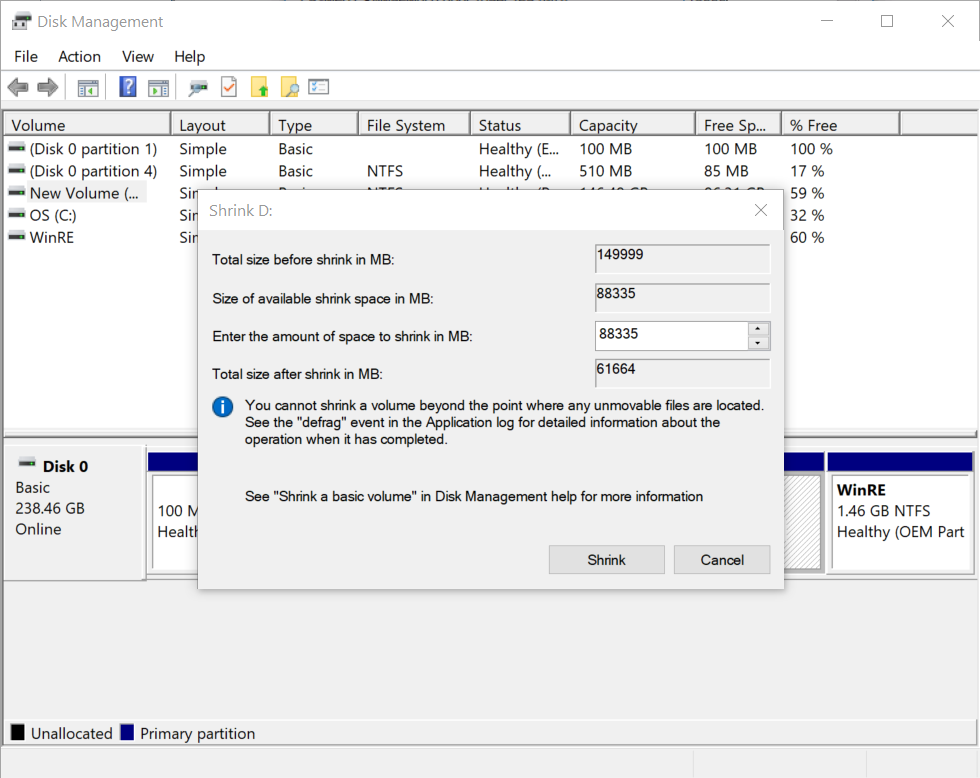
  • By default, you will be prompted to shrink the volume (free up space for drive D, in other words) to all available free space on the hard drive. I do not recommend doing this – leave at least 10-15 gigabytes free on the system partition. Thus, instead of the proposed value, enter the one that you think is necessary for drive D. Then, click Shrink.
Partition of Your Hard Drive in Windows 10 — illustration 4

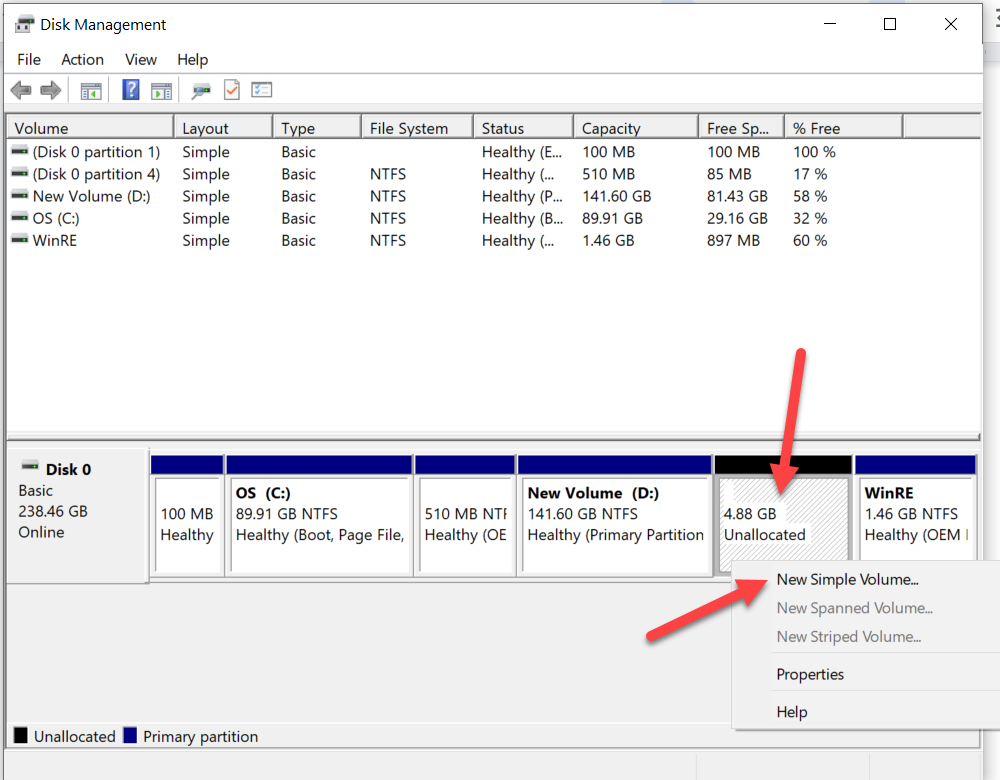
  • In Disk Management tool, a new unallocated disk area appears, and C drive shrinks (or any other drive you decided to shrink). Click on the “not distributed” area with the right mouse button and select “New simple volume”. After that, the volume creating wizard will launch.
Partition of Your Hard Drive in Windows 10 — illustration 5

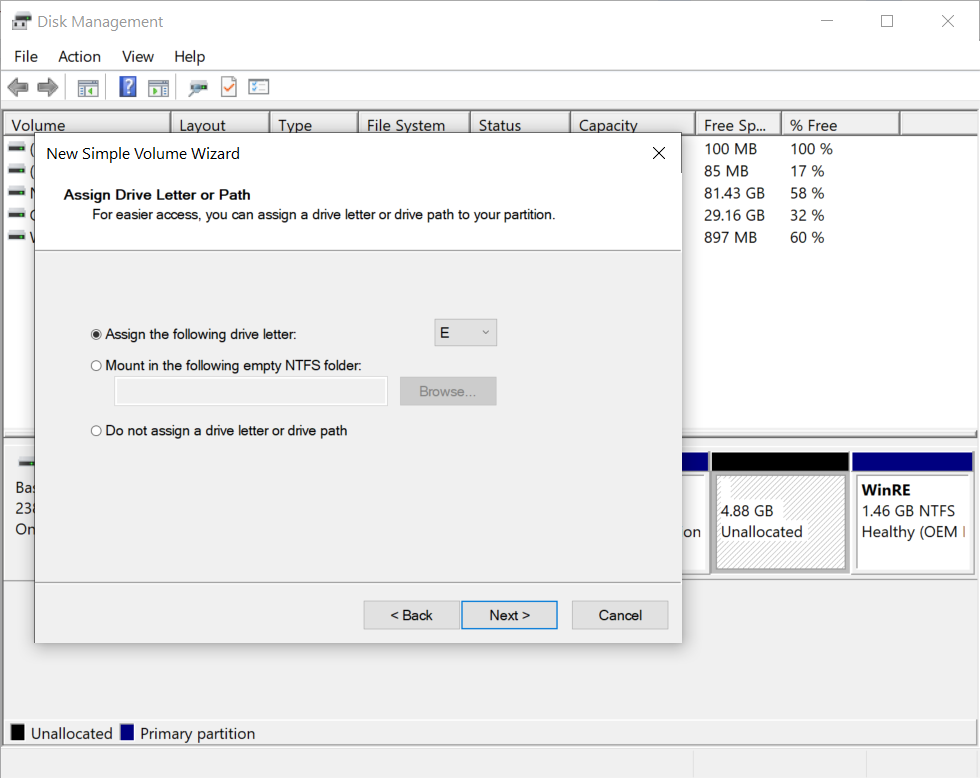
  • The utility will ask for the size of the new volume (if you want to create only drive D, leave the full size), offer to assign a drive letter, and also format the new partition (leave the default values, change the label at its discretion).
Partition of Your Hard Drive in Windows 10 — illustration 6

Done! After the process is finished, the new volume under the letter you have chosen will appear in the PC disks menu, and you will be able to use it.


Conclusion

I suggest you do the partition of the available volume if you have only one logical disk. It will let your Windows breathe easily and provide you with a smooth experience. Also, you will be able to store your data on different disks for different needs which is considerably more convenient.

  • On February 19, 2020
  • 0 Comment

Leave Reply Cancel reply

Your email address will not be published. Required fields are marked *

Recent Posts
  • How AI and Automation Are Changing IT Service Delivery
  • Managed IT Services vs. In-House IT: What Should You Choose?
  • When the Model Is the Vendor: What Happens to Compliance When You Don’t Own the Weights
  • The Edge Device Is the Perimeter: Why the Box You Bought to Keep Them Out Is How They Get In
  • The Password Memo Was Honest. The Checklist Wasn’t.
Categories
  • ai (10)
  • android (18)
  • apple (36)
  • chart (18)
  • cloud (1)
  • fix (42)
  • games (11)
  • google (31)
  • hardware (73)
  • healthcare (3)
  • how to (231)
  • internet (92)
  • ios (23)
  • macos (3)
  • microsoft (82)
  • mobile (36)
  • news (74)
  • optimization (17)
  • osx (4)
  • outsourcing (9)
  • qa (3)
  • regulation (8)
  • review (120)
  • security (41)
  • software (160)
  • windows (150)
Archives
  • September 2026
  • August 2026
  • July 2026
  • June 2026
  • May 2026
  • August 2025
  • March 2025
  • February 2025
  • April 2023
  • March 2023
  • February 2023
  • January 2023
  • March 2022
  • January 2022
  • December 2021
  • November 2021
  • October 2021
  • September 2021
  • August 2021
  • July 2021
  • June 2021
  • May 2021
  • April 2021
  • March 2021
  • February 2021
  • January 2021
  • December 2020
  • November 2020
  • October 2020
  • September 2020
  • August 2020
  • July 2020
  • June 2020
  • May 2020
  • April 2020
  • March 2020
  • February 2020
  • January 2020
  • December 2019
  • November 2019
  • October 2019
  • September 2019
  • August 2019
  • April 2019
  • March 2019
  • February 2019
  • January 2019
  • December 2018
  • November 2018
  • October 2018
  • September 2018
  • June 2018
  • May 2018
  • April 2018
  • February 2018
  • January 2018
  • December 2017
  • November 2017
  • October 2017
  • June 2017
  • May 2017
  • April 2017
  • March 2017
  • February 2017
  • January 2017
  • December 2016
  • November 2016
  • October 2016
  • September 2016
  • August 2016
  • July 2016
  • June 2016
  • May 2016
  • April 2016
  • March 2016
  • February 2016
  • January 2016
  • December 2015
  • November 2015
  • October 2015
  • September 2015
  • July 2015
  • January 2015
Archives
  • September 2026
  • August 2026
  • July 2026
  • June 2026
  • May 2026
  • August 2025
  • March 2025
  • February 2025
  • April 2023
  • March 2023
  • February 2023
  • January 2023
  • March 2022
  • January 2022
  • December 2021
  • November 2021
  • October 2021
  • September 2021
  • August 2021
  • July 2021
  • June 2021
  • May 2021
  • April 2021
  • March 2021
  • February 2021
  • January 2021
  • December 2020
  • November 2020
  • October 2020
  • September 2020
  • August 2020
  • July 2020
  • June 2020
  • May 2020
  • April 2020
  • March 2020
  • February 2020
  • January 2020
  • December 2019
  • November 2019
  • October 2019
  • September 2019
  • August 2019
  • April 2019
  • March 2019
  • February 2019
  • January 2019
  • December 2018
  • November 2018
  • October 2018
  • September 2018
  • June 2018
  • May 2018
  • April 2018
  • February 2018
  • January 2018
  • December 2017
  • November 2017
  • October 2017
  • June 2017
  • May 2017
  • April 2017
  • March 2017
  • February 2017
  • January 2017
  • December 2016
  • November 2016
  • October 2016
  • September 2016
  • August 2016
  • July 2016
  • June 2016
  • May 2016
  • April 2016
  • March 2016
  • February 2016
  • January 2016
  • December 2015
  • November 2015
  • October 2015
  • September 2015
  • July 2015
  • January 2015

Google Chrome 80: it may be dangerous for your site

Previous thumb

PS5 Hardware Revealed

Next thumb
Scroll

Services

  • Software Development
  • Quality Assurance
  • Customer Support
  • Managed Services
  • 24/7 Emergency IT Support
  • Competency Center
  • Local AI Agent Development
  • Software as a Medical Device

Compliance

  • Compliance Audit
  • GDPR Compliance
  • What is GDPR
  • ISO 9001:2015 Certification

Company

  • About Us
  • All Services
  • Projects
  • Case Studies
  • Articles
  • Contact
About HiTech Service

With 10 year experience of working together, we have reached tangible synergetic effect in performance and productivity, which results in highest quality services and satisfied clients.

Privacy Policy   Cookie Policy


  • Facebook
  • X
  • LinkedIn
CONTACT INFO
  • 900 Foulk Rd, Suite 201, Wilmington, DE, USA, 19803
  • Kudryavs’kyi descent 5b, Kyiv, Ukraine, 04053
  • +1 646.844.5712 (US)
ISO 9001:2015 certificate issued to HiTech Service LLC by Veritas
RIPE Atlas logo, the network measurement community HiTech Service takes part in
BrainBasket Foundation logo, IT education initiative HiTech Service supports
HiTech Service LLC membership badge of the Hi-Tech Office Ukraine association Dun & Bradstreet verified business badge for HiTech Service LLC
YouTeam partner badge for HiTech Service LLC
Hitech Service LLC

Copyright 2026