If your Windows 10 computer suffers from the same problem as mine – wakes up in the middle of the night and lives its own life, we can help you with that.
The thing is, that Windows 10 has “wake timers” turned on by default that force it to wake up and check for updates or messages. Telling the truth I’m not sure what it is doing, but I noticed this more than once with the light on, when I remember it was asleep a few hours already.
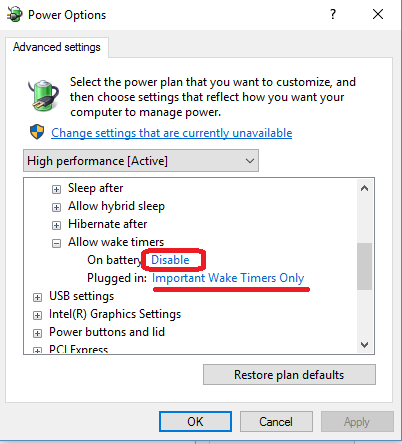
To turn this feature off you need to navigate to Power Options in your Control Panel and to expand “Sleep” menu. There, under “Allow wake timers” – choose Disabled for both options (the second option is available for laptops only).
It’s unlikely that your computer’s night life will stop completely, as there are many other things that can turn the computer on (some software settings or even hardware – wake up on LAN or from mouse movement), but this will definitely decrease those wake ups significantly.
Power Options menu is very interesting thing, and can even help you to speed your computer up a bit I would recommend to spend some 10 minutes and to check what it offers.