Surprisingly easy way to speed up your PC (in this case laptop) is to change its power plan.
Windows has 3 presets of power plans: power saver, balanced and high performance.
In case your laptop is running in power saver mode it is not using even half of its performance. You would just need to switch Power Options to high performance and everything will start working much faster.
To do that just go to Control Panel and Power Options:
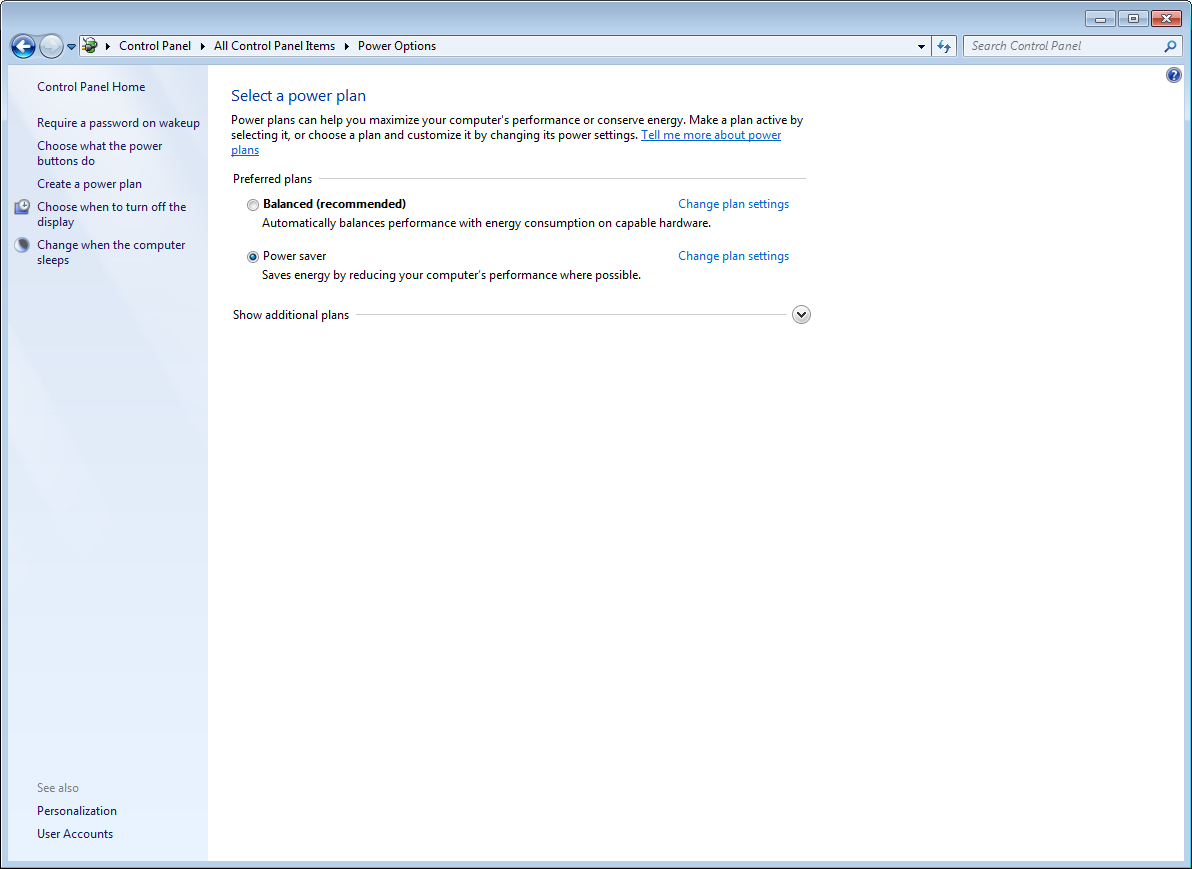
You will see only 2 power plans: power saver and balanced. Click on “Show more additional plans”:
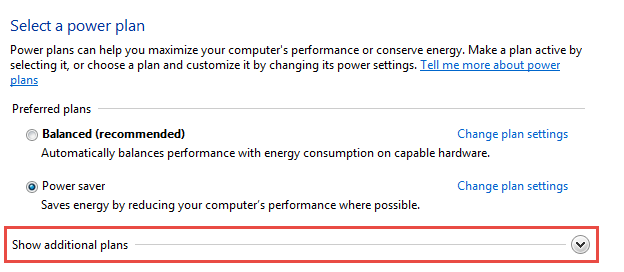
This will display more options. One of them will be High Performance power plan. Click on it and just close this window. System performance will increase right away.
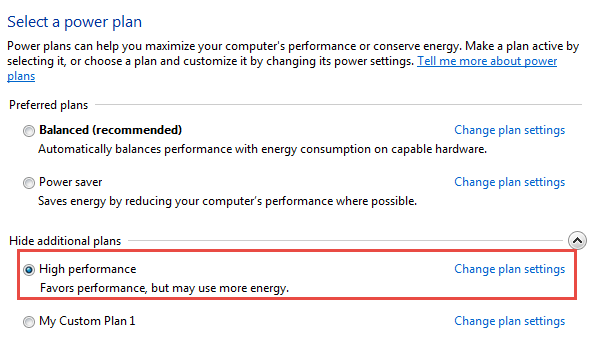
This is applicable to Windows 7, 8 and 10.
For example
Recently I have updated one of my laptops (Dell with i3 1.8Ghz processor) up to WIndows 10. After the upgrade and all updates were installed I was surprised to see that this laptop is really slow. It was slow when navigating between folders in Windows as well as internet browsing speed left much to be desired.
I have started task manager and it showed that the CPU speed is not 1.8GHz but 0.6GHz. I wondered why would that happen and checked power plan that I was using. It was set to power saving. I did a switch it to High Performance and task manager started displaying full 1.8Ghz and system itself started to work really fast.
As you can see power saving power plan will let your device use not even a half of your CPU power. The same happens to other hardware as RAM, GPU etc.
NOTE: Changing your laptop’s power plan will make system use more energy, so if you are working from battery, it will not last long. You can configure your power plan to use less energy when using the battery.