Have any questions? +1 646.844.5712 (US)

  • Facebook
  • LinkedIn
  • Twitter
HiTech ServiceHiTech Service
  • Home
  • About
  • Services
    • Software Development
    • Customer Support
    • Quality Assurance
    • Managed Services
    • Compliance Audit
    • GDPR Compliance
    • Competency Center
    • Emergency IT Support
    • Software as medical device
    • Local AI Agent Development
  • Projects
  • GDPR
  • Articles
  • Case Studies
  • Contact
Menu
  • Home
  • About
  • Services
    • Software Development
    • Customer Support
    • Quality Assurance
    • Managed Services
    • Compliance Audit
    • GDPR Compliance
    • Competency Center
    • Emergency IT Support
    • Software as medical device
    • Local AI Agent Development
  • Projects
  • GDPR
  • Articles
  • Case Studies
  • Contact
How to protect Google Chrome with the password

How to protect Google Chrome with the password

Most among average internet users may not know that Google Chrome has a convenient system for managing user profiles, allowing each user to have their browser history, bookmarks, isolated and other items. One user profile Chrome is already present in the installed, even if you did not enable sync with your Google account.


In this manual, you’ll learn how to set a password request for Chrome user profiles, and you can also manage individual profiles. Although users can use Google Chrome without a Google account but having an account and being logged in are essential steps to perform the following manipulations.

Enable password request for Google Chrome users

The current user profile management system does not allow to set a password for Chrome. However, the browser options contain an option to enable the new profile management system, which in turn will allow performing what we aim to.

The full order of steps to protect the Google Chrome user profile with a password will look like this:

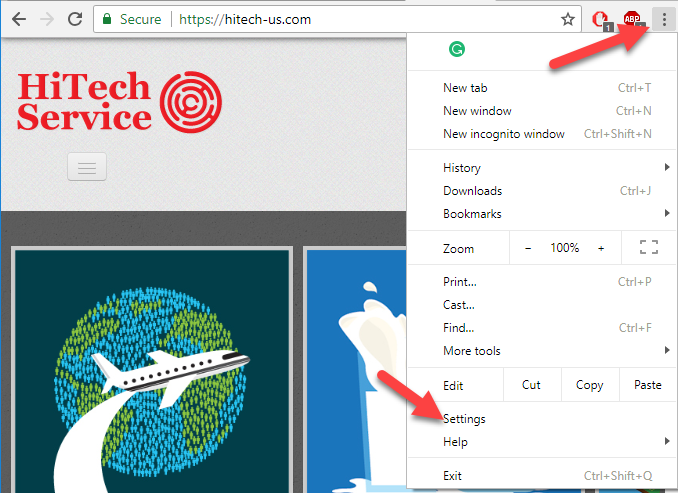
1. Go to your Google Chrome settings.
Setting password for chrome 01 — How to protect Google Chrome with the password

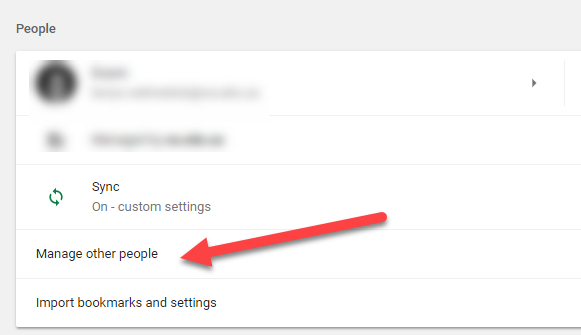
2. In the “People” section, click Manage other people and then Add person.
Setting password for chrome 02 — How to protect Google Chrome with the password

Setting password for chrome 03 — How to protect Google Chrome with the password

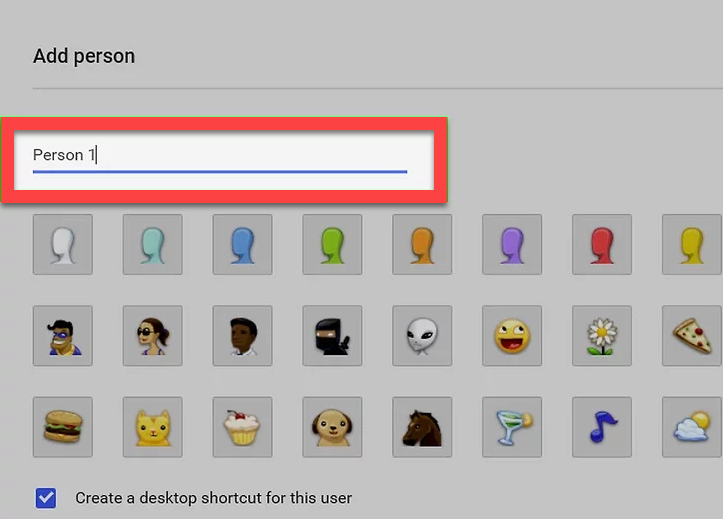
3. Add a new user and choose a name for the person.
Setting password for chrome 04 — How to protect Google Chrome with the password

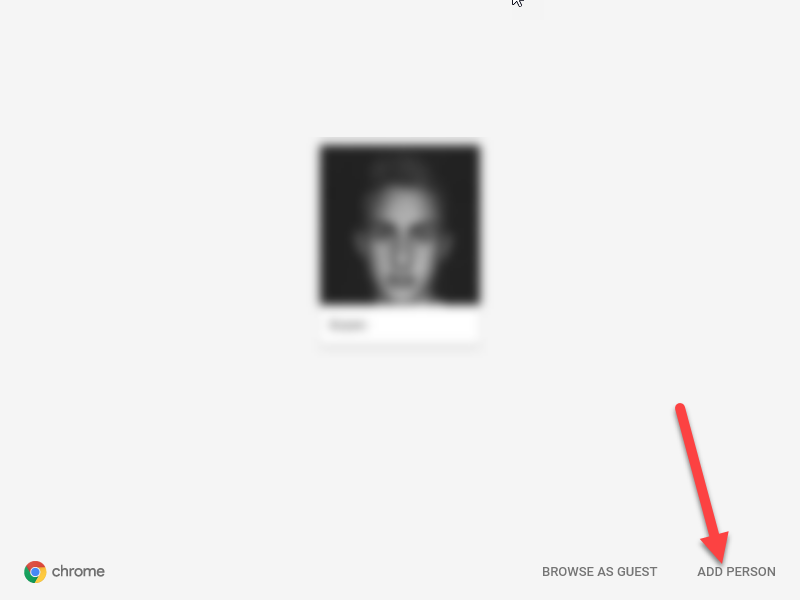
4. Click on ‘Supervise person’ and go through the process of login. *Do not use the account which you logged in previously.
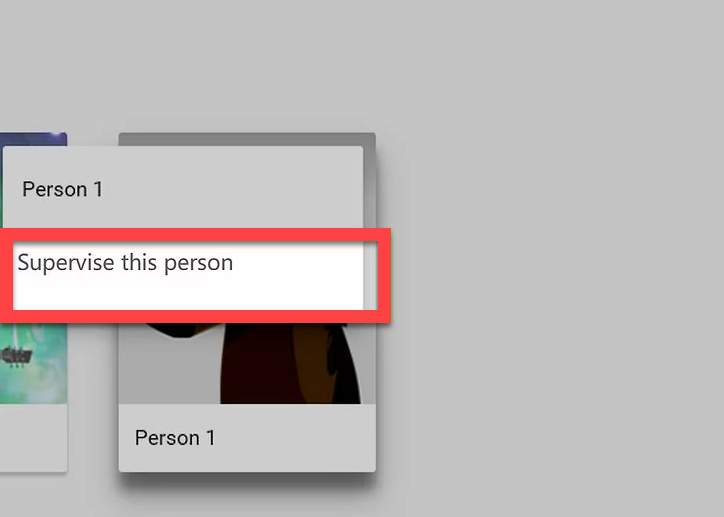
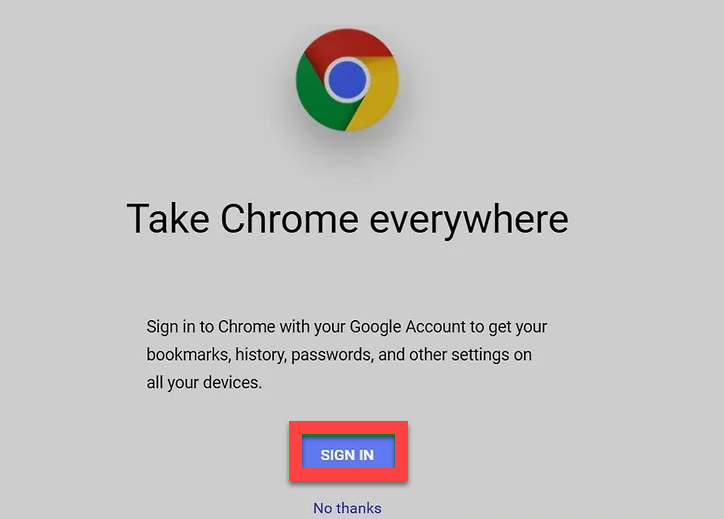
Setting password for chrome 05 — How to protect Google Chrome with the password

Setting password for chrome 06 — How to protect Google Chrome with the password

5. Click the ‘OK, I GOT IT’ but do not click ‘SWITCH TO *NAME*’. You do not want to use the supervise account yet.
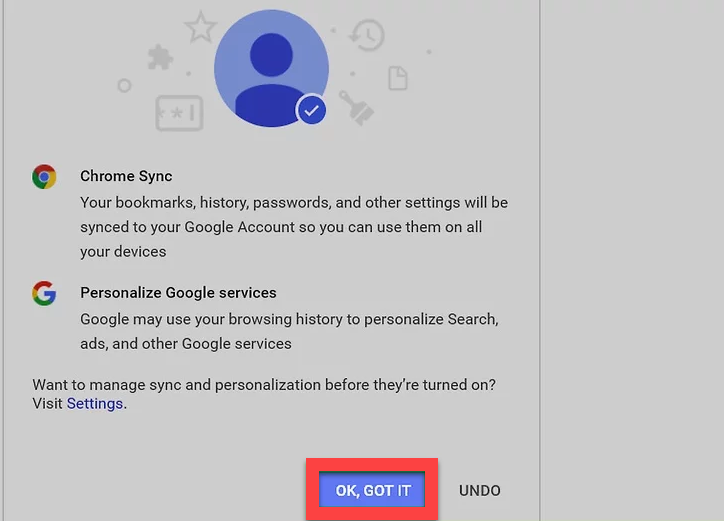


Setting password for chrome 07 — How to protect Google Chrome with the password

6. Click on your name again there will appear a drop-down window. There you should click on ‘Exit and child lock’. Such manipulation will close the Google Chrome window.
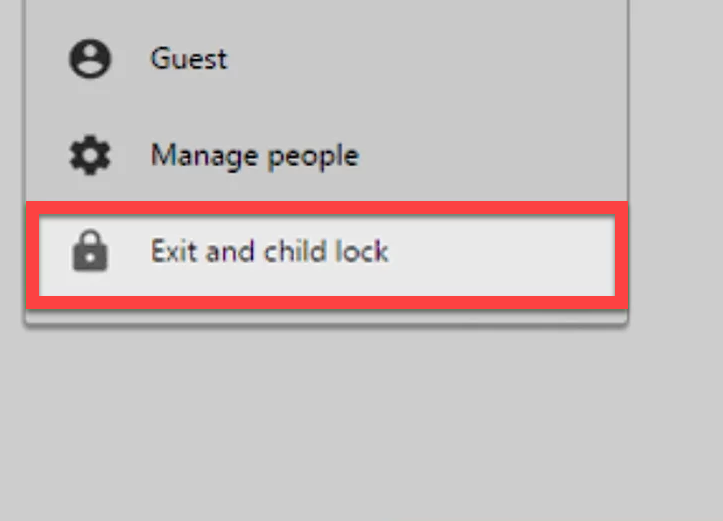
Setting password for chrome 08 — How to protect Google Chrome with the password

Such manipulation will close the Google Chrome window. The next time you when selecting your account, it will be obliged to enter the password. Thus, your profile with vital information is protected with the password.

Setting a password using an extension

The most inconvenient issue that happens after the previous manipulation is you need to block your account manually every time. If you want Chrome to block up automatically to complete the skin session of the robot, then in future you can extend LockWP. With a customized version, the browser will ask for a password when it is started. Follow the next steps to install and use LockWP in Google Chrome:

● Download and install the LockWP extension.

● Window with setting will appear automatically at the end of the installation. If this does not happen, open the settings manually from the browser menu -> Settings -> Security -> LockWP Settings.

● In the extension settings, check the box “Enable incognito mode”.

● Next, a window with instructions will open, allowing you to set a password, enable safe mode, limit the number of login attempts, etc.
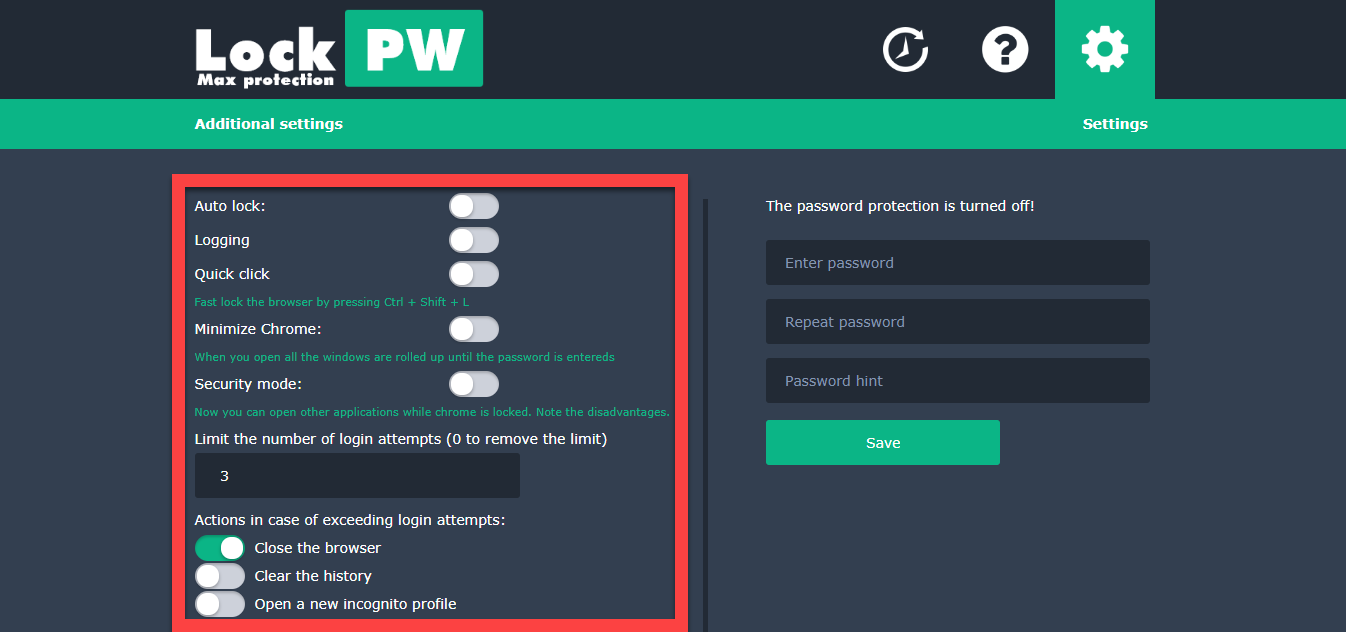
Setting password for chrome 09 — How to protect Google Chrome with the password


  • On June 27, 2018
  • 0 Comment

Leave Reply Cancel reply

Your email address will not be published. Required fields are marked *

Recent Posts
  • As Is: How Software Became the Only Product You Could Legally Sell Broken
  • The Production Incident Class Your Postmortem Template Doesn’t Have
  • Why Load Test Numbers Lie
  • When Config Became Executable: The Twenty-Year Pattern Behind Supply Chain Attacks
  • How Software Became a Medical Device
Categories
  • ai (8)
  • android (18)
  • apple (36)
  • chart (18)
  • cloud (1)
  • fix (42)
  • games (11)
  • google (31)
  • hardware (73)
  • healthcare (3)
  • how to (231)
  • internet (92)
  • ios (23)
  • macos (3)
  • microsoft (82)
  • mobile (36)
  • news (74)
  • optimization (17)
  • osx (4)
  • outsourcing (8)
  • qa (3)
  • regulation (7)
  • review (120)
  • security (39)
  • software (160)
  • windows (150)
Archives
  • August 2026
  • July 2026
  • June 2026
  • May 2026
  • August 2025
  • March 2025
  • February 2025
  • April 2023
  • March 2023
  • February 2023
  • January 2023
  • March 2022
  • January 2022
  • December 2021
  • November 2021
  • October 2021
  • September 2021
  • August 2021
  • July 2021
  • June 2021
  • May 2021
  • April 2021
  • March 2021
  • February 2021
  • January 2021
  • December 2020
  • November 2020
  • October 2020
  • September 2020
  • August 2020
  • July 2020
  • June 2020
  • May 2020
  • April 2020
  • March 2020
  • February 2020
  • January 2020
  • December 2019
  • November 2019
  • October 2019
  • September 2019
  • August 2019
  • April 2019
  • March 2019
  • February 2019
  • January 2019
  • December 2018
  • November 2018
  • October 2018
  • September 2018
  • June 2018
  • May 2018
  • April 2018
  • February 2018
  • January 2018
  • December 2017
  • November 2017
  • October 2017
  • June 2017
  • May 2017
  • April 2017
  • March 2017
  • February 2017
  • January 2017
  • December 2016
  • November 2016
  • October 2016
  • September 2016
  • August 2016
  • July 2016
  • June 2016
  • May 2016
  • April 2016
  • March 2016
  • February 2016
  • January 2016
  • December 2015
  • November 2015
  • October 2015
  • September 2015
  • July 2015
  • January 2015
Archives
  • August 2026
  • July 2026
  • June 2026
  • May 2026
  • August 2025
  • March 2025
  • February 2025
  • April 2023
  • March 2023
  • February 2023
  • January 2023
  • March 2022
  • January 2022
  • December 2021
  • November 2021
  • October 2021
  • September 2021
  • August 2021
  • July 2021
  • June 2021
  • May 2021
  • April 2021
  • March 2021
  • February 2021
  • January 2021
  • December 2020
  • November 2020
  • October 2020
  • September 2020
  • August 2020
  • July 2020
  • June 2020
  • May 2020
  • April 2020
  • March 2020
  • February 2020
  • January 2020
  • December 2019
  • November 2019
  • October 2019
  • September 2019
  • August 2019
  • April 2019
  • March 2019
  • February 2019
  • January 2019
  • December 2018
  • November 2018
  • October 2018
  • September 2018
  • June 2018
  • May 2018
  • April 2018
  • February 2018
  • January 2018
  • December 2017
  • November 2017
  • October 2017
  • June 2017
  • May 2017
  • April 2017
  • March 2017
  • February 2017
  • January 2017
  • December 2016
  • November 2016
  • October 2016
  • September 2016
  • August 2016
  • July 2016
  • June 2016
  • May 2016
  • April 2016
  • March 2016
  • February 2016
  • January 2016
  • December 2015
  • November 2015
  • October 2015
  • September 2015
  • July 2015
  • January 2015

How to make subtitles?

Previous thumb

How to check the connection to a certain port

Next thumb
Scroll

Services

  • Software Development
  • Quality Assurance
  • Customer Support
  • Managed Services
  • 24/7 Emergency IT Support
  • Competency Center
  • Local AI Agent Development
  • Software as a Medical Device

Compliance

  • Compliance Audit
  • GDPR Compliance
  • What is GDPR
  • ISO 9001:2015 Certification

Company

  • About Us
  • All Services
  • Projects
  • Case Studies
  • Articles
  • Contact
About HiTech Service

With 10 year experience of working together, we have reached tangible synergetic effect in performance and productivity, which results in highest quality services and satisfied clients.

Privacy Policy   Cookie Policy


  • Facebook
  • X
  • LinkedIn
CONTACT INFO
  • 900 Foulk Rd, Suite 201, Wilmington, DE, USA, 19803
  • Kudryavs’kyi descent 5b, Kyiv, Ukraine, 04053
  • +1 646.844.5712 (US)
ISO 9001:2015 certificate issued to HiTech Service LLC by Veritas
RIPE Atlas logo, the network measurement community HiTech Service takes part in
BrainBasket Foundation logo, IT education initiative HiTech Service supports
HiTech Service LLC membership badge of the Hi-Tech Office Ukraine association Dun & Bradstreet verified business badge for HiTech Service LLC
YouTeam partner badge for HiTech Service LLC
Hitech Service LLC

Copyright 2026