Have any questions? +1 646.844.5712 (US)

  • Facebook
  • LinkedIn
  • Twitter
HiTech ServiceHiTech Service
  • Home
  • About
  • Services
    • Software Development
    • Customer Support
    • Quality Assurance
    • Managed Services
    • Compliance Audit
    • GDPR Compliance
    • Competency Center
    • Emergency IT Support
    • Software as medical device
    • Local AI Agent Development
  • Projects
  • GDPR
  • Articles
  • Case Studies
  • Contact
Menu
  • Home
  • About
  • Services
    • Software Development
    • Customer Support
    • Quality Assurance
    • Managed Services
    • Compliance Audit
    • GDPR Compliance
    • Competency Center
    • Emergency IT Support
    • Software as medical device
    • Local AI Agent Development
  • Projects
  • GDPR
  • Articles
  • Case Studies
  • Contact
How to check the connection to a certain port

How to check the connection to a certain port

Windows 10 and Windows 8.1 now have an opportunity to check the connection to a certain port in a remote machine. You may think that a new software is available now and a user needs to go through the installation of third-party applications on a computer. However, your PC may sleep well because Windows uses its own safe utility PowerShell.


Let’s go through the ‘how to’ scenario step by step.

  1. Open Windows PowerShell using administrator’s rights
  2. Its own cmdlet, Test-NetConnection, will be used to perform the operation. It has the following script Test-NetConnection -ComputerName COMPUTER_NAME -Port PORT_NUMBER.
  3. Replace the COMPUTER_NAME portion with the actual PC name or IP address – you can use the public Google DNS server, which is 8.8.8.8. Also, replace PORT_NUMBER with the number of the port you want to check – let’s say it would be 53

    Here is what we get:
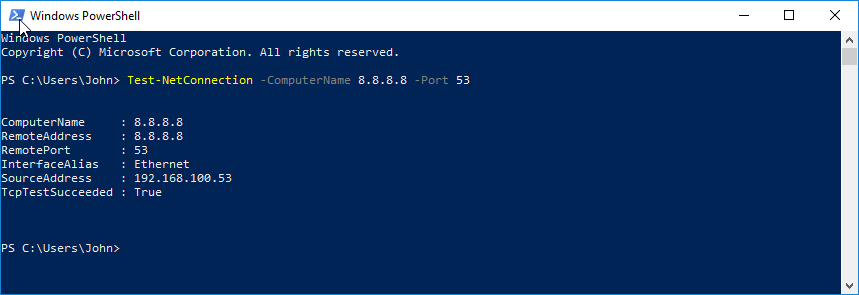
    How to check open port on windows 10 — How to check the connection to a certain port

  4. Line with TcpTestSucceeded: True indicates that the connection was successful and the port is open.
  5. When you try to connect to the port which is closed and does not receive incoming connections, you will see such a situation.
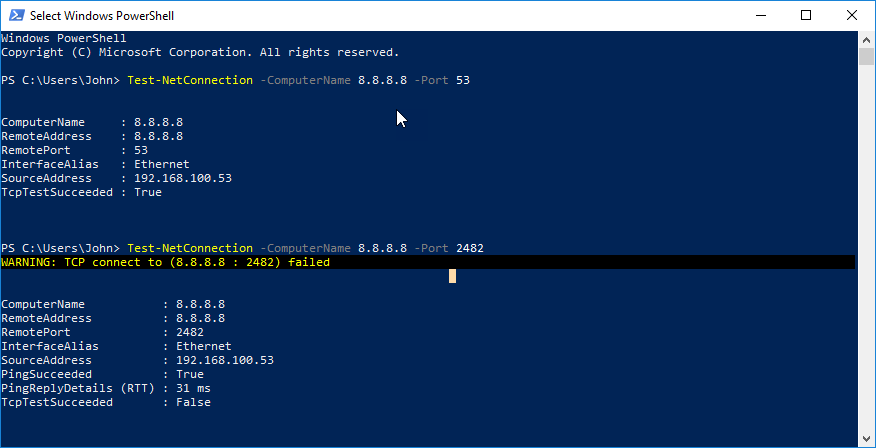
    How to check open port on windows 10 2 — How to check the connection to a certain port
  6. Line with TcpTestSucceeded: False indicates that the connection was failed but it shows that the server is alive. We can see that PowerShell ping it when looking at ‘PingSucceeded : True’ and ‘PingReplyDetails (RTT): 48 ms’.

Sometimes you may face servers that show the following information TcpTestSucceeded is True but PingSucceeded is False. Such situation happens when Internet Control Message Protocol is not active on the server but the port you have checked is open and receives incoming connections.

So, that is all. Windows PowerShell allows you to check the connection a certain port without installing different third parties. You just need to use its own Test-NetConnection cmdlet.

Keep in touch!


  • On September 20, 2018
  • 0 Comment

Leave Reply Cancel reply

Your email address will not be published. Required fields are marked *

Recent Posts
  • Managed IT Services vs. In-House IT: What Should You Choose?
  • When the Model Is the Vendor: What Happens to Compliance When You Don’t Own the Weights
  • The Edge Device Is the Perimeter: Why the Box You Bought to Keep Them Out Is How They Get In
  • The Password Memo Was Honest. The Checklist Wasn’t.
  • As Is: How Software Became the Only Product You Could Legally Sell Broken
Categories
  • ai (9)
  • android (18)
  • apple (36)
  • chart (18)
  • cloud (1)
  • fix (42)
  • games (11)
  • google (31)
  • hardware (73)
  • healthcare (3)
  • how to (231)
  • internet (92)
  • ios (23)
  • macos (3)
  • microsoft (82)
  • mobile (36)
  • news (74)
  • optimization (17)
  • osx (4)
  • outsourcing (9)
  • qa (3)
  • regulation (8)
  • review (120)
  • security (41)
  • software (160)
  • windows (150)
Archives
  • September 2026
  • August 2026
  • July 2026
  • June 2026
  • May 2026
  • August 2025
  • March 2025
  • February 2025
  • April 2023
  • March 2023
  • February 2023
  • January 2023
  • March 2022
  • January 2022
  • December 2021
  • November 2021
  • October 2021
  • September 2021
  • August 2021
  • July 2021
  • June 2021
  • May 2021
  • April 2021
  • March 2021
  • February 2021
  • January 2021
  • December 2020
  • November 2020
  • October 2020
  • September 2020
  • August 2020
  • July 2020
  • June 2020
  • May 2020
  • April 2020
  • March 2020
  • February 2020
  • January 2020
  • December 2019
  • November 2019
  • October 2019
  • September 2019
  • August 2019
  • April 2019
  • March 2019
  • February 2019
  • January 2019
  • December 2018
  • November 2018
  • October 2018
  • September 2018
  • June 2018
  • May 2018
  • April 2018
  • February 2018
  • January 2018
  • December 2017
  • November 2017
  • October 2017
  • June 2017
  • May 2017
  • April 2017
  • March 2017
  • February 2017
  • January 2017
  • December 2016
  • November 2016
  • October 2016
  • September 2016
  • August 2016
  • July 2016
  • June 2016
  • May 2016
  • April 2016
  • March 2016
  • February 2016
  • January 2016
  • December 2015
  • November 2015
  • October 2015
  • September 2015
  • July 2015
  • January 2015
Archives
  • September 2026
  • August 2026
  • July 2026
  • June 2026
  • May 2026
  • August 2025
  • March 2025
  • February 2025
  • April 2023
  • March 2023
  • February 2023
  • January 2023
  • March 2022
  • January 2022
  • December 2021
  • November 2021
  • October 2021
  • September 2021
  • August 2021
  • July 2021
  • June 2021
  • May 2021
  • April 2021
  • March 2021
  • February 2021
  • January 2021
  • December 2020
  • November 2020
  • October 2020
  • September 2020
  • August 2020
  • July 2020
  • June 2020
  • May 2020
  • April 2020
  • March 2020
  • February 2020
  • January 2020
  • December 2019
  • November 2019
  • October 2019
  • September 2019
  • August 2019
  • April 2019
  • March 2019
  • February 2019
  • January 2019
  • December 2018
  • November 2018
  • October 2018
  • September 2018
  • June 2018
  • May 2018
  • April 2018
  • February 2018
  • January 2018
  • December 2017
  • November 2017
  • October 2017
  • June 2017
  • May 2017
  • April 2017
  • March 2017
  • February 2017
  • January 2017
  • December 2016
  • November 2016
  • October 2016
  • September 2016
  • August 2016
  • July 2016
  • June 2016
  • May 2016
  • April 2016
  • March 2016
  • February 2016
  • January 2016
  • December 2015
  • November 2015
  • October 2015
  • September 2015
  • July 2015
  • January 2015

How to protect Google Chrome with the password

Previous thumb

Top posts across Facebook - how to disable

Next thumb
Scroll

Services

  • Software Development
  • Quality Assurance
  • Customer Support
  • Managed Services
  • 24/7 Emergency IT Support
  • Competency Center
  • Local AI Agent Development
  • Software as a Medical Device

Compliance

  • Compliance Audit
  • GDPR Compliance
  • What is GDPR
  • ISO 9001:2015 Certification

Company

  • About Us
  • All Services
  • Projects
  • Case Studies
  • Articles
  • Contact
About HiTech Service

With 10 year experience of working together, we have reached tangible synergetic effect in performance and productivity, which results in highest quality services and satisfied clients.

Privacy Policy   Cookie Policy


  • Facebook
  • X
  • LinkedIn
CONTACT INFO
  • 900 Foulk Rd, Suite 201, Wilmington, DE, USA, 19803
  • Kudryavs’kyi descent 5b, Kyiv, Ukraine, 04053
  • +1 646.844.5712 (US)
ISO 9001:2015 certificate issued to HiTech Service LLC by Veritas
RIPE Atlas logo, the network measurement community HiTech Service takes part in
BrainBasket Foundation logo, IT education initiative HiTech Service supports
HiTech Service LLC membership badge of the Hi-Tech Office Ukraine association Dun & Bradstreet verified business badge for HiTech Service LLC
YouTeam partner badge for HiTech Service LLC
Hitech Service LLC

Copyright 2026