
BitTorrent is a communications protocol of peer-to-peer file sharing which is very popular among internet users. Its main benefit is high speed of data transfer, since the file is being downloaded not from one server, but from multiple computers and every user, who has already downloaded the file. One of the most popular BitTottent clients (a program to download\upload p2p files) is uTorrent, however multiple Windows 10 users lately report many issues with this program due to changes in Windows 10 security settings. One of the most annoying issues is “Error access is denied (Write to disk)” message while trying to download a file using uTorrent.

You can find users complaining about this error message on multiple forums, though on every forum you can find a simple answer – just run UTorrent as administrator and download will start.
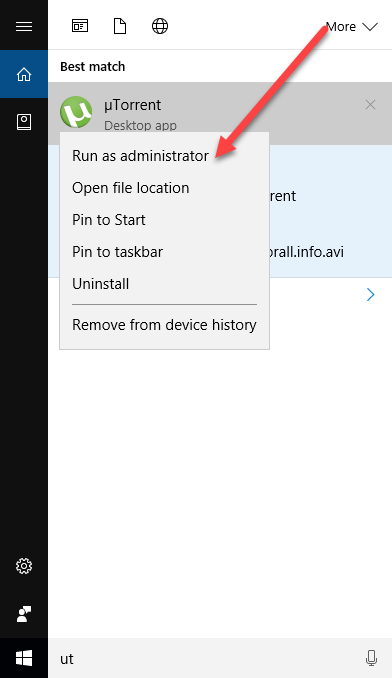
Well, that’s true, the problem will be solver for this time, however when you try to download another file by double clicking on torrent file you will get another error message.
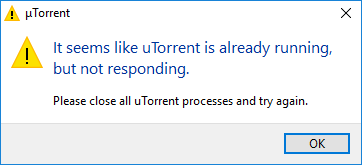
It seems like uTorrent is already running but not responding in Windows 10.
The workaround is simple – you can add the torrent file to the client manually.
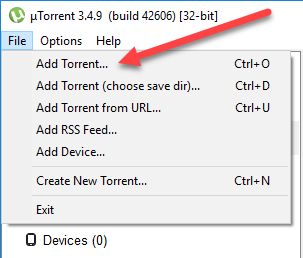
It’s not as convenient as a simple double click on the file, but still helps.
For me these workarounds are very doubtful and inconvenient, since every time I forget to run uTorrent as administrator and I’m too lazy to add a torrent file manually since I have to find it in my crowded Downloads folder. As it turns out it takes only 5 minutes to fix these problems once and for always.
How to fix?
To fix the problem you need to make uTorrent run “as administrator” by default at all times. But that’s not all, there is one extra step you need to take.
Hit Windows button and start typing uTorrent.
Right click on the icon and choose Open file location.
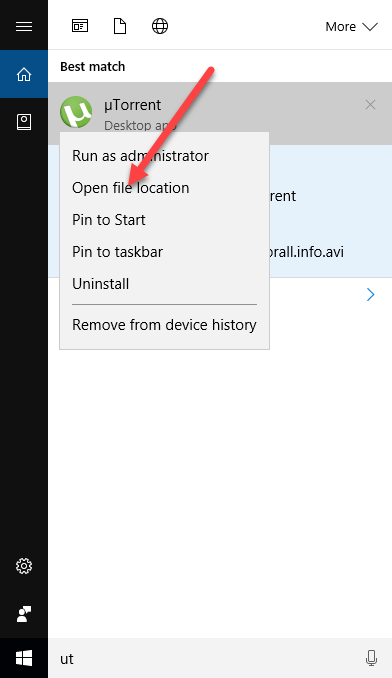
Right click on the uTorrent icon in the opened folder and go to properties.
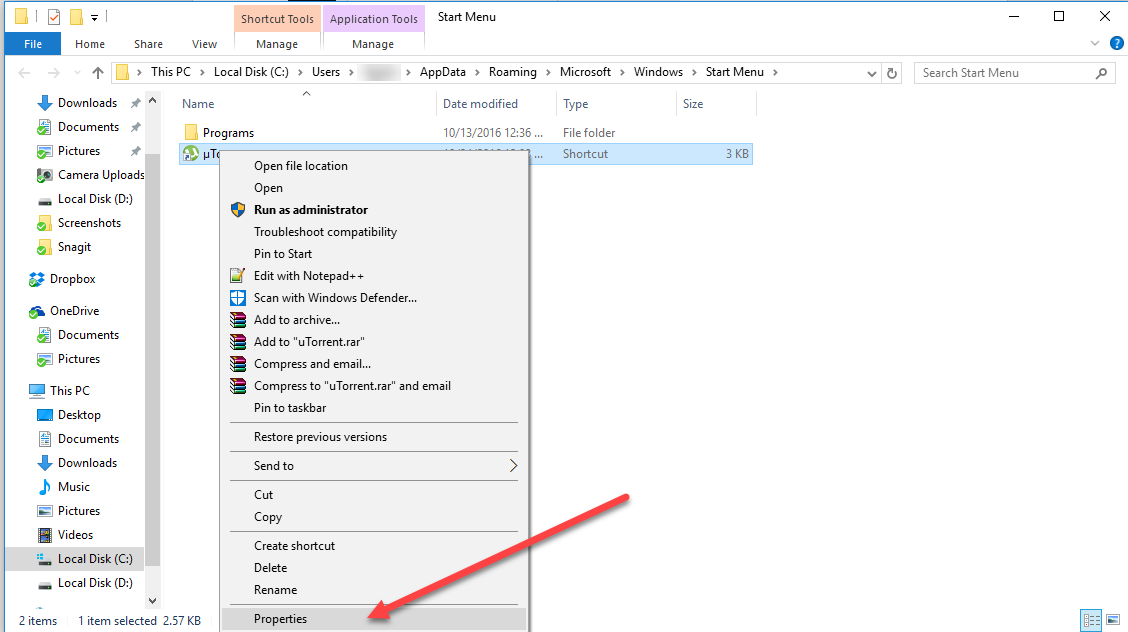
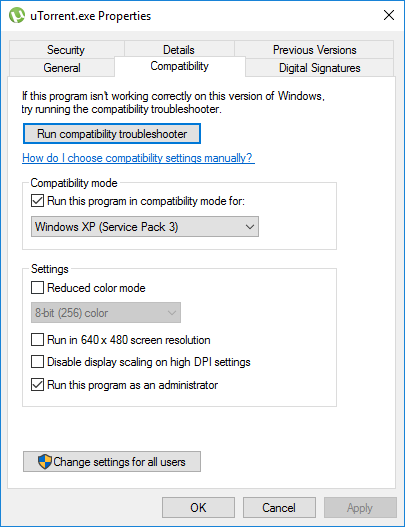
In properties, navigate to Compatibility tab, set “Run this program in compatibility mode for” and select “Windows XP Service Pack 3” in the dropdown menu.
Scroll lower and put the checkmark next to “Run this program as Administrator.”
In other words, make sure you have everything like on the screenshot below.
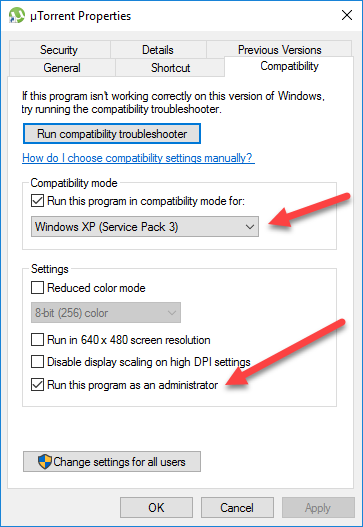
Now hit Apply and Ok button and go back to the uTorrent icon. Right click on it again and click on Open file location.
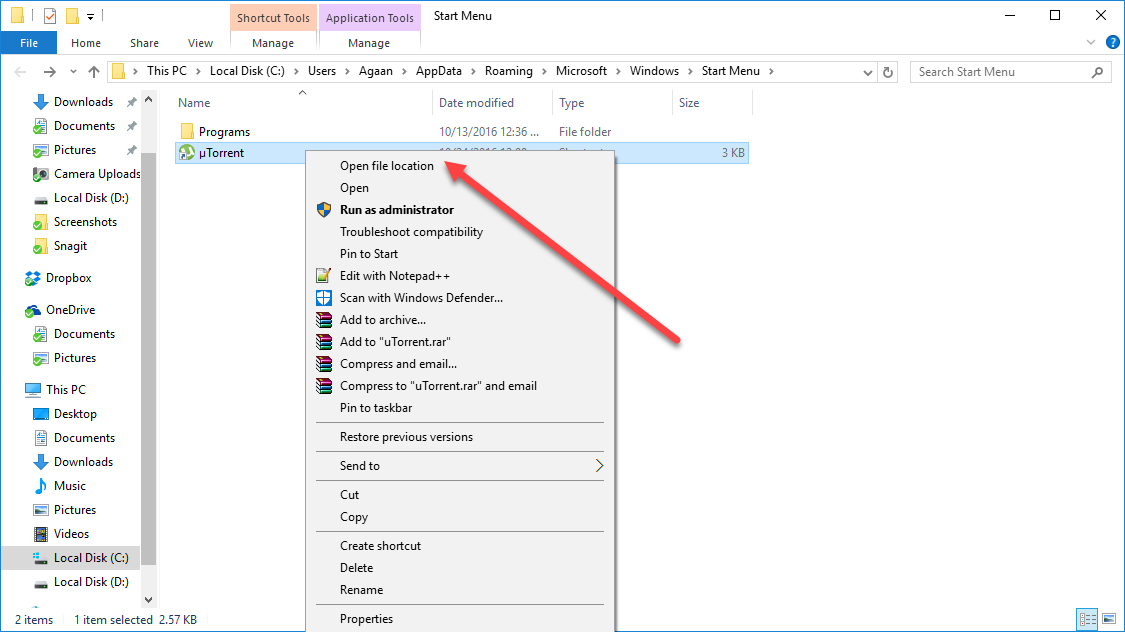
Find uTorrent.exe file, right click on it and choose Properties again.
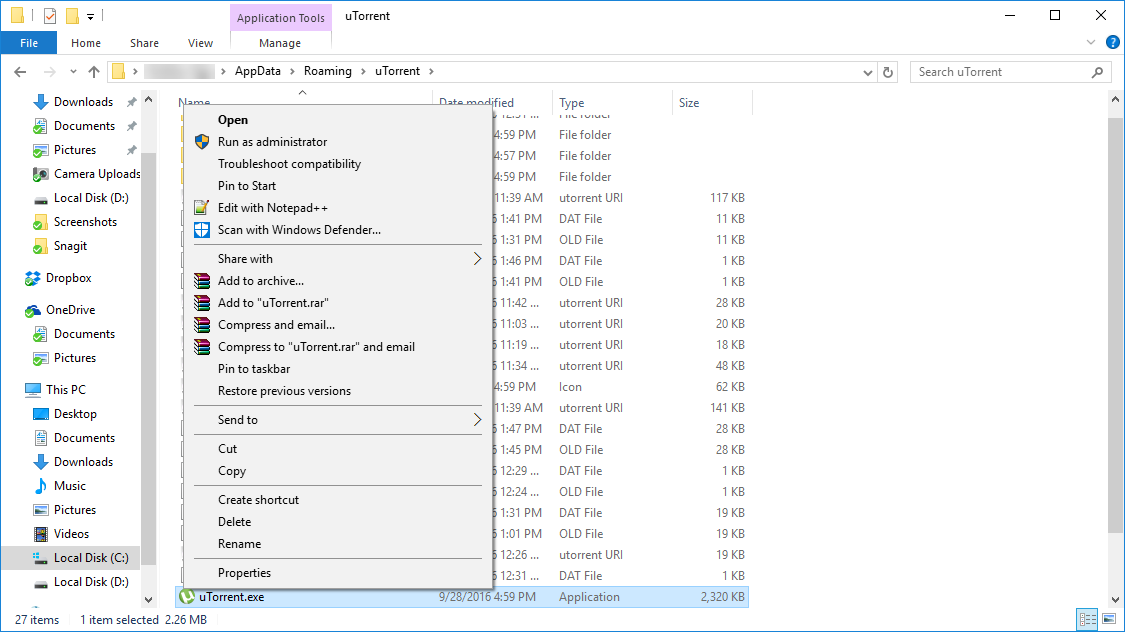
Navigate to Compatibility tab again.
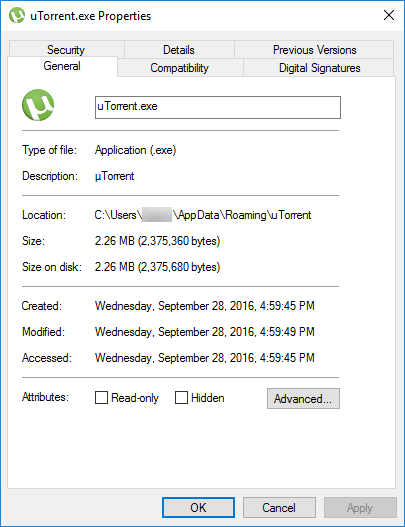
Repeat the changes like we did with icon and save them.
You might think that doing changes to exe file is enough and the step with changing the icon can be skipped, but it turned out that we need to change both – exe file and icon, since the application is launched by Windows 10 in different ways.
Now, double click on uTorrent icon and you will see that everything is working now.
We hope that these simple steps will help you, but if you need any additional assistance with this or any other computer related issue feel free to contact our User Support department to get immediate remote help.