Spotify is a Swedish music, podcast, and video streaming service that provides digital rights management–protected content from record labels and media companies. It is available in most of the Americas, Europe, and some countries in Asia and Oceania. Music can be browsed or searched in player by artist, album, genre, playlist, and record label.
There is an issue that appears time to time on Spotify.com. After login to your Spotify account you would get an error message that says “To enjoy Spotify, please install Adobe Flash. It’s free”.

The issue causes only left panel load successfully, and rest is empty. As Spotify is using Flash technology to run their player that is 80% of the interface. Years ago flash technology was acknowledged as not secure. As a result, any browser or policies update can cause Spotify player to be automatically blocked.
You can click on button Get Flash on an error message to make sure that you have the latest version of Flash Player.

On the next screen check what version is offered for download.

Afterward, go to Control Panel. Look for Flash player and launch it.

In Flash Player Settings Manager go to Updates tab and check for current version.
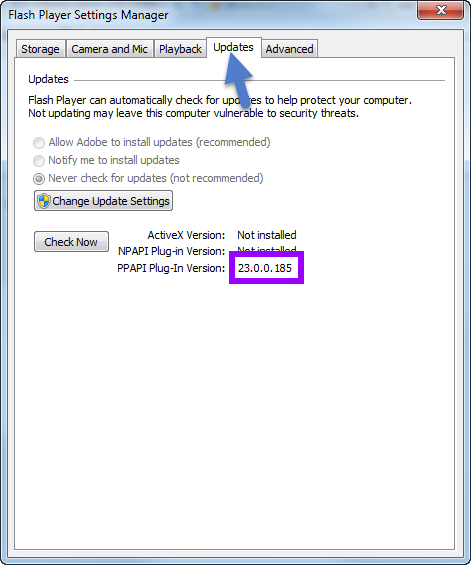
If the version does not match, proceed with the update. If after update issue still appears to check in your Google Chrome. Navigate to Spotify and look on the right end of the address bar. You may notice a small puzzle icon there. This icon notifies you that there is a particular plugin working or trying at least to do that on the page.

By clicking that plugin icon, you can check for the notifications from the plugin and see what actions can be applied to it. In our case with Spotify, we can see that Google Chrome is simply clocking Flash Player on the page.

Thankfully Chrome allows us to change that and allow the plugin to launch. Simply choose “Always allow plugins on https://play.spotify.com”.

After you save the changes, just refresh the page, and it will be displayed the way it should.

A similar issue may appear on other browsers. On Opera and IE, it can be fixed by a pretty similar way to how we did it on Chrome. But with Firefox it is entirely different and most likely will require too much of effort, so it will be easier to run Spotify with a different browser.