Have any questions? +1 646.844.5712 (US)

  • Facebook
  • LinkedIn
  • Twitter
HiTech ServiceHiTech Service
  • Home
  • About
  • Services
    • Software Development
    • Customer Support
    • Quality Assurance
    • Managed Services
    • Compliance Audit
    • GDPR Compliance
    • Competency Center
    • Emergency IT Support
    • Software as medical device
    • Local AI Agent Development
  • Projects
  • GDPR
  • Articles
  • Case Studies
  • Contact
Menu
  • Home
  • About
  • Services
    • Software Development
    • Customer Support
    • Quality Assurance
    • Managed Services
    • Compliance Audit
    • GDPR Compliance
    • Competency Center
    • Emergency IT Support
    • Software as medical device
    • Local AI Agent Development
  • Projects
  • GDPR
  • Articles
  • Case Studies
  • Contact
Start menu is not working in Windows 10

Start menu is not working in Windows 10

One of the old Windows 10 issues but still widely spread is a problem with Start menu that stops working out of a sudden. So in case you are a Windows 10 user and this morning your Start menu stopped working, be ready to spend some time fixing it (Or contact our support line).


The main reason for this problem is the system files corruption, but what caused it and how you can fix it – is the question of the day.

For example, the reason may be in some third party app that you used to change the Start button design. Or even if you haven’t installed anything like this in Win 10, but upgraded your Windows 8.1 where you had similar app – the problem could be inherited in from your old OS.

Having several possible causes – the problem has several possible resolutions, some of them are simple and you don’t risk anything trying those, others might result in losing your data.

So as usual, HiTech Service support team recommends – have all your data backed up.

Now, when your data is safe let’s go through some possible solutions:

1. Repair your system files.

We already offered this way of fix in one of our previous articles where we were trying to fix the Edge browser. This method is versatile for all the problems related to the system files corruption. So here is a recap how to make your Windows scan the system and repair the files.

To do this, you will need to run Command Prompt as an administrator (just right click on it’s icon and click on Run as Administrator).
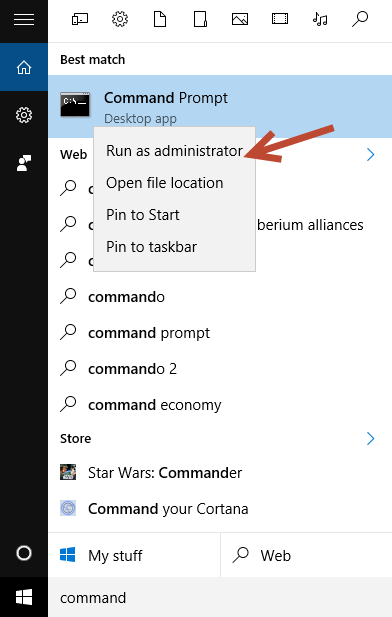
Start menu is not working in Windows 10 02 — Start menu is not working in Windows 10

In command prompt type: “sfc /scannow” and hit enter.
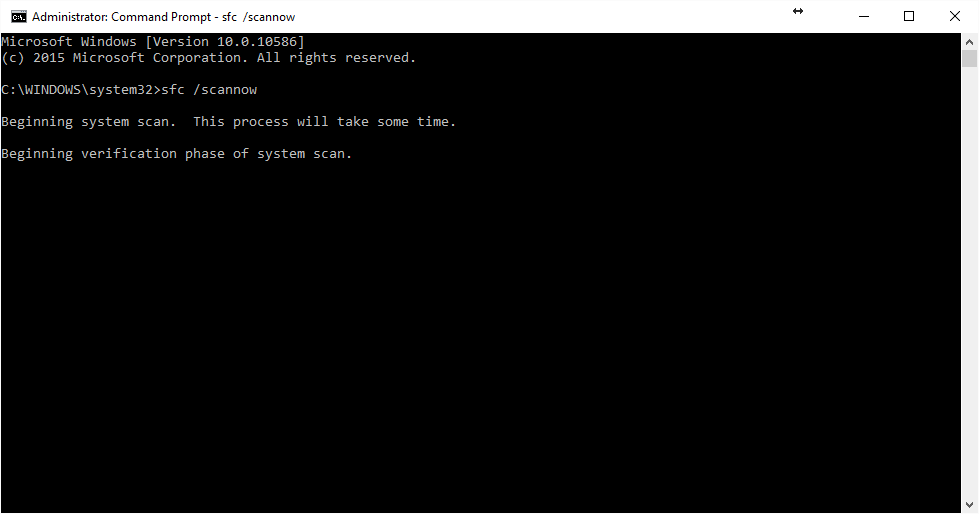
Start menu is not working in Windows 10 03 — Start menu is not working in Windows 10

If some errors are found, system will fix the problem and everything will be working fine once you restart the computer.

2. Applocker files removal.


This is another way to fix the problem using the Command Prompt, and don’t forget to run it as an Admin.

But this time type the following command and hit enter.

ren %windir%\System32\AppLocker\Plugin*.* *.bak

Once done, restart your computer (AGAIN) and check if it helped.

3. PowerShell command.

Well, this one is tricky and we would recommend to use it only if the previous methods didn’t help.

You will need to run PowerShell and execute the following command. Get-AppXPackage -AllUsers | Foreach {Add-AppxPackage -DisableDevelopmentMode -Register “$($_.InstallLocation)\AppXManifest.xml”}

Note: This method, however will not require restarting your computer, so you can test right away if it helped.

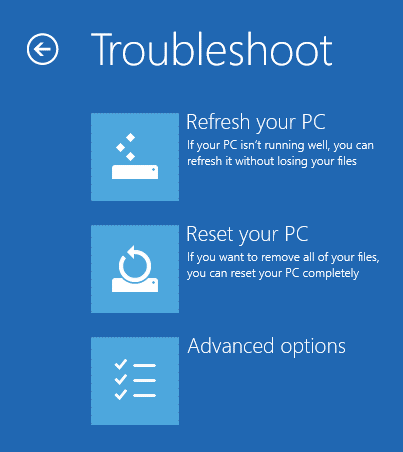
4. Refresh Windows 10 through troubleshooting menu.

You will need to access Recovery menu of Windows 10 using either installation flash-drive\DVD or hold Shift key while choosing restart option in Windows (Windows+X, hold Shift, Restart.)

When Recovery menu is launched, select Troubleshoot – Refresh your PC.

The problem of this method is that all your applications will be removed from the system, you will have a newly installed Windows 10 with only your documents and photos untouched.

That’s why this method is the last one that  we recommend.
Start menu is not working in Windows 10 04 — Start menu is not working in Windows 10


  • On March 14, 2016
  • 0 Comment

Leave Reply Cancel reply

Your email address will not be published. Required fields are marked *

Recent Posts
  • How AI and Automation Are Changing IT Service Delivery
  • Managed IT Services vs. In-House IT: What Should You Choose?
  • When the Model Is the Vendor: What Happens to Compliance When You Don’t Own the Weights
  • The Edge Device Is the Perimeter: Why the Box You Bought to Keep Them Out Is How They Get In
  • The Password Memo Was Honest. The Checklist Wasn’t.
Categories
  • ai (10)
  • android (18)
  • apple (36)
  • chart (18)
  • cloud (1)
  • fix (42)
  • games (11)
  • google (31)
  • hardware (73)
  • healthcare (3)
  • how to (231)
  • internet (92)
  • ios (23)
  • macos (3)
  • microsoft (82)
  • mobile (36)
  • news (74)
  • optimization (17)
  • osx (4)
  • outsourcing (9)
  • qa (3)
  • regulation (8)
  • review (120)
  • security (41)
  • software (160)
  • windows (150)
Archives
  • September 2026
  • August 2026
  • July 2026
  • June 2026
  • May 2026
  • August 2025
  • March 2025
  • February 2025
  • April 2023
  • March 2023
  • February 2023
  • January 2023
  • March 2022
  • January 2022
  • December 2021
  • November 2021
  • October 2021
  • September 2021
  • August 2021
  • July 2021
  • June 2021
  • May 2021
  • April 2021
  • March 2021
  • February 2021
  • January 2021
  • December 2020
  • November 2020
  • October 2020
  • September 2020
  • August 2020
  • July 2020
  • June 2020
  • May 2020
  • April 2020
  • March 2020
  • February 2020
  • January 2020
  • December 2019
  • November 2019
  • October 2019
  • September 2019
  • August 2019
  • April 2019
  • March 2019
  • February 2019
  • January 2019
  • December 2018
  • November 2018
  • October 2018
  • September 2018
  • June 2018
  • May 2018
  • April 2018
  • February 2018
  • January 2018
  • December 2017
  • November 2017
  • October 2017
  • June 2017
  • May 2017
  • April 2017
  • March 2017
  • February 2017
  • January 2017
  • December 2016
  • November 2016
  • October 2016
  • September 2016
  • August 2016
  • July 2016
  • June 2016
  • May 2016
  • April 2016
  • March 2016
  • February 2016
  • January 2016
  • December 2015
  • November 2015
  • October 2015
  • September 2015
  • July 2015
  • January 2015
Archives
  • September 2026
  • August 2026
  • July 2026
  • June 2026
  • May 2026
  • August 2025
  • March 2025
  • February 2025
  • April 2023
  • March 2023
  • February 2023
  • January 2023
  • March 2022
  • January 2022
  • December 2021
  • November 2021
  • October 2021
  • September 2021
  • August 2021
  • July 2021
  • June 2021
  • May 2021
  • April 2021
  • March 2021
  • February 2021
  • January 2021
  • December 2020
  • November 2020
  • October 2020
  • September 2020
  • August 2020
  • July 2020
  • June 2020
  • May 2020
  • April 2020
  • March 2020
  • February 2020
  • January 2020
  • December 2019
  • November 2019
  • October 2019
  • September 2019
  • August 2019
  • April 2019
  • March 2019
  • February 2019
  • January 2019
  • December 2018
  • November 2018
  • October 2018
  • September 2018
  • June 2018
  • May 2018
  • April 2018
  • February 2018
  • January 2018
  • December 2017
  • November 2017
  • October 2017
  • June 2017
  • May 2017
  • April 2017
  • March 2017
  • February 2017
  • January 2017
  • December 2016
  • November 2016
  • October 2016
  • September 2016
  • August 2016
  • July 2016
  • June 2016
  • May 2016
  • April 2016
  • March 2016
  • February 2016
  • January 2016
  • December 2015
  • November 2015
  • October 2015
  • September 2015
  • July 2015
  • January 2015

Why and how to disable locations services on iPhone?

Previous thumb

How to combine lots of pictures into one video file?

Next thumb
Scroll

Services

  • Software Development
  • Quality Assurance
  • Customer Support
  • Managed Services
  • 24/7 Emergency IT Support
  • Competency Center
  • Local AI Agent Development
  • Software as a Medical Device

Compliance

  • Compliance Audit
  • GDPR Compliance
  • What is GDPR
  • ISO 9001:2015 Certification

Company

  • About Us
  • All Services
  • Projects
  • Case Studies
  • Articles
  • Contact
About HiTech Service

With 10 year experience of working together, we have reached tangible synergetic effect in performance and productivity, which results in highest quality services and satisfied clients.

Privacy Policy   Cookie Policy


  • Facebook
  • X
  • LinkedIn
CONTACT INFO
  • 900 Foulk Rd, Suite 201, Wilmington, DE, USA, 19803
  • Kudryavs’kyi descent 5b, Kyiv, Ukraine, 04053
  • +1 646.844.5712 (US)
ISO 9001:2015 certificate issued to HiTech Service LLC by Veritas
RIPE Atlas logo, the network measurement community HiTech Service takes part in
BrainBasket Foundation logo, IT education initiative HiTech Service supports
HiTech Service LLC membership badge of the Hi-Tech Office Ukraine association Dun & Bradstreet verified business badge for HiTech Service LLC
YouTeam partner badge for HiTech Service LLC
Hitech Service LLC

Copyright 2026