Let;s say you have a computer issue so critical, that the only choice is to reinstall Windows. Or else, you have a brand new computer with no OS pre-installed on it, but you don’t have a disk with Windows or CD\DVD-drive at all. How to install Windows in this case? You can use USB drive.
Today we will talk about how to install Windows from USB and how to prepare your USB drive for Windows installation.
We will take Windows 10 installation as an example, as this process is almost fully automated and you don’t need to download Windows manually from anywhere, all you need is to have USB drive with 4GB or more and another computer with Internet connection available.
In case with Windows 7, you would need to download the installation package manually and then, using a special tool prepare your USB drive for installation.
The thing is, that you need to make USB bootable, otherwise you will not be able to start the installation.
You can go to Microsoft web store and download the special tool that will make USB bootable and copy Windows 10 installation package properly.
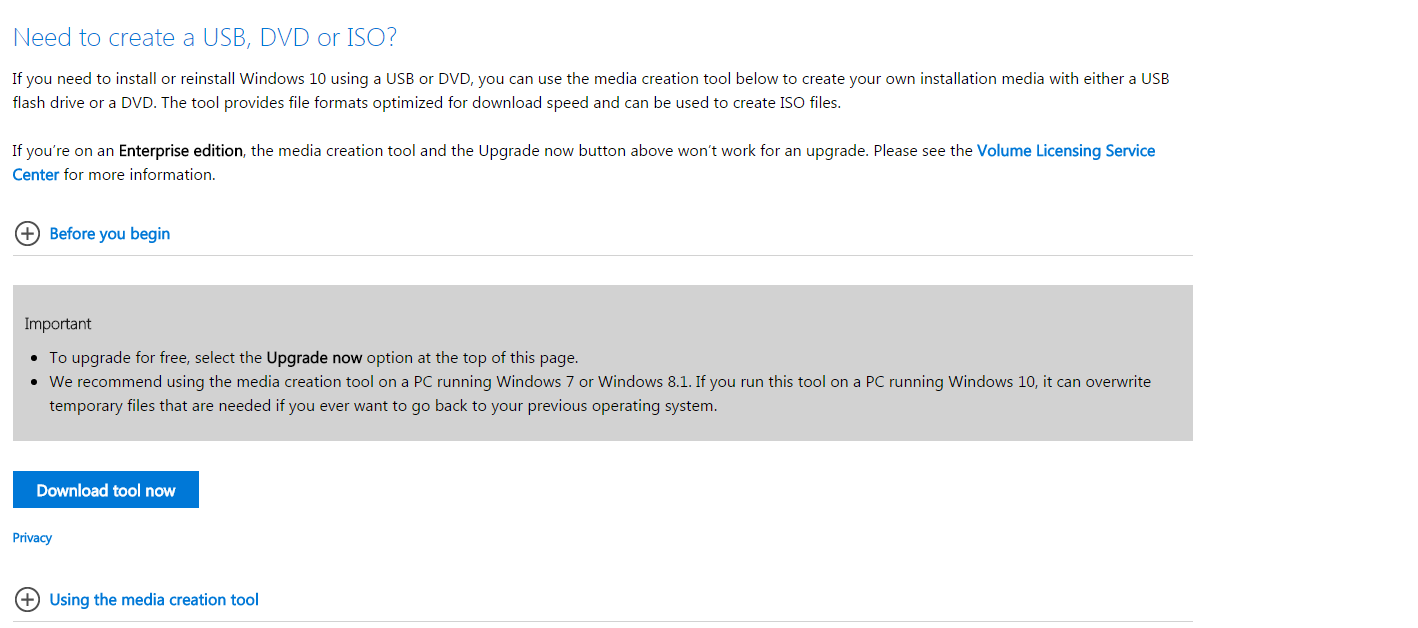
Once Media Creation Tool is downloaded, run it.
You will have to read and accept License Terms.
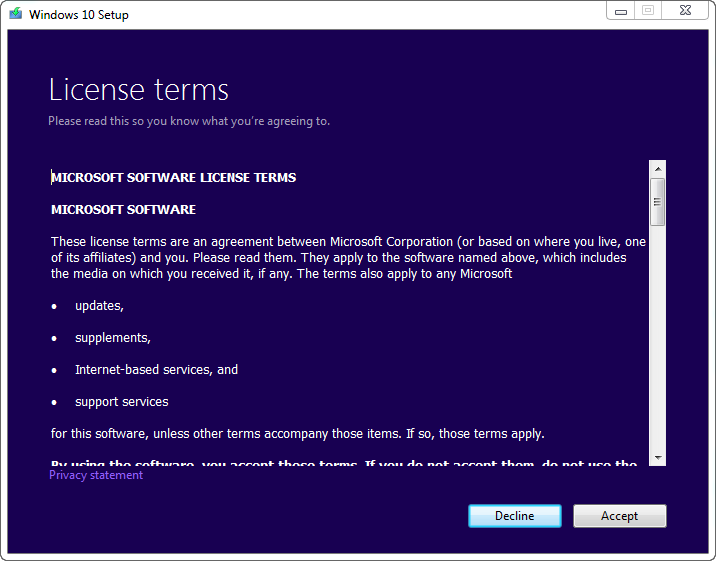
Once done, you will have two options – Upgrade this PC or Create installation media for another PC.
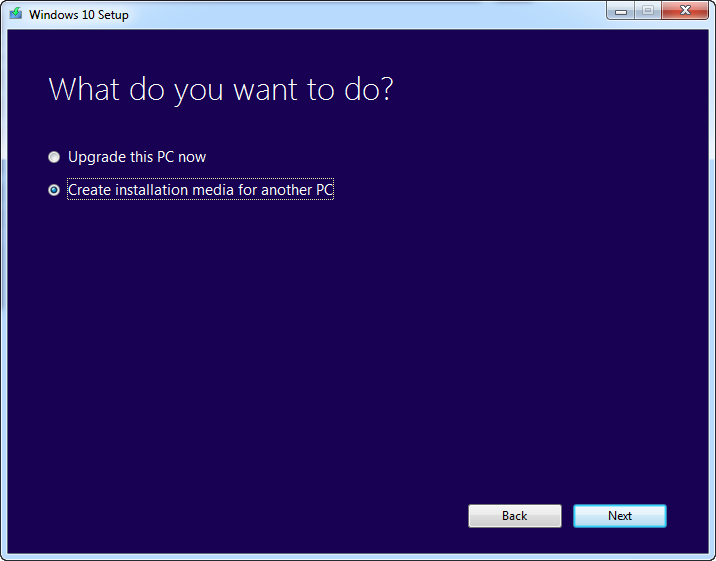
Choose the second option and hit Next button.
The tool will offer you to choose Windows edition, make sure that you select proper version, especially don’t forget about 32 bit or 64 bit version selection.
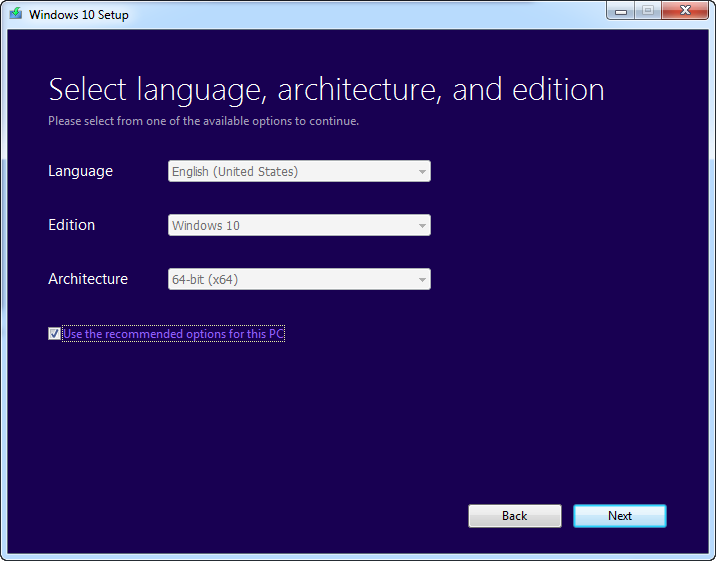
Hit next button and proceed with creation of image.
Since we are talking about installation from USB, choose the first option.
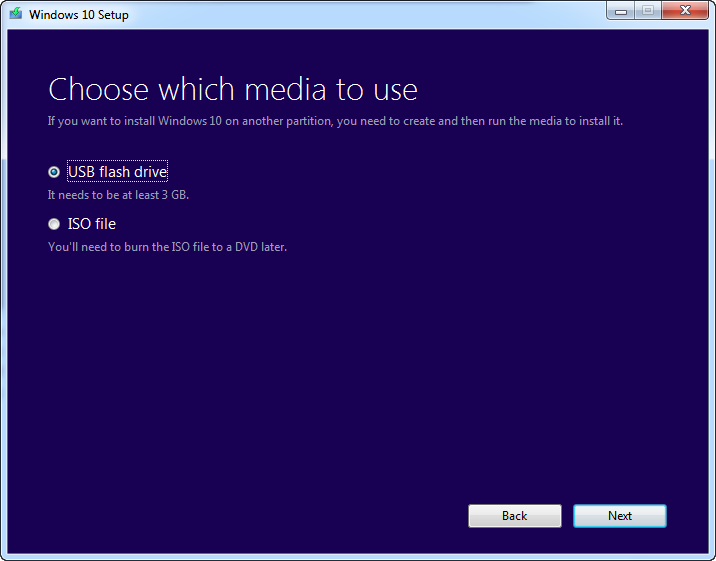
Hit Next and choose the USB flash-drive from the list of devices. (As you understand USB drive should already be plugged in).
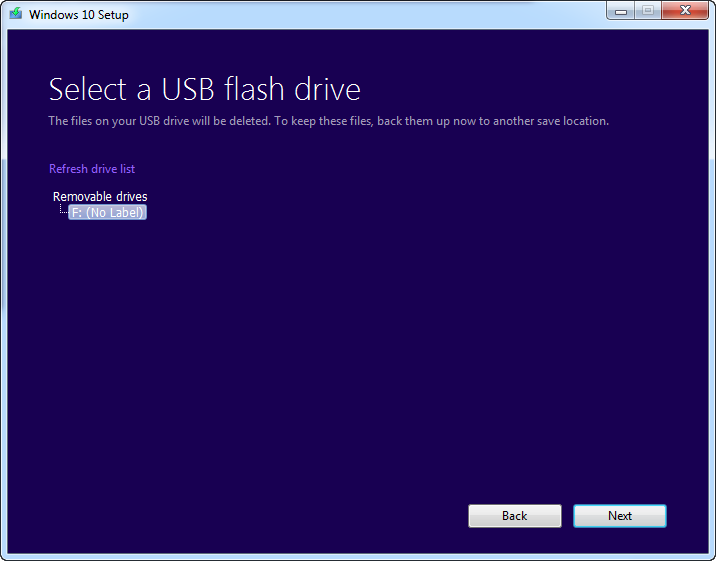
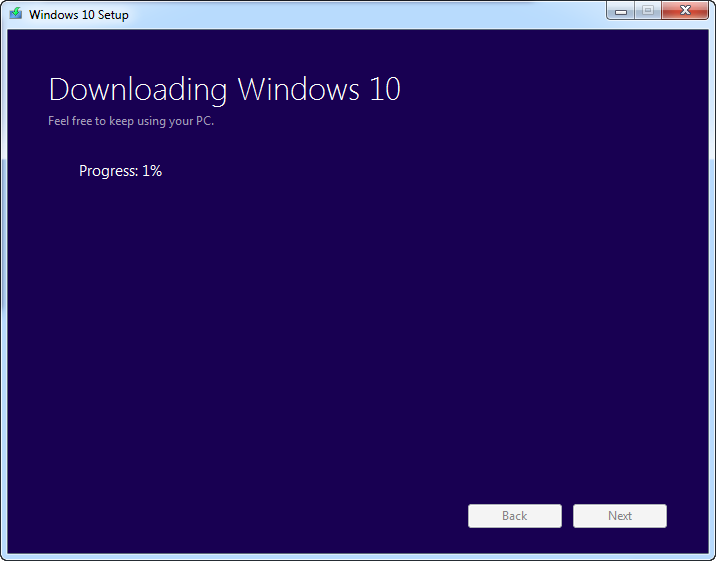
Hit Next. Now all you need to do is wait till system finishes Windows download.
Pretty simple.