Hey-hello! When buying my latest laptop, I thought I would be using it only for my work, which is why I chose the 128GB version. Actually, that is more than enough for me, but I am the person who cleans his desktop once in a blue moon.
Thus, my SSD asks me for some fresh air regularly, and I found a solution! If you need quickly free some space on your PC or laptop, you can delete memory dump files. They are safe to delete, and there will be no consequences.
What are memory dump files? These files can help diagnose the problem, but they take up disk space, which can be critical, especially in the case of small SSDs.
Manually Deleting Files from Their Location
The default Windows 10 memory dump route is located under C: \ Windows \ Memory.dmp and can take over 800 MB of space. Minidumps are stored as files in the C: \ Windows \ Minidump folder.
If you have administrator rights on your computer, you can delete these files in the same way as any other file.
Removal is possible by other methods, mainly using the built-in tools for cleaning Windows 10 from unnecessary files.
Deletion of Memory Dumps via Parameters
- Open Windows 10 Settings (you can press Win + I on your keyboard to do this).
- Go to “System” – “Storage,” and then open the item “Temporary files.”
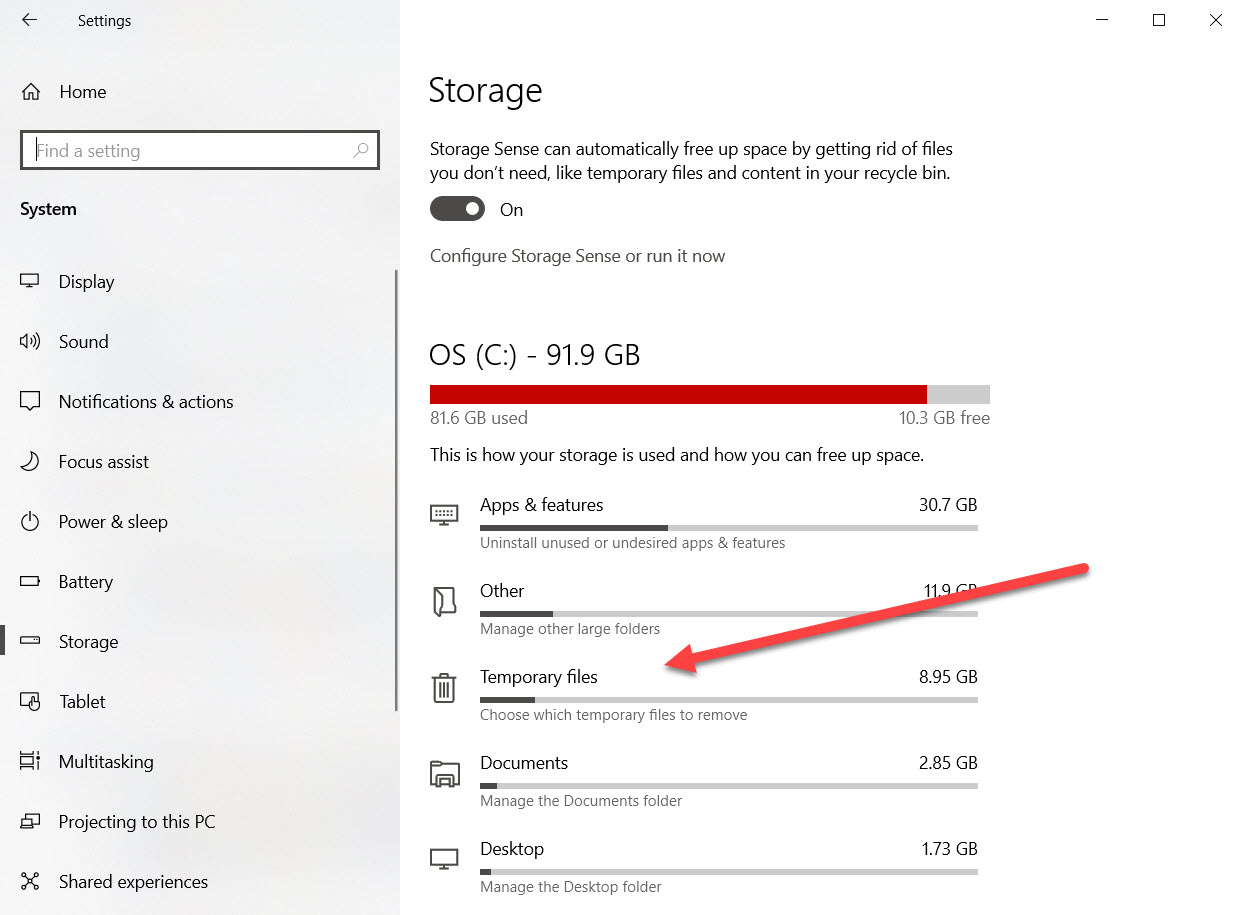
- Choose the dump files category and any other ones that you want to delete.
- Click on the “Remove files” on the top of the window.
After that, Windows will delete memory dump files and free your PC or laptop memory.
Using Disk Cleanup to Delete Memory Dumps
- Press Win + R keys on your keyboard, type cleanmgr, and press Enter.
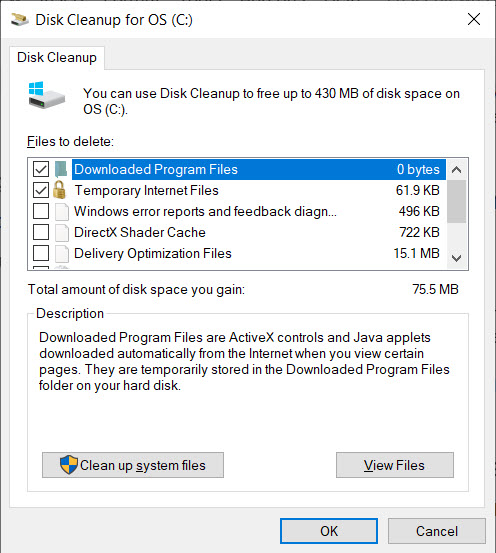
- After starting the disk cleanup utility, click on the “Clean up system files” button.
- Also, choose the categories that have “dump” in the name
- Wait till the process is finished
One more thing! By default, the option to automatically delete memory dumps when there is not enough disk space is enabled (it is configured in the boot and system recovery parameters, Win + R – sysdm.cpl), and under “shortage” by default, it is considered less 25 GB of free disk space. If your disk has less free space, it is possible that you will not see memory dumps (but only small minidump files).