

Have any questions? +1 646.844.5712 (US)

  • Facebook
  • LinkedIn
  • Twitter
HiTech ServiceHiTech Service
  • Home
  • About
  • Services
    • Software Development
    • Customer Support
    • Quality Assurance
    • Managed Services
    • Compliance Audit
    • GDPR Compliance
    • Competency Center
    • Emergency IT Support
    • Software as medical device
    • Local AI Agent Development
  • Projects
  • GDPR
  • Articles
  • Case Studies
  • Contact
Menu
  • Home
  • About
  • Services
    • Software Development
    • Customer Support
    • Quality Assurance
    • Managed Services
    • Compliance Audit
    • GDPR Compliance
    • Competency Center
    • Emergency IT Support
    • Software as medical device
    • Local AI Agent Development
  • Projects
  • GDPR
  • Articles
  • Case Studies
  • Contact
Recover data from crashed Windows with installation media only

Recover data from crashed Windows with installation media only

Windows OS is not ideal and it is not unusual that it may crash in a way that it can no longer boot up. Fixing Windows system in some cases is not an option or requires a lot more efforts and/or money than clean installation. This situation is very common if Windows is rather old and glitchy, but how to recover important files in this case? There are special recovery disks, third party bootable media, bootable tools etc. But what to do if you do not have any of those, and the only thing you have on hand is the Windows installation disk and you need your files available right now?


Here is the remedy. It is called CMD, or command prompt. Actually, windows installation menu does not have the option to launch it by clicking some button from the dialogue window. To launch command prompt, you will need to use the keyboard combination Shift + F10 while on the very first screen of the installation process and there is no difference  whether you have media with Windows 7, 8 or 10, this works on all of them.
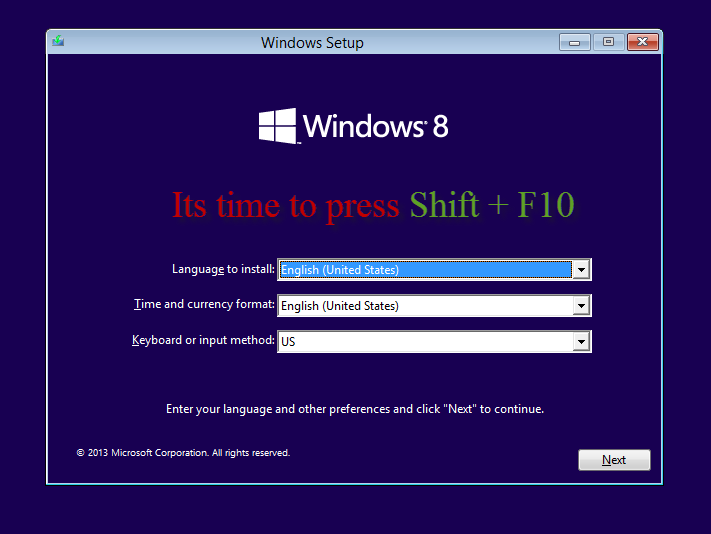
How to recover files and data 02 — Recover data from crashed Windows with installation media only

Well command prompt is already enough to copy files to another media but there is one thing…it is VERY inconvenient, especially for those users who barely know what CMD is. So if you do not remember all folder names on the way to your files and have no idea about CMD commands, next steps are exactly for you. So if you are more comfortable with graphic interface just type notepad into command prompt and hit enter. Yes, notepad, there is no mistake.
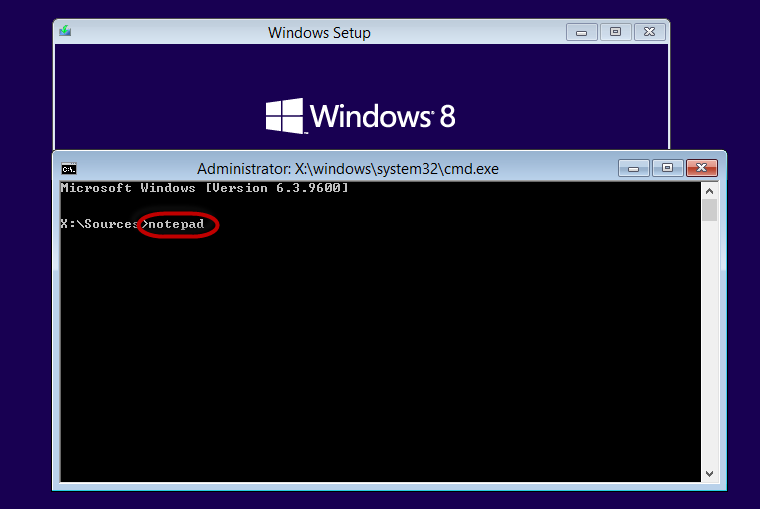
How to recover files and data 03 — Recover data from crashed Windows with installation media only

When you have Notepad window open, navigate to File => Open.
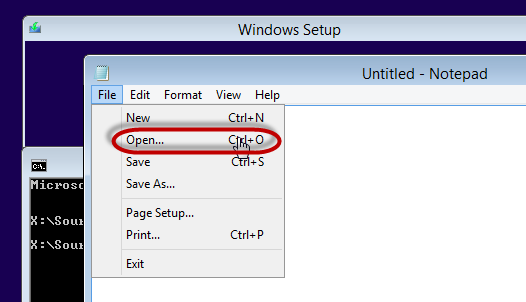
How to recover files and data 04 — Recover data from crashed Windows with installation media only

And here is the Explorer window that you used to work with. Well, actually it is not the same to be true. Notepad does not have access to some system resources and libraries, so this Explorer is a bit limited, though it is absolutely enough to copy files in a far more convenient way than doing this in CMD.

Here click on “This PC” on the left and then choose the drive that has your important files on it. Beware that most likely your drive will have another “letter” assigned to it, so just try several drives until you find yours. A hint – disk drive total and free space will still remain the same even if the drive letter changed for “C:” to “D:”.
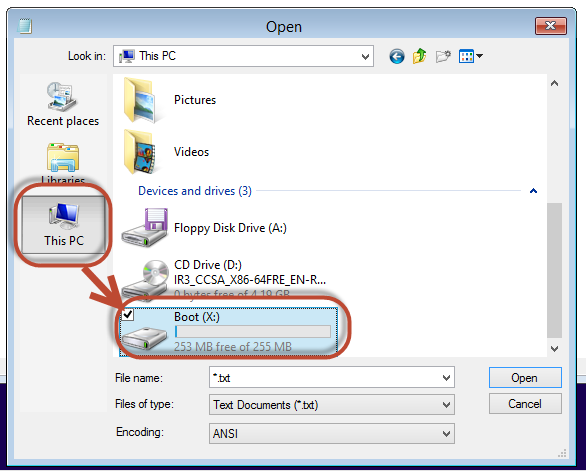
How to recover files and data 05 — Recover data from crashed Windows with installation media only

Now some more hints on where you may find your important files. If you are looking for pictures, documents or downloads that you remember were on the system drive, then you should first navigate to “Users” folder, then select your user profile and then you will see the folders that most likely have all the files that you need. Desktop files are also located here, in the the Desktop folder.
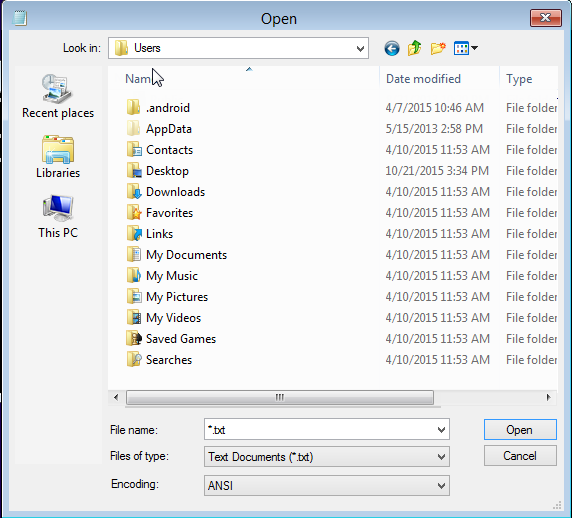


How to recover files and data 06 — Recover data from crashed Windows with installation media only

Next thing you need to know is that this window by default shows only text files, so do not panic if you cannot find all the files in the folder. Just change the file types to display to “All Files” as shown on the screenshot.
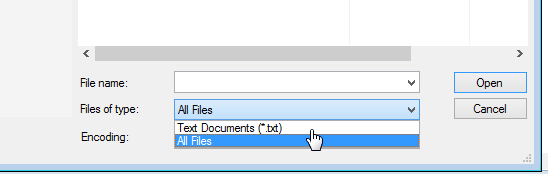
How to recover files and data 07 — Recover data from crashed Windows with installation media only

And copy the data on non-system partition, or other media.

Now you are 100% ready to start copying the files. Since Explorer is not fully functional, you will need to copy files or folders one by one (we recommend to copy folders to save time). To do this right click on the selected file and choose “Copy” from there.
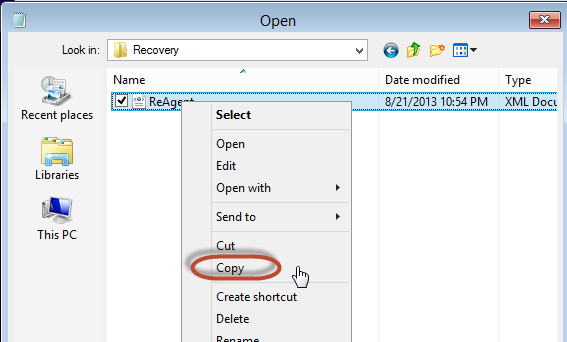
How to recover files and data 08 — Recover data from crashed Windows with installation media only

Then navigate to the destination drive and folder, right click on empty space and select “Paste”.
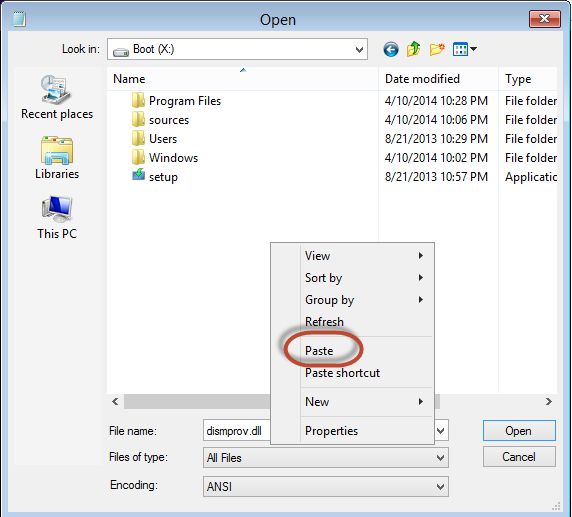
How to recover files and data 09 — Recover data from crashed Windows with installation media only

One more thing you should know is that this dialogue box will not show you any progress indicators and the file will not appear automatically when the process is finished. To be sure that your files got copied, you would need to right click in the destination folder and click “Refresh” from time to time. Yes, a bit inconvenient, but it does the job anyways.
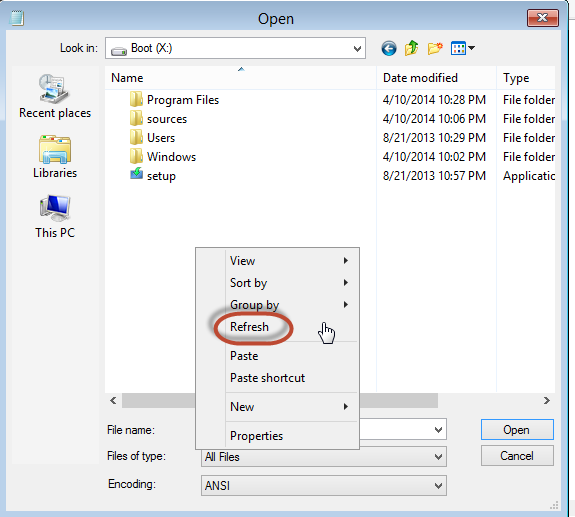
How to recover files and data 10 — Recover data from crashed Windows with installation media only

And maybe the last thing your should know here, this interface will not show you “hidden” files, still you can copy “hidden” files and folders by copying the folder located one level above.

When all files are copied, just close notepad and CMD windows and you are ready to proceed with Windows installation process, having in mind that all your files are safe.



 

  • On September 13, 2016
  • 0 Comment

Leave Reply Cancel reply

Your email address will not be published. Required fields are marked *

Recent Posts
  • When the Model Is the Vendor: What Happens to Compliance When You Don’t Own the Weights
  • The Edge Device Is the Perimeter: Why the Box You Bought to Keep Them Out Is How They Get In
  • The Password Memo Was Honest. The Checklist Wasn’t.
  • As Is: How Software Became the Only Product You Could Legally Sell Broken
  • The Production Incident Class Your Postmortem Template Doesn’t Have
Categories
  • ai (9)
  • android (18)
  • apple (36)
  • chart (18)
  • cloud (1)
  • fix (42)
  • games (11)
  • google (31)
  • hardware (73)
  • healthcare (3)
  • how to (231)
  • internet (92)
  • ios (23)
  • macos (3)
  • microsoft (82)
  • mobile (36)
  • news (74)
  • optimization (17)
  • osx (4)
  • outsourcing (8)
  • qa (3)
  • regulation (8)
  • review (120)
  • security (41)
  • software (160)
  • windows (150)
Archives
  • September 2026
  • August 2026
  • July 2026
  • June 2026
  • May 2026
  • August 2025
  • March 2025
  • February 2025
  • April 2023
  • March 2023
  • February 2023
  • January 2023
  • March 2022
  • January 2022
  • December 2021
  • November 2021
  • October 2021
  • September 2021
  • August 2021
  • July 2021
  • June 2021
  • May 2021
  • April 2021
  • March 2021
  • February 2021
  • January 2021
  • December 2020
  • November 2020
  • October 2020
  • September 2020
  • August 2020
  • July 2020
  • June 2020
  • May 2020
  • April 2020
  • March 2020
  • February 2020
  • January 2020
  • December 2019
  • November 2019
  • October 2019
  • September 2019
  • August 2019
  • April 2019
  • March 2019
  • February 2019
  • January 2019
  • December 2018
  • November 2018
  • October 2018
  • September 2018
  • June 2018
  • May 2018
  • April 2018
  • February 2018
  • January 2018
  • December 2017
  • November 2017
  • October 2017
  • June 2017
  • May 2017
  • April 2017
  • March 2017
  • February 2017
  • January 2017
  • December 2016
  • November 2016
  • October 2016
  • September 2016
  • August 2016
  • July 2016
  • June 2016
  • May 2016
  • April 2016
  • March 2016
  • February 2016
  • January 2016
  • December 2015
  • November 2015
  • October 2015
  • September 2015
  • July 2015
  • January 2015
Archives
  • September 2026
  • August 2026
  • July 2026
  • June 2026
  • May 2026
  • August 2025
  • March 2025
  • February 2025
  • April 2023
  • March 2023
  • February 2023
  • January 2023
  • March 2022
  • January 2022
  • December 2021
  • November 2021
  • October 2021
  • September 2021
  • August 2021
  • July 2021
  • June 2021
  • May 2021
  • April 2021
  • March 2021
  • February 2021
  • January 2021
  • December 2020
  • November 2020
  • October 2020
  • September 2020
  • August 2020
  • July 2020
  • June 2020
  • May 2020
  • April 2020
  • March 2020
  • February 2020
  • January 2020
  • December 2019
  • November 2019
  • October 2019
  • September 2019
  • August 2019
  • April 2019
  • March 2019
  • February 2019
  • January 2019
  • December 2018
  • November 2018
  • October 2018
  • September 2018
  • June 2018
  • May 2018
  • April 2018
  • February 2018
  • January 2018
  • December 2017
  • November 2017
  • October 2017
  • June 2017
  • May 2017
  • April 2017
  • March 2017
  • February 2017
  • January 2017
  • December 2016
  • November 2016
  • October 2016
  • September 2016
  • August 2016
  • July 2016
  • June 2016
  • May 2016
  • April 2016
  • March 2016
  • February 2016
  • January 2016
  • December 2015
  • November 2015
  • October 2015
  • September 2015
  • July 2015
  • January 2015

Internet is not Wireless - at all!

Previous thumb

Group Policy editor in Windows 10 Starter

Next thumb
Scroll

Services

  • Software Development
  • Quality Assurance
  • Customer Support
  • Managed Services
  • 24/7 Emergency IT Support
  • Competency Center
  • Local AI Agent Development
  • Software as a Medical Device

Compliance

  • Compliance Audit
  • GDPR Compliance
  • What is GDPR
  • ISO 9001:2015 Certification

Company

  • About Us
  • All Services
  • Projects
  • Case Studies
  • Articles
  • Contact
About HiTech Service

With 10 year experience of working together, we have reached tangible synergetic effect in performance and productivity, which results in highest quality services and satisfied clients.

Privacy Policy   Cookie Policy


  • Facebook
  • X
  • LinkedIn
CONTACT INFO
  • 900 Foulk Rd, Suite 201, Wilmington, DE, USA, 19803
  • Kudryavs’kyi descent 5b, Kyiv, Ukraine, 04053
  • +1 646.844.5712 (US)
ISO 9001:2015 certificate issued to HiTech Service LLC by Veritas
RIPE Atlas logo, the network measurement community HiTech Service takes part in
BrainBasket Foundation logo, IT education initiative HiTech Service supports
HiTech Service LLC membership badge of the Hi-Tech Office Ukraine association Dun & Bradstreet verified business badge for HiTech Service LLC
YouTeam partner badge for HiTech Service LLC
Hitech Service LLC

Copyright 2026