Preamble (you can skip it and pass to the solution below)
After upgrading my Windows 7 to Windows 10, I started to install necessary programs that I use daily. Luckily this process doesn’t take long due to beloved service of bulk program installation we told you about in one of our previous articles /articles/entry/158/Necessary-software-for-a-Windows-PC-in-one-click . One of the programs I use on all my devices is the Dropbox cloud service and due to this program, I found an interesting problem accessing my files and folders from the previous version of Windows. I noticed that after a few days of syncing my local files with the cloud, I still had some thousands of files to be synced. So I went to check what was going on and found the following message in the log.
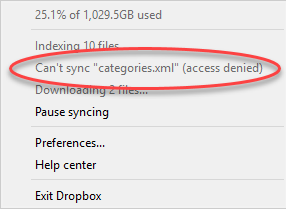
Dropbox can’t sync the file access denied.
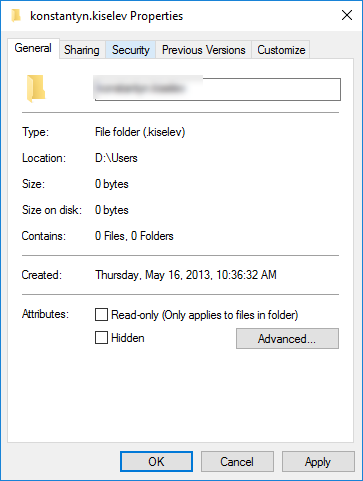
I went to the folder where the problem file was located and found another interesting thing about it – I didn’t have permissions to do anything with the files in the folder even though I had an administrative account (the only account on this PC). My first guess was the Read Only setting in the folder options and I was right. Partially. I did have Read Only checked, and every time I tried to change it, Read only was reverting back in Windows 10.
But there was more. When I tried to access the folder I received the following message: You don’t currently have permission to access this folder.
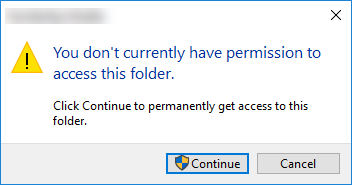
I was unable to rename, delete and even access files and folders until I confirm every step, and even with confirming that I am an admin, part of the files and folders “refused to cooperate.”
Browsing the Internet, trying to find the solution, I found multiple funny comments “I had the same problem and reinstalling Windows helped me.” Well, this is definitely not the piece of advice I would follow.
As it turned out, the problem was much easier to resolve.
Resolution
The problem was in the inherited access permissions from the legacy user that no longer existed in my Windows 10. Still, all the access rights appeared to belong to that account. Even more, I used to have a Documents folder from another user created years ago and it was accessible after I had my Windows 7 was reinstalled, but Windows 10 reverted even those permissions. To resolve the problem, I simply had to reassign the folder owner.
The first step is to right click on the folder and choose Properties.
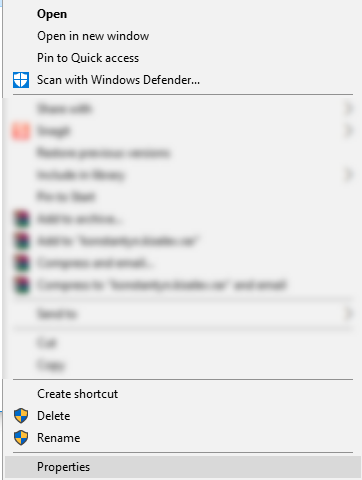
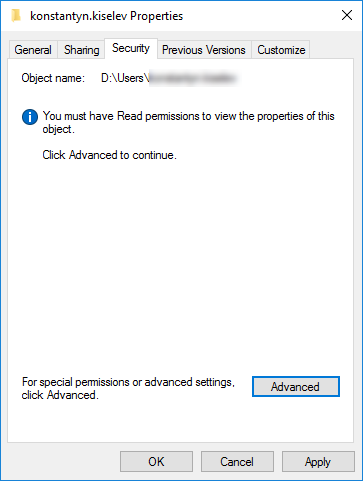
In Properties, navigate to Security tab.
Under Security click on Advanced button. Pay attention to message inside the tab – You must have Read permissions to view the properties of this object.
Once you hit Advanced the Owner setting will show you who is the owner of the folder, and in my case the owner even wasn’t there.
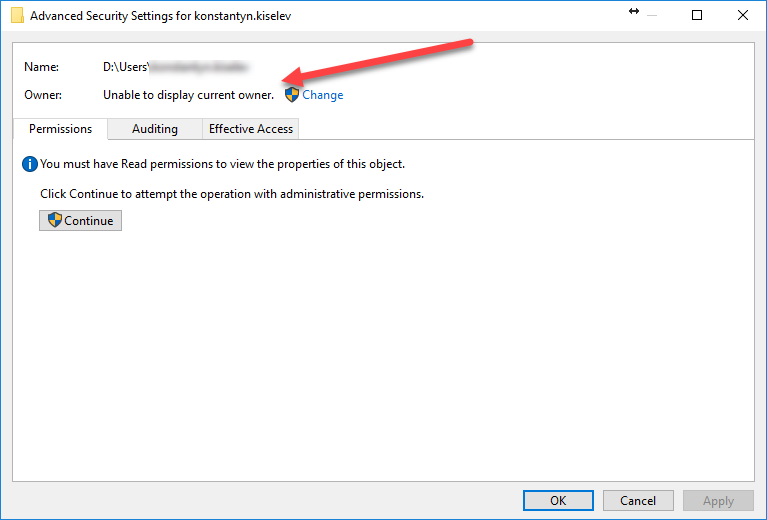
Click on Change button.
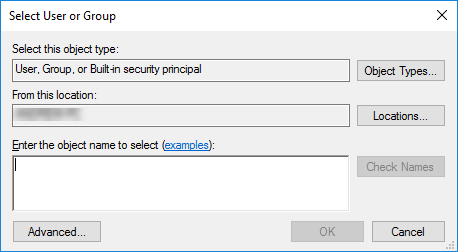
In this Window click on Advanced again. (Down the rabbit hole, isn’t it?).
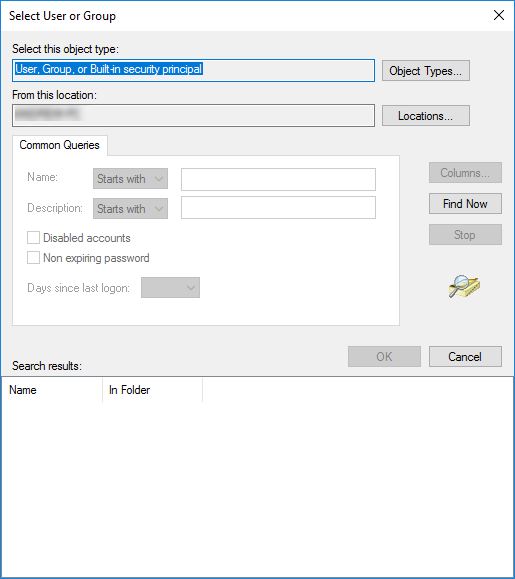
Finally click Find Now button to see the list of available users in the system.
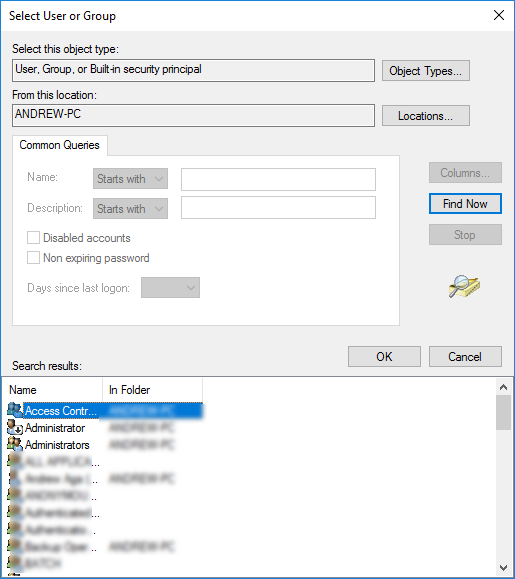
You will be surprised how many built-in system users exist in the system, ignore them and choose your Windows 10 user in the list and hit Ok.
You will be back in the previous window with your user selected.
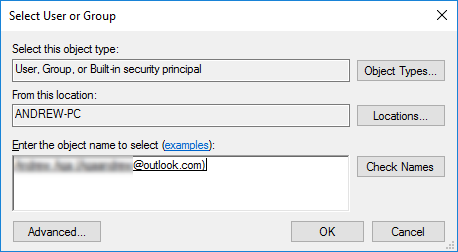
Hit Ok again.
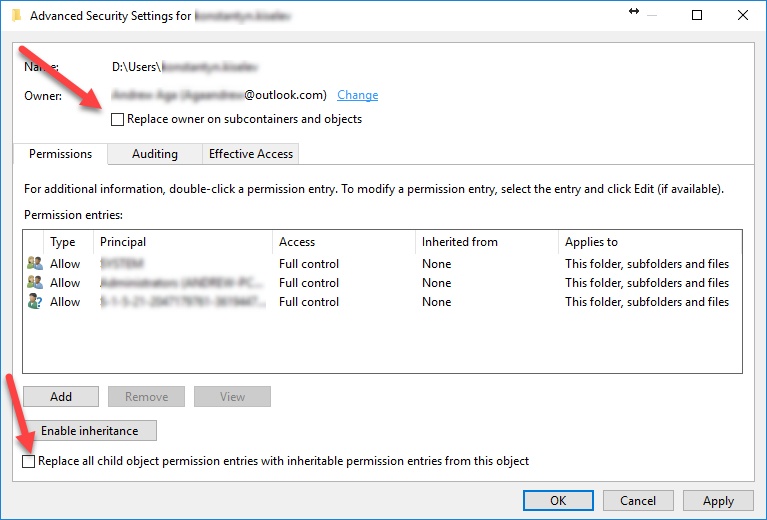
The last two steps would be to check “Replace owner on subcontainers and objects” and “Replace all child object permission entries with inheritable permission entries from the object”.
That’s it, hit Ok button and you have full control over the folder and its content.
Enjoy.