Have any questions? +1 646.844.5712 (US)

  • Facebook
  • LinkedIn
  • Twitter
HiTech ServiceHiTech Service
  • Home
  • About
  • Services
    • Software Development
    • Customer Support
    • Quality Assurance
    • Managed Services
    • Compliance Audit
    • GDPR Compliance
    • Competency Center
    • Emergency IT Support
    • Software as medical device
    • Local AI Agent Development
  • Projects
  • GDPR
  • Articles
  • Case Studies
  • Contact
Menu
  • Home
  • About
  • Services
    • Software Development
    • Customer Support
    • Quality Assurance
    • Managed Services
    • Compliance Audit
    • GDPR Compliance
    • Competency Center
    • Emergency IT Support
    • Software as medical device
    • Local AI Agent Development
  • Projects
  • GDPR
  • Articles
  • Case Studies
  • Contact
How to turn your Windows laptop into Wi-Fi hotspot

How to turn your Windows laptop into Wi-Fi hotspot

You have only one Ethernet cable and want to share internet via Wi-Fi, but there is no router around? Not a problem, you just need a laptop or a PC with Wi-Fi chip available. Some may use third party software for this purpose, but it is not always free and not always works. We will share with you some simple steps on how to share internet via Wi-Fi using generic Windows tools.


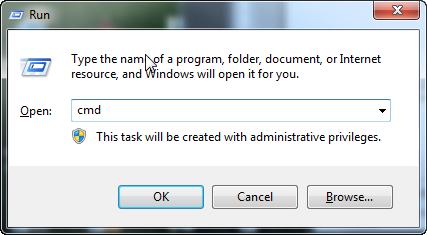
The first step will be to run Windows command prompt, or CMD. To do so, press “Windows + R” combination on your keyboard, enter “cmd” without quotes into the text field and click OK.
How to turn your Windows laptop into Wi Fi hotspot 1 — How to turn your Windows laptop into Wi-Fi hotspot
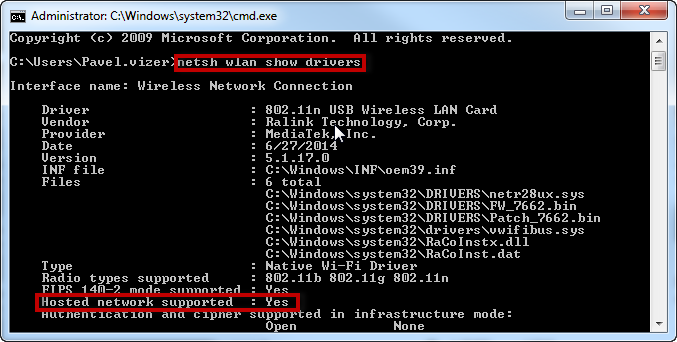
After you did that, you should see black CMD window in front of you. Now we need to check if your Wi-Fi card supports internet sharing. You should type or paste using right click “netsh wlan show drivers” without quotes into Command Prompt window and hit Enter on keyboard. It should return info about you Wi-Fi and the only thing we are looking for here is the line saying “Hosted network supported :Yes”. This means that your Wi-Fi supports sharing.
How to turn your Windows laptop into Wi Fi hotspot 2 — How to turn your Windows laptop into Wi-Fi hotspot
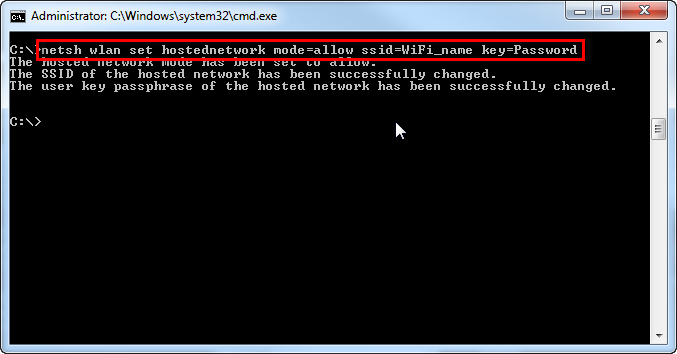
Now let’s create our hotspot. Type or paste using right click “netsh wlan set hostednetwork mode=allow ssid=WiFi_name key=Password” without quotes in the same window of CMD and hit Enter. In this line you can set your own WiFi_name as you want your hotspot to appear on your devices and Password that will be used to access it. Note that this will only create the hotspot in Windows, not make active yet.
How to turn your Windows laptop into Wi Fi hotspot 3 — How to turn your Windows laptop into Wi-Fi hotspot
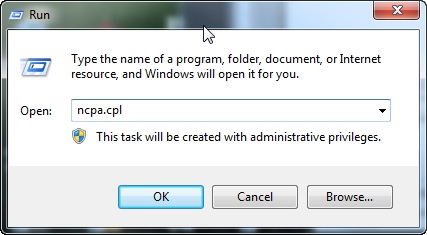
Now that we have our hotspot created, we need to give it internet access. Minimize CMD window (we will need it later) and press combination of “Windows + R” on your keyboard. Type in “ncpa.cpl” in the dialog window and click OK.
How to turn your Windows laptop into Wi Fi hotspot 4 — How to turn your Windows laptop into Wi-Fi hotspot
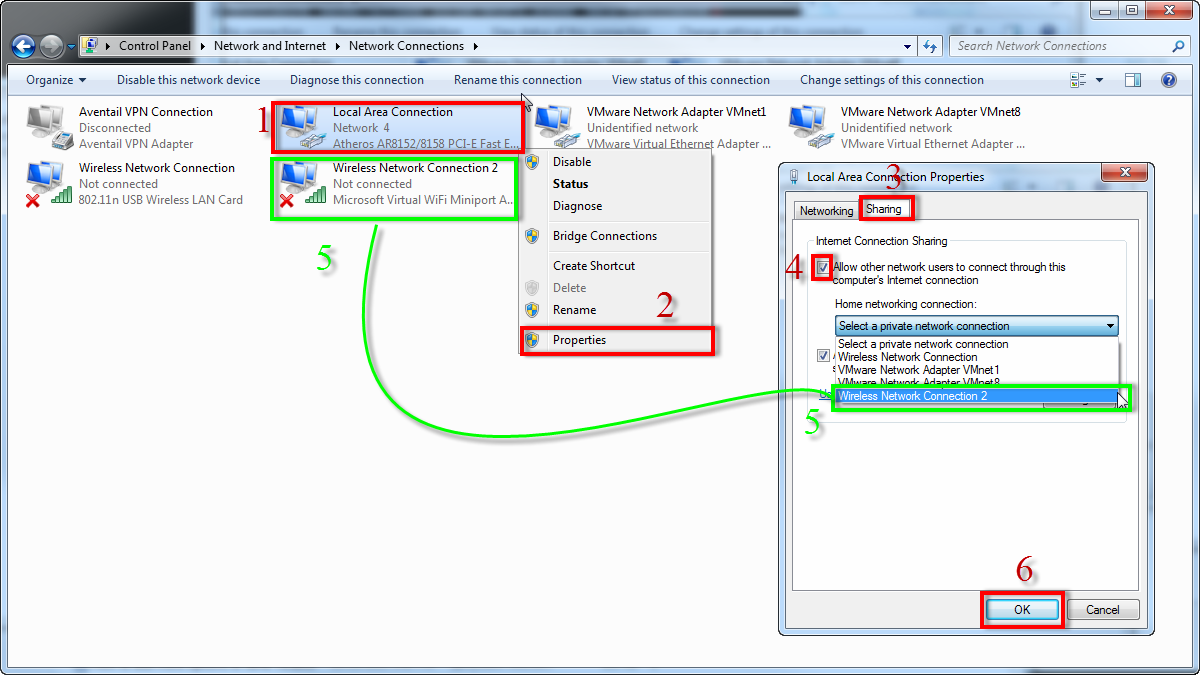
In the window that appeared you will find your local network internet connection that uses Ethernet cable and two Wi-Fi connections, note that one of the connections has adaptor named “Microsoft Virtual Wi-Fi Miniport Adapter”. This is the very hotspot that we created above.
How to turn your Windows laptop into Wi Fi hotspot 13 — How to turn your Windows laptop into Wi-Fi hotspot
Now we will share your cable internet to this hotspot. Right click on your “Local Area Connection” that has internet cable plugged in and choose “Properties” from the context menu. Then switch to the “Sharing” tab and enable Internet Connection Sharing by putting a checkbox in the appropriate field. After you enable sharing, you will see a drop-down menu with all other connections available to be shared with – choose the one with Miniport Adapter that we created above and click OK to confirm.
How to turn your Windows laptop into Wi Fi hotspot 5 — How to turn your Windows laptop into Wi-Fi hotspot


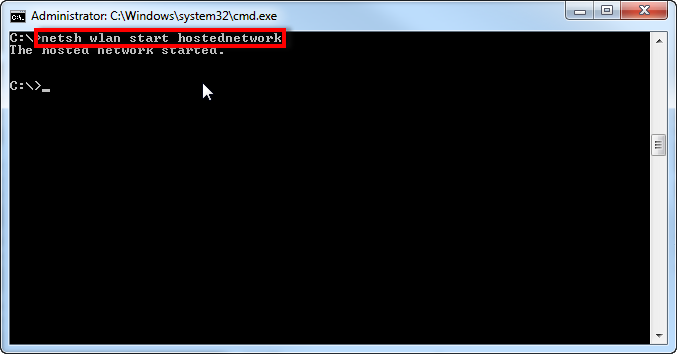
Now your hotspot has access to Internet but is still not active. Let’s do that. Switch back to CMD window and type or paste using right click “netsh wlan start hostednetwork” without quotes. That’s it! Now grab your phone and get connected to your new hotspot.
How to turn your Windows laptop into Wi Fi hotspot 6 — How to turn your Windows laptop into Wi-Fi hotspot
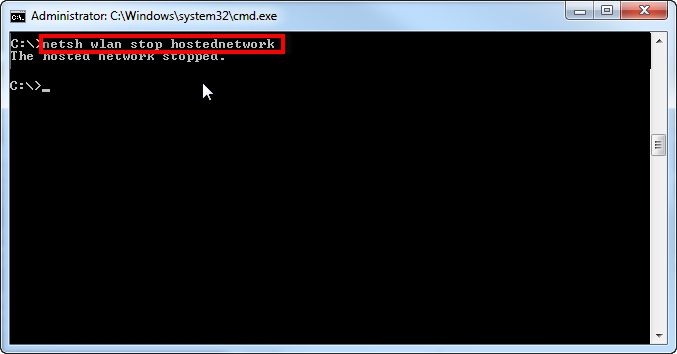
You should also know how to stop it – type or paste using right click “netsh wlan stop hostednetwork” without quotes in CMD window and the hotspot will turn off.
How to turn your Windows laptop into Wi Fi hotspot 7 1 — How to turn your Windows laptop into Wi-Fi hotspot

You can also create quick shortcuts on your desktop to enable/disable your hotspot, so that you do not need to go to CMD every time.

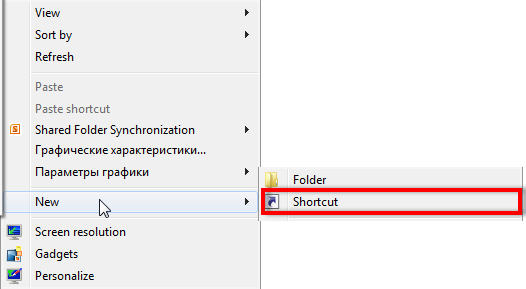
Right click on free space on your Desktop and in the context menu choose New => Shortcut.
How to turn your Windows laptop into Wi Fi hotspot 8 — How to turn your Windows laptop into Wi-Fi hotspot

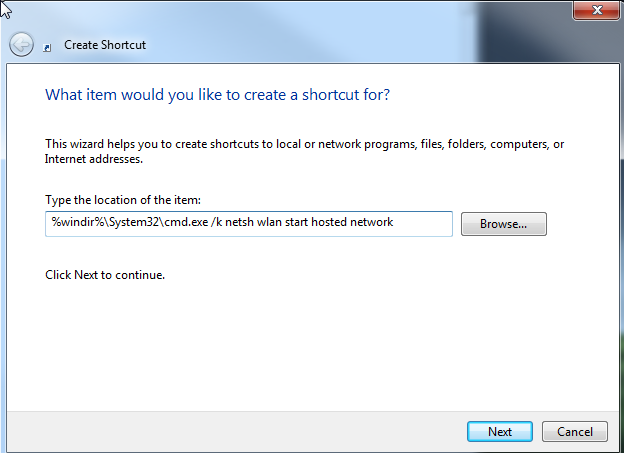
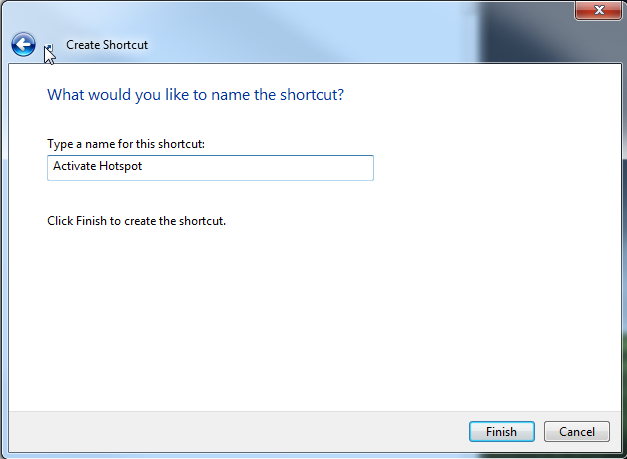
In the next dialog window type or paste from here “%windir%\System32\cmd.exe /k netsh wlan start hostednetwork”, click next, enter name for your shortcut like “Enable Hotspot” and click “Finish” button. Now you have the a shortcut on your Desktop that will activate hotspot for you. Note that you will need to Right click and choose “Run as Administrator” to activate your hotspot.
How to turn your Windows laptop into Wi Fi hotspot 9 — How to turn your Windows laptop into Wi-Fi hotspot

How to turn your Windows laptop into Wi Fi hotspot 10 — How to turn your Windows laptop into Wi-Fi hotspot

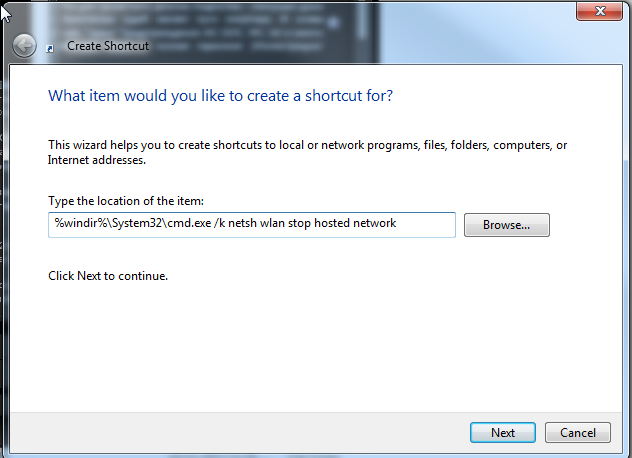
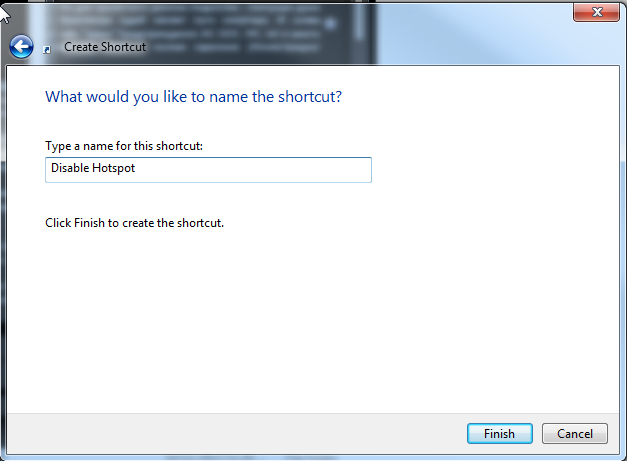
The same way you can make a shortcut for turning off your hotspot. Enter “%windir%\System32\cmd.exe /k netsh wlan stop hostednetwork” in the first fileld and name it like “Disable Hotspot”. You will need to do “Run as Administrator” thing here as well.
How to turn your Windows laptop into Wi Fi hotspot 11 — How to turn your Windows laptop into Wi-Fi hotspot

How to turn your Windows laptop into Wi Fi hotspot 12 — How to turn your Windows laptop into Wi-Fi hotspot

You just skipped those ”smart” screenshots and bunch of scary text while reading the article.



  • On October 29, 2015
  • 0 Comment

Leave Reply Cancel reply

Your email address will not be published. Required fields are marked *

Recent Posts
  • When the Model Is the Vendor: What Happens to Compliance When You Don’t Own the Weights
  • The Edge Device Is the Perimeter: Why the Box You Bought to Keep Them Out Is How They Get In
  • The Password Memo Was Honest. The Checklist Wasn’t.
  • As Is: How Software Became the Only Product You Could Legally Sell Broken
  • The Production Incident Class Your Postmortem Template Doesn’t Have
Categories
  • ai (9)
  • android (18)
  • apple (36)
  • chart (18)
  • cloud (1)
  • fix (42)
  • games (11)
  • google (31)
  • hardware (73)
  • healthcare (3)
  • how to (231)
  • internet (92)
  • ios (23)
  • macos (3)
  • microsoft (82)
  • mobile (36)
  • news (74)
  • optimization (17)
  • osx (4)
  • outsourcing (8)
  • qa (3)
  • regulation (8)
  • review (120)
  • security (41)
  • software (160)
  • windows (150)
Archives
  • September 2026
  • August 2026
  • July 2026
  • June 2026
  • May 2026
  • August 2025
  • March 2025
  • February 2025
  • April 2023
  • March 2023
  • February 2023
  • January 2023
  • March 2022
  • January 2022
  • December 2021
  • November 2021
  • October 2021
  • September 2021
  • August 2021
  • July 2021
  • June 2021
  • May 2021
  • April 2021
  • March 2021
  • February 2021
  • January 2021
  • December 2020
  • November 2020
  • October 2020
  • September 2020
  • August 2020
  • July 2020
  • June 2020
  • May 2020
  • April 2020
  • March 2020
  • February 2020
  • January 2020
  • December 2019
  • November 2019
  • October 2019
  • September 2019
  • August 2019
  • April 2019
  • March 2019
  • February 2019
  • January 2019
  • December 2018
  • November 2018
  • October 2018
  • September 2018
  • June 2018
  • May 2018
  • April 2018
  • February 2018
  • January 2018
  • December 2017
  • November 2017
  • October 2017
  • June 2017
  • May 2017
  • April 2017
  • March 2017
  • February 2017
  • January 2017
  • December 2016
  • November 2016
  • October 2016
  • September 2016
  • August 2016
  • July 2016
  • June 2016
  • May 2016
  • April 2016
  • March 2016
  • February 2016
  • January 2016
  • December 2015
  • November 2015
  • October 2015
  • September 2015
  • July 2015
  • January 2015
Archives
  • September 2026
  • August 2026
  • July 2026
  • June 2026
  • May 2026
  • August 2025
  • March 2025
  • February 2025
  • April 2023
  • March 2023
  • February 2023
  • January 2023
  • March 2022
  • January 2022
  • December 2021
  • November 2021
  • October 2021
  • September 2021
  • August 2021
  • July 2021
  • June 2021
  • May 2021
  • April 2021
  • March 2021
  • February 2021
  • January 2021
  • December 2020
  • November 2020
  • October 2020
  • September 2020
  • August 2020
  • July 2020
  • June 2020
  • May 2020
  • April 2020
  • March 2020
  • February 2020
  • January 2020
  • December 2019
  • November 2019
  • October 2019
  • September 2019
  • August 2019
  • April 2019
  • March 2019
  • February 2019
  • January 2019
  • December 2018
  • November 2018
  • October 2018
  • September 2018
  • June 2018
  • May 2018
  • April 2018
  • February 2018
  • January 2018
  • December 2017
  • November 2017
  • October 2017
  • June 2017
  • May 2017
  • April 2017
  • March 2017
  • February 2017
  • January 2017
  • December 2016
  • November 2016
  • October 2016
  • September 2016
  • August 2016
  • July 2016
  • June 2016
  • May 2016
  • April 2016
  • March 2016
  • February 2016
  • January 2016
  • December 2015
  • November 2015
  • October 2015
  • September 2015
  • July 2015
  • January 2015

Drivers stopped working after upgrading to Windows 10?

Previous thumb

How to google as proxy?

Next thumb
Scroll

Services

  • Software Development
  • Quality Assurance
  • Customer Support
  • Managed Services
  • 24/7 Emergency IT Support
  • Competency Center
  • Local AI Agent Development
  • Software as a Medical Device

Compliance

  • Compliance Audit
  • GDPR Compliance
  • What is GDPR
  • ISO 9001:2015 Certification

Company

  • About Us
  • All Services
  • Projects
  • Case Studies
  • Articles
  • Contact
About HiTech Service

With 10 year experience of working together, we have reached tangible synergetic effect in performance and productivity, which results in highest quality services and satisfied clients.

Privacy Policy   Cookie Policy


  • Facebook
  • X
  • LinkedIn
CONTACT INFO
  • 900 Foulk Rd, Suite 201, Wilmington, DE, USA, 19803
  • Kudryavs’kyi descent 5b, Kyiv, Ukraine, 04053
  • +1 646.844.5712 (US)
ISO 9001:2015 certificate issued to HiTech Service LLC by Veritas
RIPE Atlas logo, the network measurement community HiTech Service takes part in
BrainBasket Foundation logo, IT education initiative HiTech Service supports
HiTech Service LLC membership badge of the Hi-Tech Office Ukraine association Dun & Bradstreet verified business badge for HiTech Service LLC
YouTeam partner badge for HiTech Service LLC
Hitech Service LLC

Copyright 2026