Each of us has come across Windows errors. There is a large number of them and every error implies its own ways of solving the problem. Today I want to talk specifically about fixing the WerFault.exe error. The first part of the article is informative. If you want to go straight to the solution, then check “Common Causes of WerFault.exe Error and methods to fix it.“
What is WerFault.exe, and how does the Windows Error Reporting Service work?
WerFault.exe is a system process that is started by the Microsoft Windows Error Reporting Service (WER). This service allows Microsoft to track and resolve errors related to the operating system and Windows applications and tools.
On the whole, the process involves the following stages:
- An application crashes when launched or running.
- The Windows Error Reporting Service is launched.
- This service starts the werfault.exe process with a set of parameters.
- Event ID 1000 is added to the Windows event logs (Applications log), indicating the application that failed.
- The wermgr.exe process is started, and after a while, the WerFault.exe and wermgr.exe processes stop.
- Then the Windows Error Reporting Service stops as well.
Hence, the error is caused not by WerFault.exe but by some computer programs or their components (for example, DLL libraries), and WerFault serves only to report an error.
Now, when we know how the Windows Error Reporting Service
works, it allows us to determine which program is causing the crash if we do not have such information. There are two simple methods to do that:
- Go to the Windows Event Viewer (press Win + R and run eventvwr.msc), open the Windows logs, choose Application and look for the latest events with the Event ID 1000 and information about the failure.
- You can also find werfault.exe in Process Explorer and examine the parameters, in particular the ID process, which will help you to identify the faulty application.
Common Causes of WerFault.exe Error and methods to fix it.
So why do we see Werfault errors? The reasons may vary. Taking into account the main fixes that seem to be helpful, we may discern a whole bunch of reasons.
However, the first step you should take is to restart the computer, whatever the reason might be. Everyone should know this primary troubleshooting action. In the majority of cases, the problem will disappear after a simple restart.
Now, let us move on to the main reasons for the WerFault.exe error and methods to fix it:
1. Run Antivirus software.
Viruses sometimes hide by giving the executable process a name very similar to a legitimate application. Perhaps something like “Werfault.exe” or “wefaul1t.exe”.
Werfault errors can also appear after damage to specific system files caused by malware. In either case, you should run your Antivirus software and scan the computer for viruses to be safe.
2. Use the System File Checker
Windows 10 has a useful utility that can swiftly scan your Windows installation for damage and replace those files with new uncorrupted copies. To start the scan, do the following:
a) Right-click on the Start button.
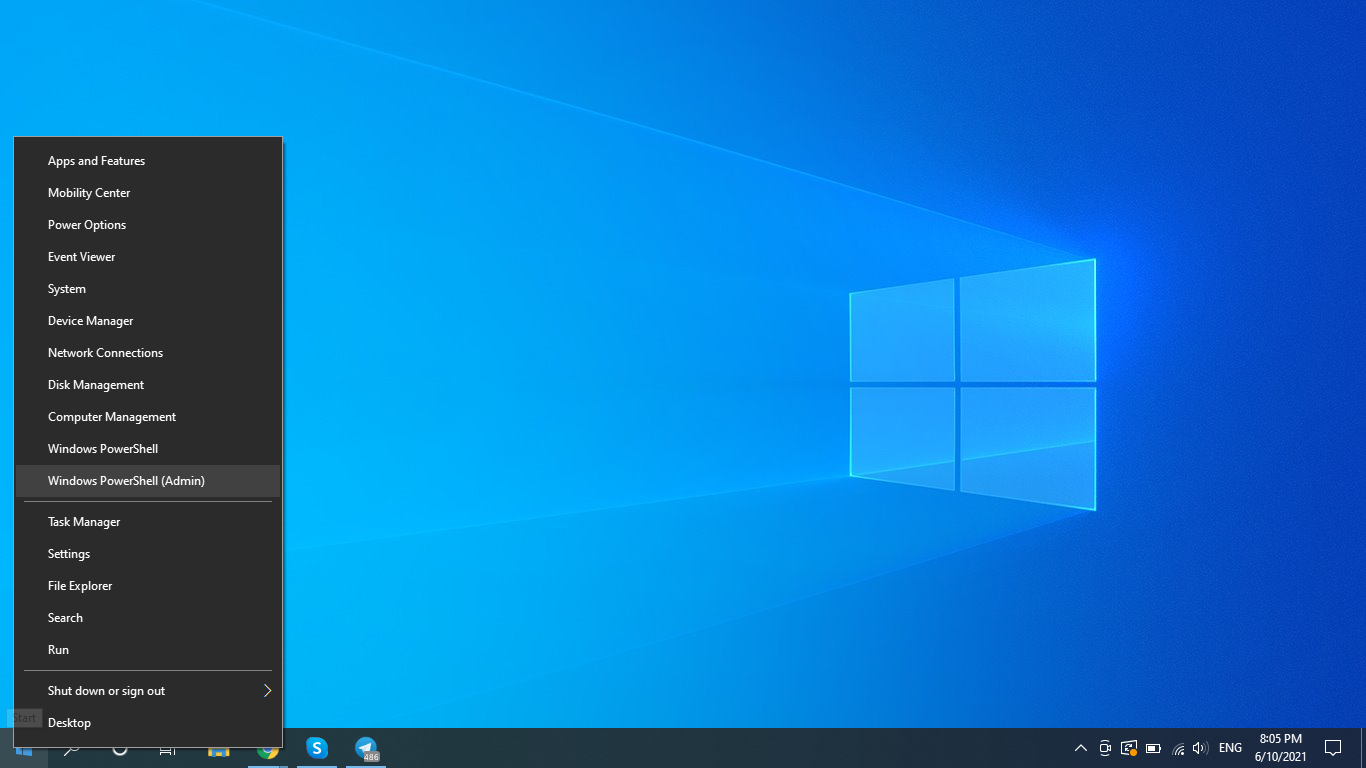
b) Select Windows Powershell (Admin).
c) Type sfc /scannow and press Enter.
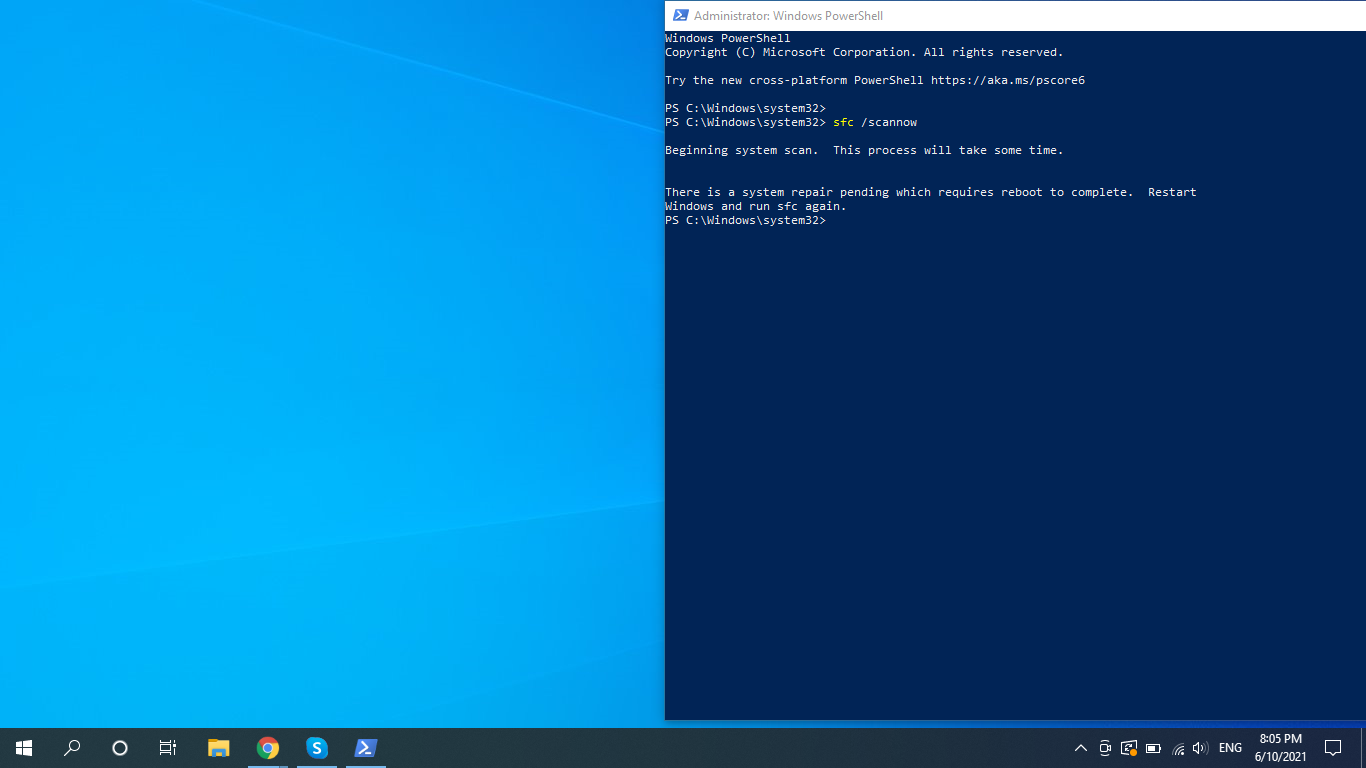
d) Wait for the process to complete.
The tool will let you know if it finds any errors. Otherwise, the process will complete showing no errors.
3. Install original drivers.
Most often, it concerns video cards, network cards, and Wi-Fi adapters. The best solution is to manually download and install the original drivers from the official website. Suppose you have both integrated and discrete video. You should install drivers for both video adapters. Remember to restart your computer after reinstalling the drivers.
4. Install/uninstall software properly.
As for the problem of installing new software, the root cause lies in unlicensed programs with modified files. Besides, you may also uninstall the software incorrectly. For example, deleting a specific program folder is wrong. Windows 10 provides an uninstaller option available through the Start menu, Settings screen, and concealed within the Control Panel.
If you choose to uninstall the program in Control Panel do the following:
- Go to the Control Panel.
- Select Programs.
- Select Programs and Features.
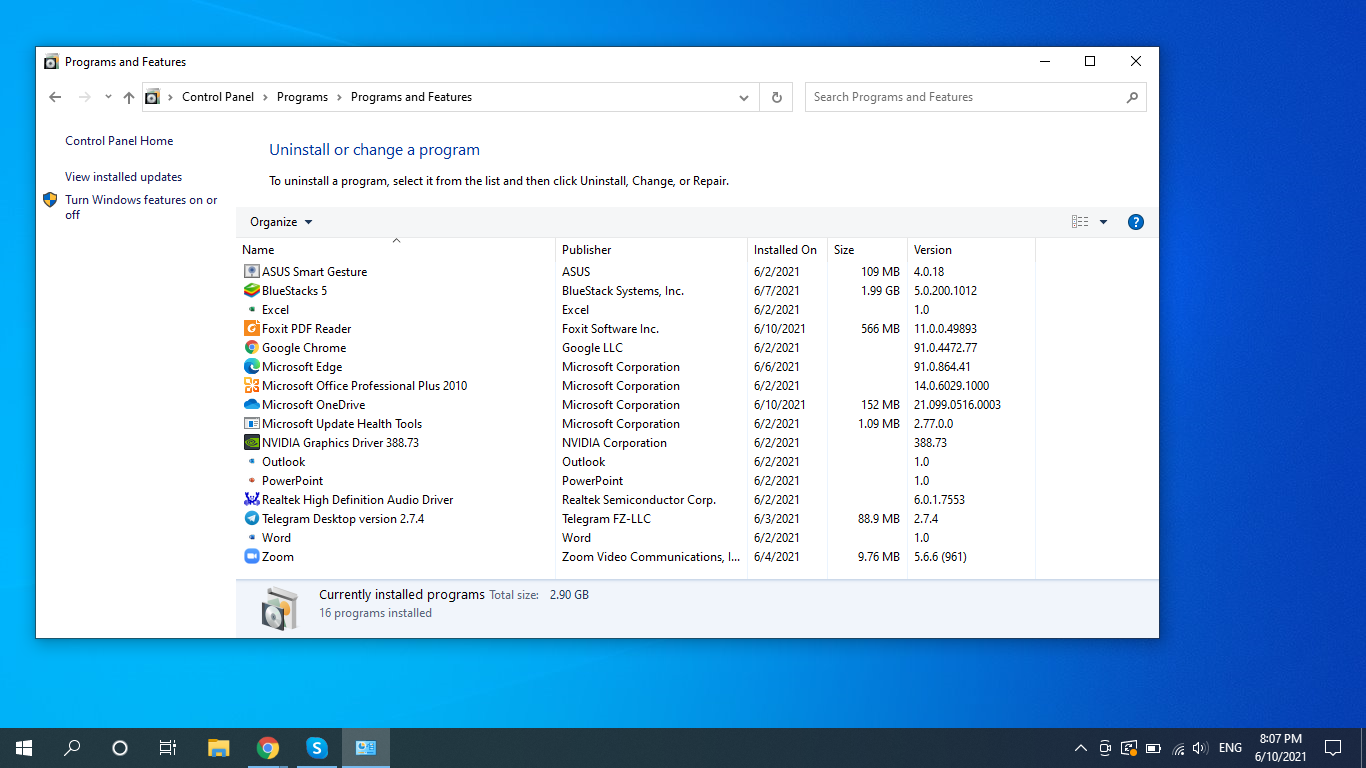
- To uninstall the program, select it from the list and then click Uninstall.
5. Run programs in compatibility mode.
The error may occur when software components cannot operate appropriately. For example, some old software cannot work correctly with your current version of Windows. You can try running the program in compatibility mode. Simply choose a program, then right-click on it, select the Compatibility tab and press Run compatibility troubleshooter.

6. Check Windows for modifications.
It makes sense to check the integrity of the Windows system files. In Windows 10, there are two internal tools for checking the integrity of system files and their automatic recovery when damage is detected. They are SFC.exe and DISM.exe (press Win + R and run both of them).
7. Disable third-party applications.
The error can also be caused by third-party applications, such as memory cleaning tools running in the background. Check if the error appears when you perform Clean Boot in Windows 10.
8. Test Your RAM.
Сomputers are very meticulous regarding memory errors. Even if something happens to a single bit, it can cause the entire operating system to become inoperable. Checking faulty RAM can be especially tricky, but the built-in Windows Memory Diagnostic Tool can help.
You can find the tool via the search bar in Windows 10.
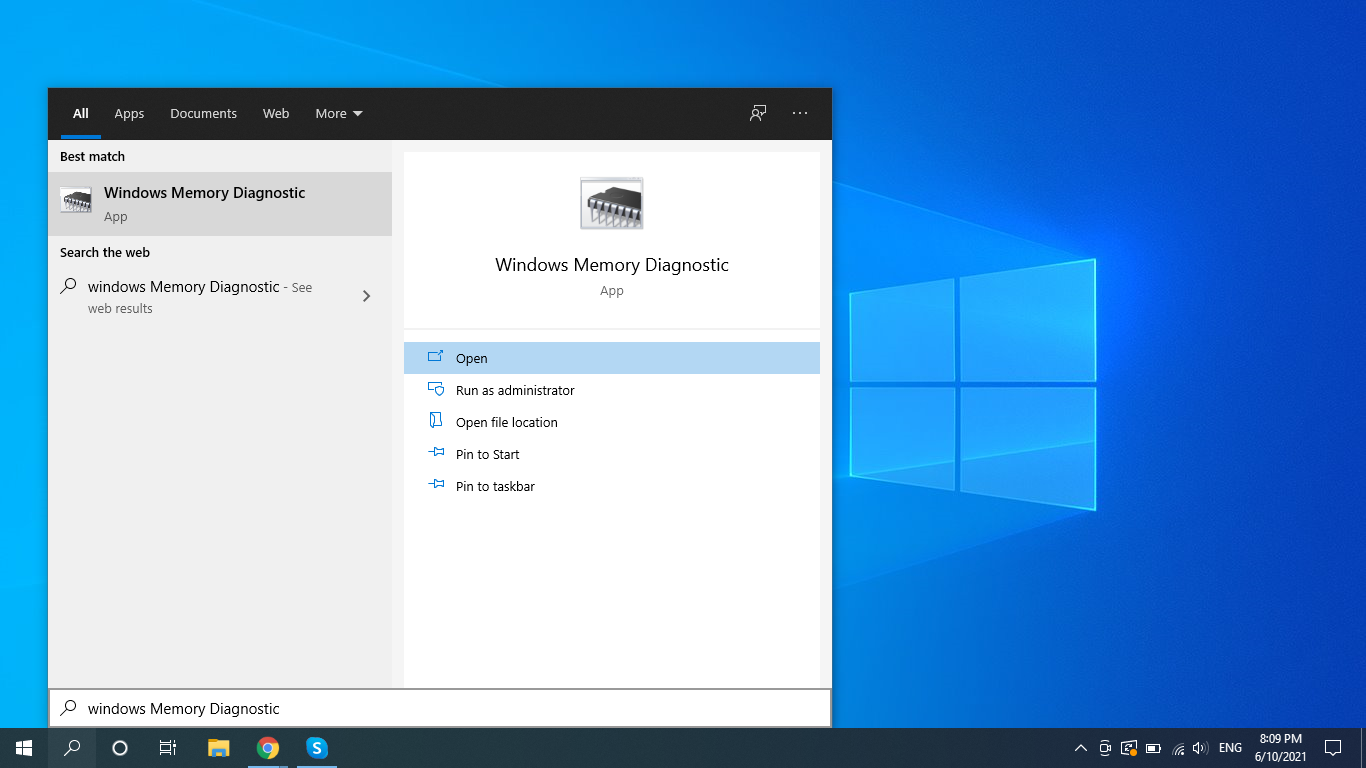
Click Open and choose one of the options below.

9. Check Windows updates or use System Restore.
If the error did not appear until recently, some system updates were likely to be the cause. Therefore you can try to remove them or use system restore points on the date the problem did not manifest itself.
Go to Control Panel, All Control Panel Items and select Open System Restore. You will see a list of system restore points. Look at the Date and Time column, choose one of the points and click Next. Then follow the instructions.
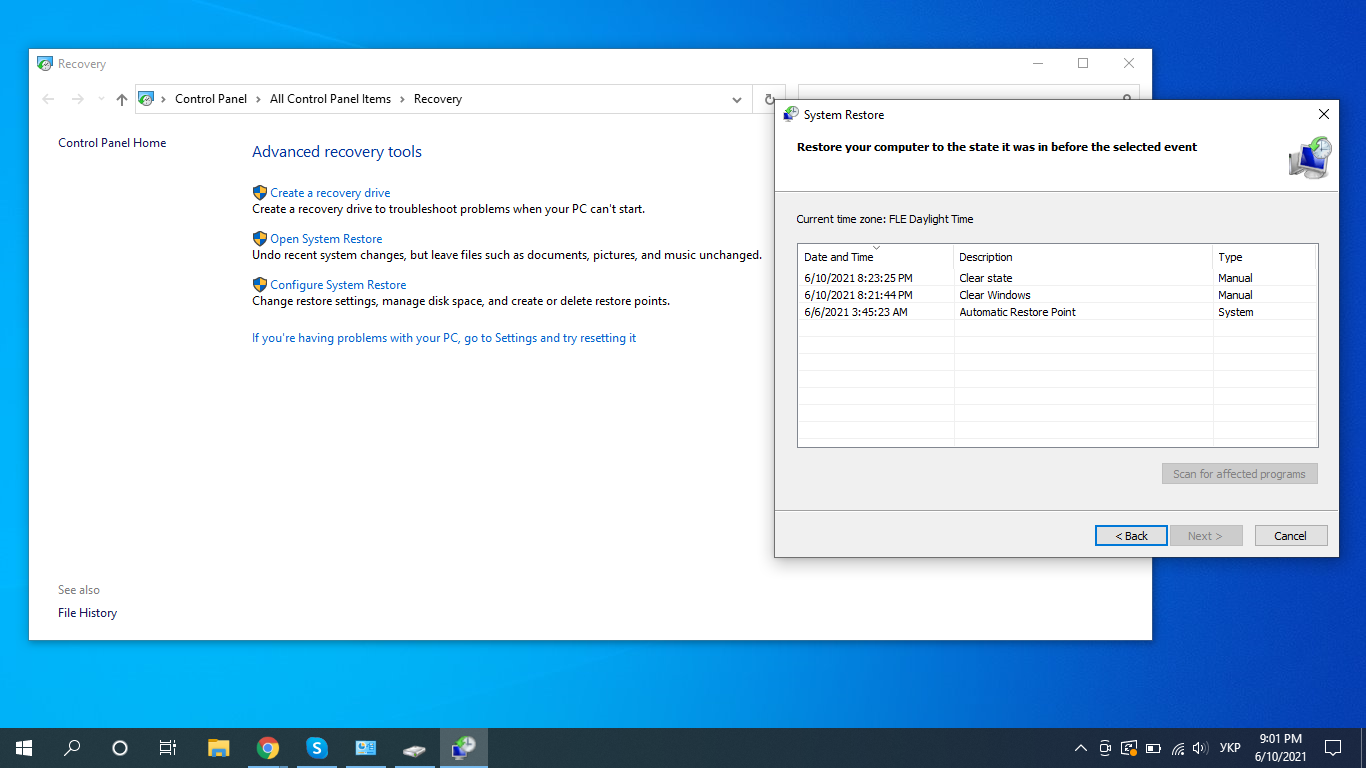
10. Scan Your Drives for Errors
If you bought an SSD from a reliable brand, it’s likely that the drive will not develop any read errors. Yet, mechanical drives and low-quality SSDs are inclined to receive such issues. This can result in file damage and other data integrity problems. Running the Windows disk checker is a clever way to identify this issue:
a) Open Windows File Explorer.
b) Right-click on the drive you need to check.
c) Select Properties.
d) Select the Tools tab.
e) Under Error Checking, Select Check.
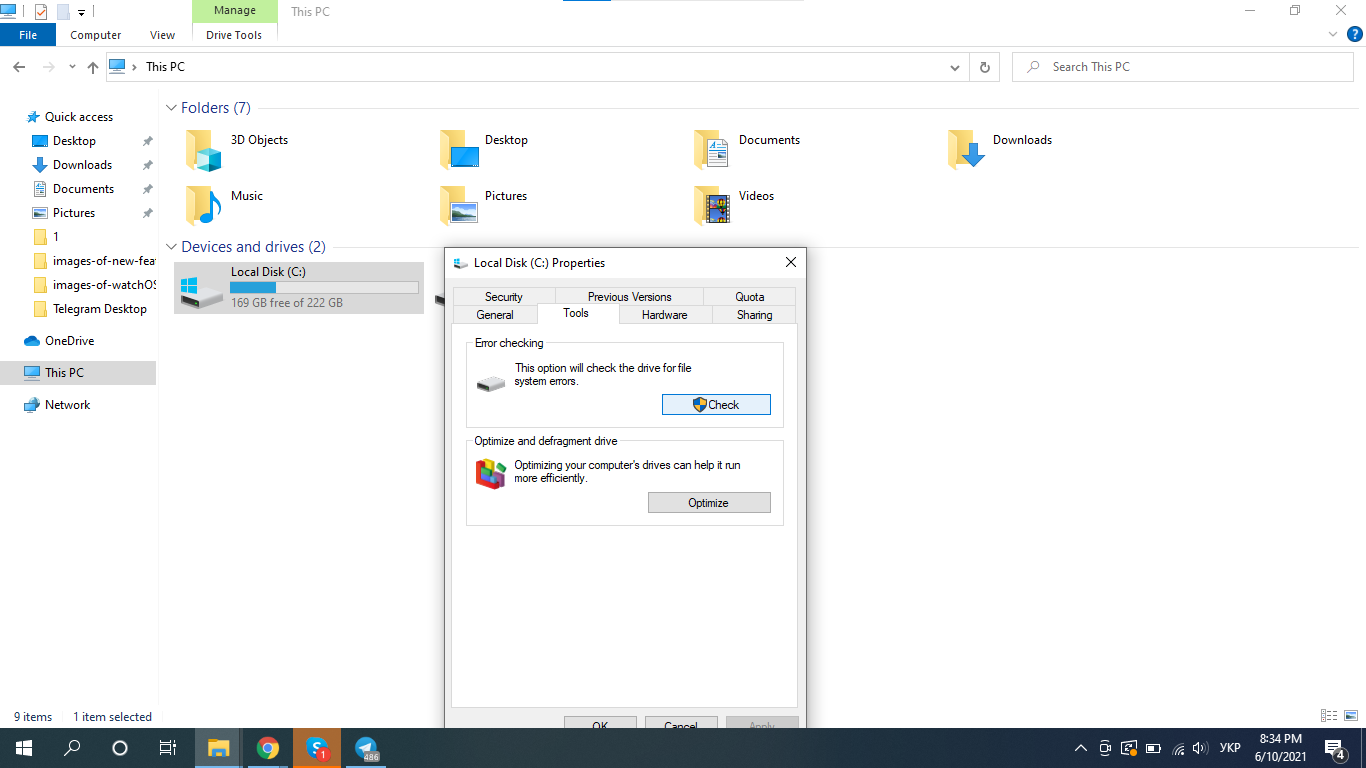
f) Select Check Drive
If the tool detects any errors, it will let you know and provide you the option to attempt a repair. If your drive has severe mechanical or physical problems, you’ll have to buy a new one.
We have described many methods to fix WerFault.exe error. Hopefully, this article was helpful. Write about your experience in the comments below.