Have any questions? +1 646.844.5712 (US)

  • Facebook
  • LinkedIn
  • Twitter
HiTech ServiceHiTech Service
  • Home
  • About
  • Services
    • Software Development
    • Customer Support
    • Quality Assurance
    • Managed Services
    • Compliance Audit
    • GDPR Compliance
    • Competency Center
    • Emergency IT Support
    • Software as medical device
    • Local AI Agent Development
  • Projects
  • GDPR
  • Articles
  • Case Studies
  • Contact
Menu
  • Home
  • About
  • Services
    • Software Development
    • Customer Support
    • Quality Assurance
    • Managed Services
    • Compliance Audit
    • GDPR Compliance
    • Competency Center
    • Emergency IT Support
    • Software as medical device
    • Local AI Agent Development
  • Projects
  • GDPR
  • Articles
  • Case Studies
  • Contact
Synaptics touchpad is not working on Windows 10. FIXED

Synaptics touchpad is not working on Windows 10. FIXED

As it turned out the problem with Synaptics touchpad is very common, forums are full of complains about two-fingers scroll is not working on Windows 10 or pinch zoom is not working. We happened to face the same problem and as it turned out the problem might be not in your Windows 10, but in the new Synaptics drivers.


A lot of peopel suggest to start with Windows registry manipulations, but it’s not the best start.

So here is the simple step by step instruction.

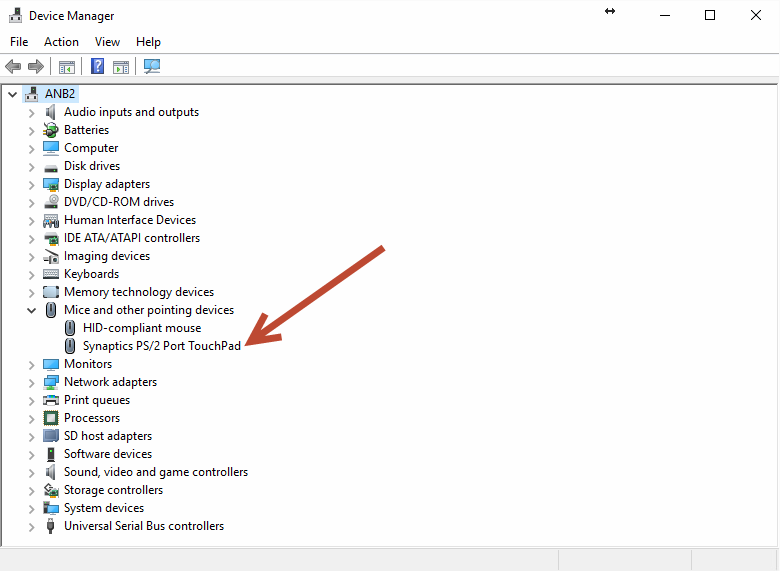
1. First of all go to Device Manager in Windows and expend “Mice and other pointing devices” list.

In case you don’t see Synaptics touchpad among the devices (as I have it on the screenshot), but an ordinary ps/2 mouse, you have a driver problem.
Synaptics touchpad is not working on Windows 10 — Synaptics touchpad is not working on Windows 10. FIXED

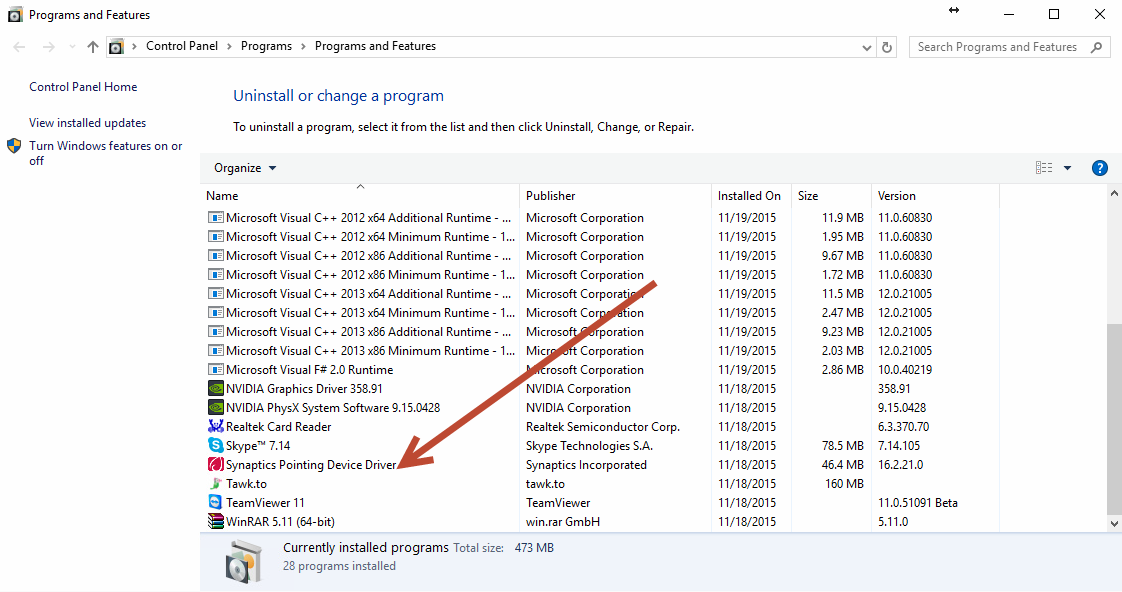
2. Navigate to Programs and Features and uninstall the Synaptics driver if there is one.
Synaptics touchpad is not working on Windows 10 2 — Synaptics touchpad is not working on Windows 10. FIXED

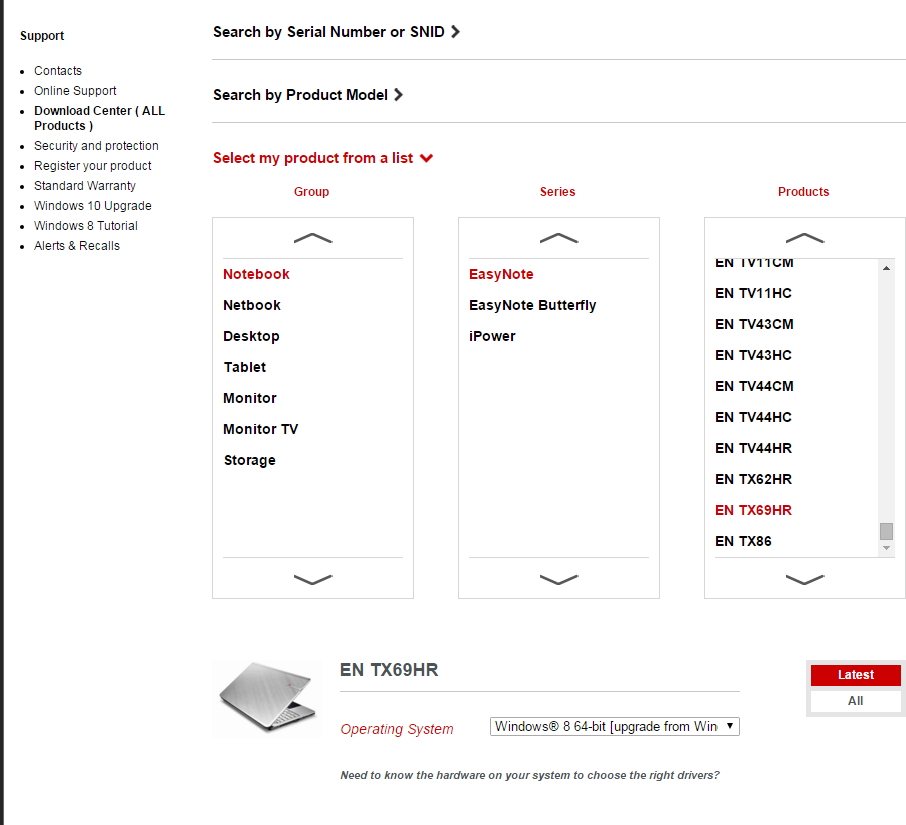
3. In your Internet browsers go to http://www.packardbell.co.uk/pb/en/GB/content/download

In the device list choose Notebook – EasyNote –EN TX69HR (Packard bell has stopped updating the drivers on their site and it’s the best place to find the old drivers).
Synaptics touchpad is not working on Windows 10 3 — Synaptics touchpad is not working on Windows 10. FIXED

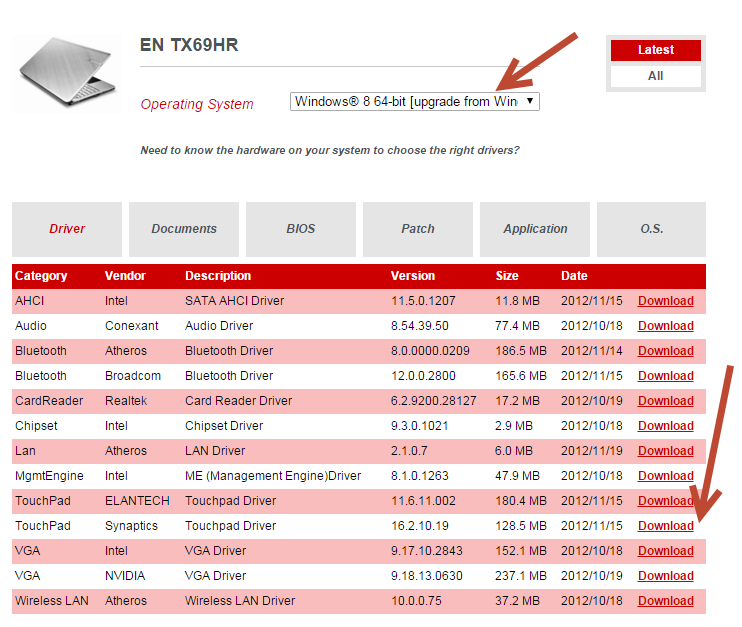
4. Select Windows 8 as your Operating System and download the old Synaptics driver 16.2.10.19
Synaptics touchpad is not working on Windows 10 4 — Synaptics touchpad is not working on Windows 10. FIXED

5. Once downloaded, just run the installer and restart your notebook.

During the installation Windows will tell you that the driver wasn’t designed for your Windows version, but don’t pay attention to it. Proceed with the installation.

As it turned out the problem with Synaptics touchpad is very common, forums are full of complains about two-fingers scroll is not working on Windows 10 or pinch zoom is not working. We happened to face the same problem and as it turned out the problem might be not in your Windows 10, but in the new Synaptics drivers.

A lot of people suggest to start with Windows registry manipulations, but it’s not the best start.

So here is the simple step by step instruction.


6. After the restart you most probably see the windows with Synaptics settings where you can turn on multitouch, but if not just go to Setting – Devices
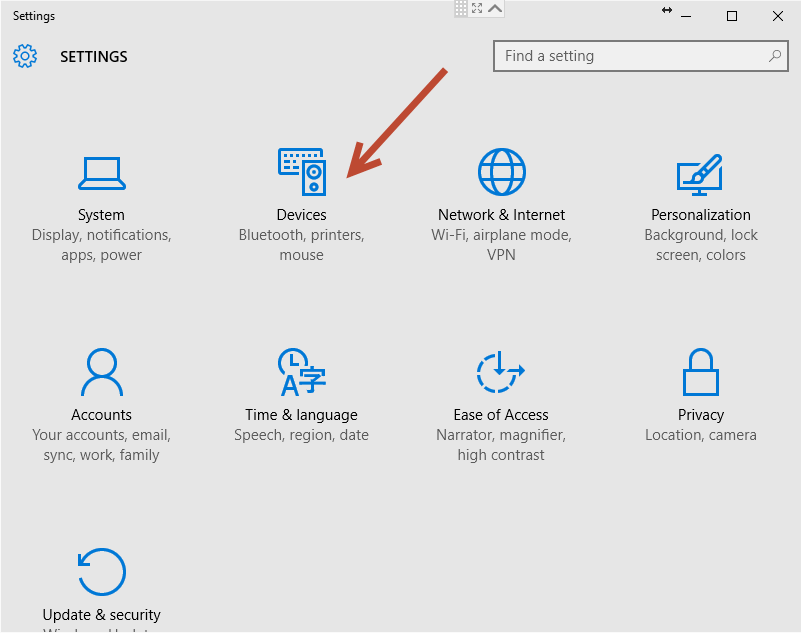
Synaptics touchpad is not working on Windows 10 5 — Synaptics touchpad is not working on Windows 10. FIXED

Mouse & touchpad – Additional mouse options
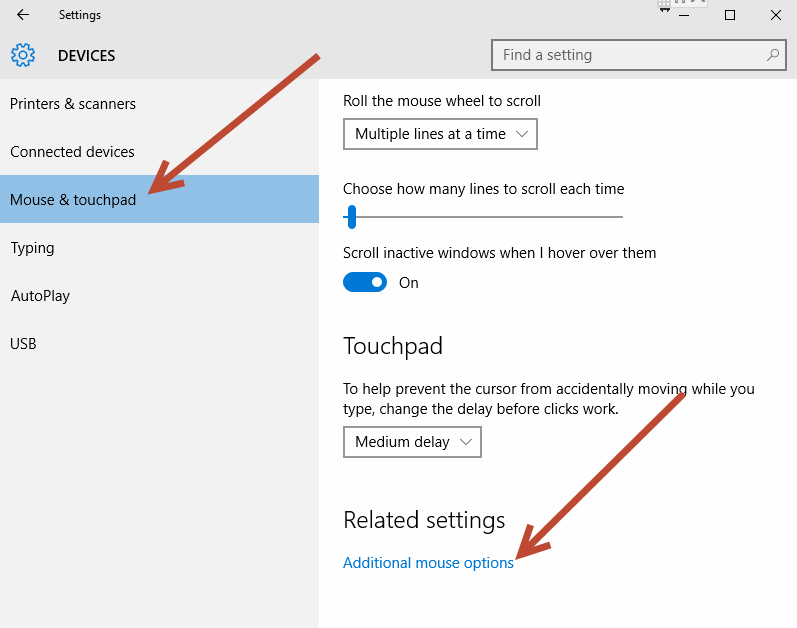
Synaptics touchpad is not working on Windows 10 6 — Synaptics touchpad is not working on Windows 10. FIXED

And open Device Settings tab with Synaptics logo on it.
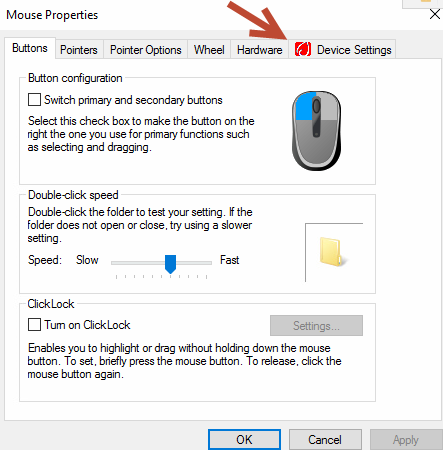
Synaptics touchpad is not working on Windows 10 7 — Synaptics touchpad is not working on Windows 10. FIXED

Click on settings button and choose the gestures you want to use with your touchpad.
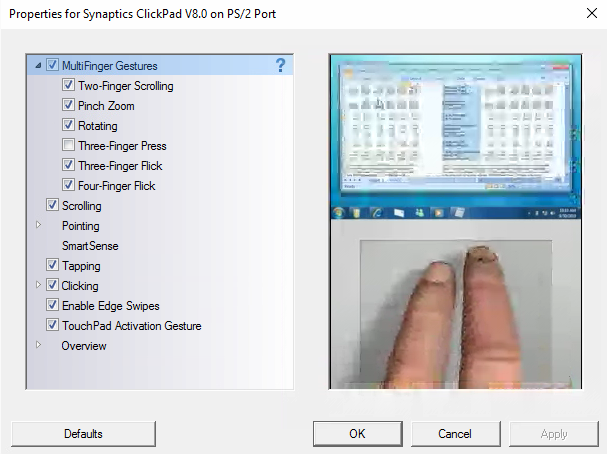
Synaptics touchpad is not working on Windows 10 9 — Synaptics touchpad is not working on Windows 10. FIXED

Enjoy!

P.S. We strongly recommend not to change Windows registry if you are not a system administrator.

Personal analysis.

For some reason Synaptics drivers for Windows 10 do not recognize the touchpad in older models of notebooks and the touchpad is recognized as the ordinary mouse, consequently it is working as an ordinary mouse and all the beloved gestures are not working.

You have less chances to face the problem if you are upgrading your old Windows up to Windows 10since the working drivers are already there and the system won’t update them automatically. But if you are doing fresh installation, the chances to lose multifinger gestures are much higher.

The number of similar topics on the forums shows that the problem is really wide spread, but for some reason Synaptics team didn’t make the required changes to their drivers so it’s better to have the old version of drivers to store somewhere in the archive or on the cloud, who knows for how long the old driver will be available in the web.

You just skipped those ”smart” screenshots and bunch of scary text while reading the article.


  • On November 19, 2015
  • 0 Comment

Leave Reply Cancel reply

Your email address will not be published. Required fields are marked *

Recent Posts
  • When the Model Is the Vendor: What Happens to Compliance When You Don’t Own the Weights
  • The Edge Device Is the Perimeter: Why the Box You Bought to Keep Them Out Is How They Get In
  • The Password Memo Was Honest. The Checklist Wasn’t.
  • As Is: How Software Became the Only Product You Could Legally Sell Broken
  • The Production Incident Class Your Postmortem Template Doesn’t Have
Categories
  • ai (9)
  • android (18)
  • apple (36)
  • chart (18)
  • cloud (1)
  • fix (42)
  • games (11)
  • google (31)
  • hardware (73)
  • healthcare (3)
  • how to (231)
  • internet (92)
  • ios (23)
  • macos (3)
  • microsoft (82)
  • mobile (36)
  • news (74)
  • optimization (17)
  • osx (4)
  • outsourcing (8)
  • qa (3)
  • regulation (8)
  • review (120)
  • security (41)
  • software (160)
  • windows (150)
Archives
  • September 2026
  • August 2026
  • July 2026
  • June 2026
  • May 2026
  • August 2025
  • March 2025
  • February 2025
  • April 2023
  • March 2023
  • February 2023
  • January 2023
  • March 2022
  • January 2022
  • December 2021
  • November 2021
  • October 2021
  • September 2021
  • August 2021
  • July 2021
  • June 2021
  • May 2021
  • April 2021
  • March 2021
  • February 2021
  • January 2021
  • December 2020
  • November 2020
  • October 2020
  • September 2020
  • August 2020
  • July 2020
  • June 2020
  • May 2020
  • April 2020
  • March 2020
  • February 2020
  • January 2020
  • December 2019
  • November 2019
  • October 2019
  • September 2019
  • August 2019
  • April 2019
  • March 2019
  • February 2019
  • January 2019
  • December 2018
  • November 2018
  • October 2018
  • September 2018
  • June 2018
  • May 2018
  • April 2018
  • February 2018
  • January 2018
  • December 2017
  • November 2017
  • October 2017
  • June 2017
  • May 2017
  • April 2017
  • March 2017
  • February 2017
  • January 2017
  • December 2016
  • November 2016
  • October 2016
  • September 2016
  • August 2016
  • July 2016
  • June 2016
  • May 2016
  • April 2016
  • March 2016
  • February 2016
  • January 2016
  • December 2015
  • November 2015
  • October 2015
  • September 2015
  • July 2015
  • January 2015
Archives
  • September 2026
  • August 2026
  • July 2026
  • June 2026
  • May 2026
  • August 2025
  • March 2025
  • February 2025
  • April 2023
  • March 2023
  • February 2023
  • January 2023
  • March 2022
  • January 2022
  • December 2021
  • November 2021
  • October 2021
  • September 2021
  • August 2021
  • July 2021
  • June 2021
  • May 2021
  • April 2021
  • March 2021
  • February 2021
  • January 2021
  • December 2020
  • November 2020
  • October 2020
  • September 2020
  • August 2020
  • July 2020
  • June 2020
  • May 2020
  • April 2020
  • March 2020
  • February 2020
  • January 2020
  • December 2019
  • November 2019
  • October 2019
  • September 2019
  • August 2019
  • April 2019
  • March 2019
  • February 2019
  • January 2019
  • December 2018
  • November 2018
  • October 2018
  • September 2018
  • June 2018
  • May 2018
  • April 2018
  • February 2018
  • January 2018
  • December 2017
  • November 2017
  • October 2017
  • June 2017
  • May 2017
  • April 2017
  • March 2017
  • February 2017
  • January 2017
  • December 2016
  • November 2016
  • October 2016
  • September 2016
  • August 2016
  • July 2016
  • June 2016
  • May 2016
  • April 2016
  • March 2016
  • February 2016
  • January 2016
  • December 2015
  • November 2015
  • October 2015
  • September 2015
  • July 2015
  • January 2015

Google gets smarter

Previous thumb

Windows Remote Assistance

Next thumb
Scroll

Services

  • Software Development
  • Quality Assurance
  • Customer Support
  • Managed Services
  • 24/7 Emergency IT Support
  • Competency Center
  • Local AI Agent Development
  • Software as a Medical Device

Compliance

  • Compliance Audit
  • GDPR Compliance
  • What is GDPR
  • ISO 9001:2015 Certification

Company

  • About Us
  • All Services
  • Projects
  • Case Studies
  • Articles
  • Contact
About HiTech Service

With 10 year experience of working together, we have reached tangible synergetic effect in performance and productivity, which results in highest quality services and satisfied clients.

Privacy Policy   Cookie Policy


  • Facebook
  • X
  • LinkedIn
CONTACT INFO
  • 900 Foulk Rd, Suite 201, Wilmington, DE, USA, 19803
  • Kudryavs’kyi descent 5b, Kyiv, Ukraine, 04053
  • +1 646.844.5712 (US)
ISO 9001:2015 certificate issued to HiTech Service LLC by Veritas
RIPE Atlas logo, the network measurement community HiTech Service takes part in
BrainBasket Foundation logo, IT education initiative HiTech Service supports
HiTech Service LLC membership badge of the Hi-Tech Office Ukraine association Dun & Bradstreet verified business badge for HiTech Service LLC
YouTeam partner badge for HiTech Service LLC
Hitech Service LLC

Copyright 2026