
Have any questions? +1 646.844.5712 (US)

  • Facebook
  • LinkedIn
  • Twitter
HiTech ServiceHiTech Service
  • Home
  • About
  • Services
    • Software Development
    • Customer Support
    • Quality Assurance
    • Managed Services
    • Compliance Audit
    • GDPR Compliance
    • Competency Center
    • Emergency IT Support
    • Software as medical device
    • Local AI Agent Development
  • Projects
  • GDPR
  • Articles
  • Case Studies
  • Contact
Menu
  • Home
  • About
  • Services
    • Software Development
    • Customer Support
    • Quality Assurance
    • Managed Services
    • Compliance Audit
    • GDPR Compliance
    • Competency Center
    • Emergency IT Support
    • Software as medical device
    • Local AI Agent Development
  • Projects
  • GDPR
  • Articles
  • Case Studies
  • Contact
Launching in a safe mode

Launching in a safe mode

Safe mode has always been the best way to fix my computer issues. Bluescreens, viruses, slowdowns – first of all I was launching Safe mode and starting my diagnostics. This feature was especially useful with bluescreens on the Windows start up. If your Windows does not launch and keeps giving bluescreens GO TO SAFE MODE.


It was simple with Windows 7 and earlier versions – keep pressing F8 button on PC launch and choose one of the options – Safe Mode, Safe mode with Networking, with command line and so on.

Imagine how surprised I was when it didn’t work for windows 8.

How to launch Safe mode in Windows 8 or Windows 8.1?

It turned out that the combination has changed to Shift+F8. Why would you change something that is simple and works perfectly fine? In addition, this combination didn’t work for all the devices, if you are using UEFI BIOS and SSD – it will not work.

If your Windows starts normally, you can launch Safe mode from settings, just type msconfig in command line and hit Enter.

There you can select Safe boot and set type of Safe mode. Once you save the settings, the system will offer you to restart the PC. Once restarted, you will have your Windows started in the Safe mode.

Another option is to hold Shift button, while choosing Restart.

But both options work ONLY if you are able to run Windows.

In Windows 10 situation is even harder.

How to run Safe Mode in Windows 10?

Options are the same as for Windows 8. Go to msconfig or hold Shift button while restarting.
But what can you do if Windows is not even loading, if you have bluescreen at the startup and it loops – this is very often with Windows 10.

F8 will not work, Shift+F8 will not work. The only way to launch Safe mode without Logging in to Windows 10 is to use boot installation\recovery USB\DVD.


Plug in your Windows installation USB to the PC, and when Installation screen appears on your screen – launch Troubleshooting – in left bottom corner. This method will allow you to make a system check, restore your Windows 10 or launch the Safe mode. This will work for both – windows 8 and Windows 10.

How to turn Windows 10 on Legacy Mode?

There is one more method for people, who think about the future. There is a way to call Safe Mode in Windows 10 using F8 key, but first you need to activate the legacy mode, So if you want to be ready for any surprises Windows 10 can get you with future updates – try the following.

Run Command line as administrator (use right click to find this option) and in command line.
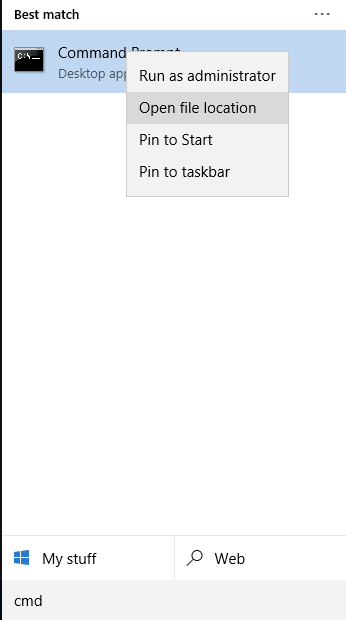
Llauching safe mode in windows remote support 02 — Launching in a safe mode

type bcdedit /set “{current}” bootmenupolicy legacy

Hit Enter.
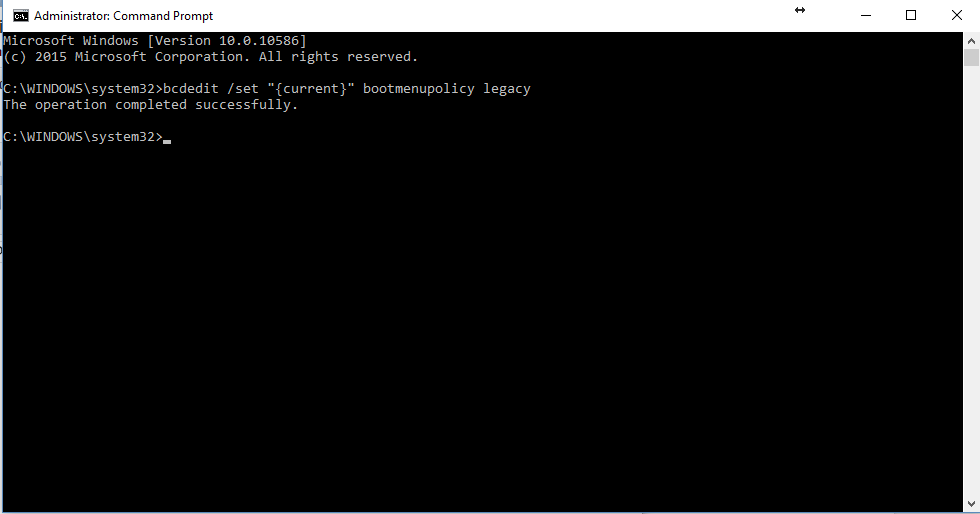
Llauching safe mode in windows remote support 03 — Launching in a safe mode

From now on you will be able to call the lst of boot options by pressing F8 button as if it has always been in Windows 7.

I tried it on my laptop and it works.

To turn this off just launch the command line again and type

bcdedit /set {default} bootmenupolicy standard

To sum everything up, Windows 10 is known for its after-update issues and bluescreen while loading OS. One way to resolve this problem is to make a system restore, another is to try to log into Safe Mode and try to fix the problem causing the bluescreen. But both solutions are hidden from you as boot menu screen is no longer available to call by pressing F8. The best way is to predict this problem and to get prepared for it by activating legacy mode in advance or by creating a USB drive with Windows installation, that also gives access to the mentioned functions.


  • On February 23, 2016
  • 0 Comment

Leave Reply Cancel reply

Your email address will not be published. Required fields are marked *

Recent Posts
  • As Is: How Software Became the Only Product You Could Legally Sell Broken
  • The Production Incident Class Your Postmortem Template Doesn’t Have
  • Why Load Test Numbers Lie
  • When Config Became Executable: The Twenty-Year Pattern Behind Supply Chain Attacks
  • How Software Became a Medical Device
Categories
  • ai (8)
  • android (18)
  • apple (36)
  • chart (18)
  • cloud (1)
  • fix (42)
  • games (11)
  • google (31)
  • hardware (73)
  • healthcare (3)
  • how to (231)
  • internet (92)
  • ios (23)
  • macos (3)
  • microsoft (82)
  • mobile (36)
  • news (74)
  • optimization (17)
  • osx (4)
  • outsourcing (8)
  • qa (3)
  • regulation (7)
  • review (120)
  • security (39)
  • software (160)
  • windows (150)
Archives
  • August 2026
  • July 2026
  • June 2026
  • May 2026
  • August 2025
  • March 2025
  • February 2025
  • April 2023
  • March 2023
  • February 2023
  • January 2023
  • March 2022
  • January 2022
  • December 2021
  • November 2021
  • October 2021
  • September 2021
  • August 2021
  • July 2021
  • June 2021
  • May 2021
  • April 2021
  • March 2021
  • February 2021
  • January 2021
  • December 2020
  • November 2020
  • October 2020
  • September 2020
  • August 2020
  • July 2020
  • June 2020
  • May 2020
  • April 2020
  • March 2020
  • February 2020
  • January 2020
  • December 2019
  • November 2019
  • October 2019
  • September 2019
  • August 2019
  • April 2019
  • March 2019
  • February 2019
  • January 2019
  • December 2018
  • November 2018
  • October 2018
  • September 2018
  • June 2018
  • May 2018
  • April 2018
  • February 2018
  • January 2018
  • December 2017
  • November 2017
  • October 2017
  • June 2017
  • May 2017
  • April 2017
  • March 2017
  • February 2017
  • January 2017
  • December 2016
  • November 2016
  • October 2016
  • September 2016
  • August 2016
  • July 2016
  • June 2016
  • May 2016
  • April 2016
  • March 2016
  • February 2016
  • January 2016
  • December 2015
  • November 2015
  • October 2015
  • September 2015
  • July 2015
  • January 2015
Archives
  • August 2026
  • July 2026
  • June 2026
  • May 2026
  • August 2025
  • March 2025
  • February 2025
  • April 2023
  • March 2023
  • February 2023
  • January 2023
  • March 2022
  • January 2022
  • December 2021
  • November 2021
  • October 2021
  • September 2021
  • August 2021
  • July 2021
  • June 2021
  • May 2021
  • April 2021
  • March 2021
  • February 2021
  • January 2021
  • December 2020
  • November 2020
  • October 2020
  • September 2020
  • August 2020
  • July 2020
  • June 2020
  • May 2020
  • April 2020
  • March 2020
  • February 2020
  • January 2020
  • December 2019
  • November 2019
  • October 2019
  • September 2019
  • August 2019
  • April 2019
  • March 2019
  • February 2019
  • January 2019
  • December 2018
  • November 2018
  • October 2018
  • September 2018
  • June 2018
  • May 2018
  • April 2018
  • February 2018
  • January 2018
  • December 2017
  • November 2017
  • October 2017
  • June 2017
  • May 2017
  • April 2017
  • March 2017
  • February 2017
  • January 2017
  • December 2016
  • November 2016
  • October 2016
  • September 2016
  • August 2016
  • July 2016
  • June 2016
  • May 2016
  • April 2016
  • March 2016
  • February 2016
  • January 2016
  • December 2015
  • November 2015
  • October 2015
  • September 2015
  • July 2015
  • January 2015

How to use phone, tablet or laptop as additional screen

Previous thumb

How to create bootable OS X install drive

Next thumb
Scroll

Services

  • Software Development
  • Quality Assurance
  • Customer Support
  • Managed Services
  • 24/7 Emergency IT Support
  • Competency Center
  • Local AI Agent Development
  • Software as a Medical Device

Compliance

  • Compliance Audit
  • GDPR Compliance
  • What is GDPR
  • ISO 9001:2015 Certification

Company

  • About Us
  • All Services
  • Projects
  • Case Studies
  • Articles
  • Contact
About HiTech Service

With 10 year experience of working together, we have reached tangible synergetic effect in performance and productivity, which results in highest quality services and satisfied clients.

Privacy Policy   Cookie Policy


  • Facebook
  • X
  • LinkedIn
CONTACT INFO
  • 900 Foulk Rd, Suite 201, Wilmington, DE, USA, 19803
  • Kudryavs’kyi descent 5b, Kyiv, Ukraine, 04053
  • +1 646.844.5712 (US)
ISO 9001:2015 certificate issued to HiTech Service LLC by Veritas
RIPE Atlas logo, the network measurement community HiTech Service takes part in
BrainBasket Foundation logo, IT education initiative HiTech Service supports
HiTech Service LLC membership badge of the Hi-Tech Office Ukraine association Dun & Bradstreet verified business badge for HiTech Service LLC
YouTeam partner badge for HiTech Service LLC
Hitech Service LLC

Copyright 2026