Windows does not show all files and folders for the user by default. This actually makes sense if we are talking about preventing unskilled users from interfering the system and program files, but what if you need to see these hidden items? It’s rather simple and we will share with you how to do this.
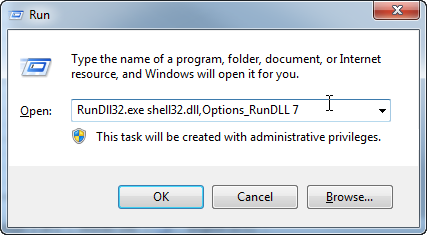
All these settings can be found in “Folder Options” under Control Panel, and the fastest way to get there in all recent Windows systems is to press key combination of “Windows + R”, paste there line “RunDll32.exe shell32.dll,Options_RunDLL 7” without quotes and hit OK. You can also navigate to Control Panel and search for “Folder Options” there, but this command will definitely remain unchanged no matter where Windows guys will place this tool in later versions.
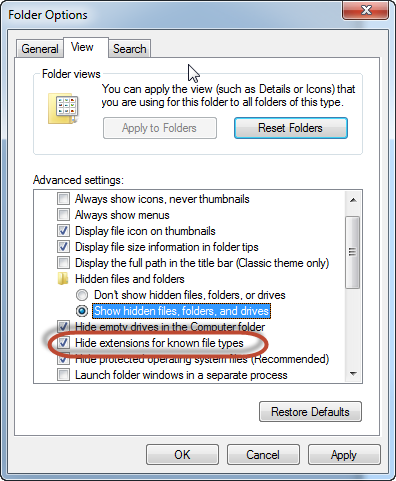
In the “Folder Options” window search for the radio switch “Hidden files and folders” and place it to “Show hidden files, folders and drives”. Also you can unhide system files if you uncheck the box “hide protected operating system files”.
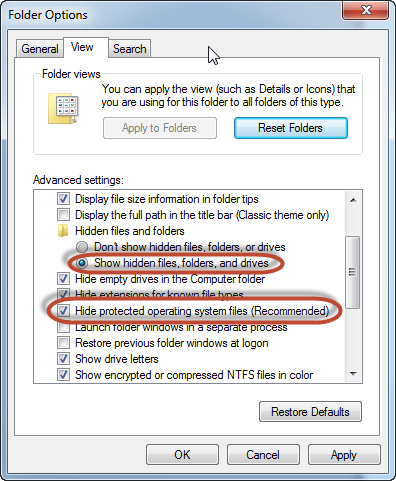
Also you may make Windows show file extensions, so that you can change them if needed. You just need to uncheck line saying “Hide extensions for known system types”. You may need this to create so-called .bat files.
That’s it, enjoy!
You just skipped those ”smart” screenshots and bunch of scary text while reading the article.