
Have any questions? +1 646.844.5712 (US)

  • Facebook
  • LinkedIn
  • Twitter
HiTech ServiceHiTech Service
  • Home
  • About
  • Services
    • Software Development
    • Customer Support
    • Quality Assurance
    • Managed Services
    • Compliance Audit
    • GDPR Compliance
    • Competency Center
    • Emergency IT Support
    • Software as medical device
    • Local AI Agent Development
  • Projects
  • GDPR
  • Articles
  • Case Studies
  • Contact
Menu
  • Home
  • About
  • Services
    • Software Development
    • Customer Support
    • Quality Assurance
    • Managed Services
    • Compliance Audit
    • GDPR Compliance
    • Competency Center
    • Emergency IT Support
    • Software as medical device
    • Local AI Agent Development
  • Projects
  • GDPR
  • Articles
  • Case Studies
  • Contact
No Sound in Gear VR movies

No Sound in Gear VR movies

We had multiple articles about VR technology development and VR goggle finally going into the mass. Now, it’s time to look closer at virtual reality and the problems you might face working with VR goggles.


Intro (you may skip it if you want and move to the section 2 where you find the solution.)

Probably the most popular and the most affordable device among brand VR goggles (not Chinese no names) is Gear VR, which is powered by Oculus and uses Samsung phones as the display and as the “brain” itself. In other words, Gear VR does not require a computer, even more you won’t be able to use computer to work with it – all you need is the phone, Gear VR device and Wi-Fi.

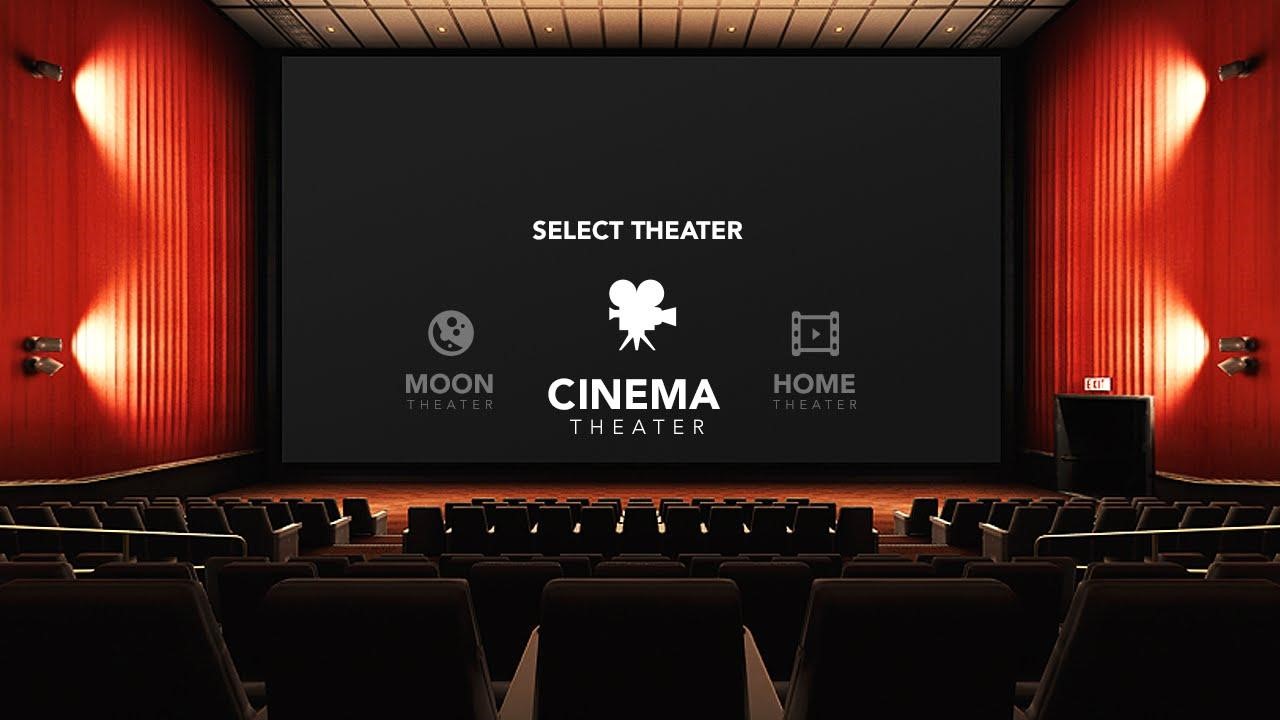
You can find multiple text and video reviews online, so we won’t concentrate on the features available in Oculus home that are working fine (or at least as design), but will talk about something that require some user steps to work with. I’m talking about wonderful Oculus Video that allows you to “teleport” to the video theater (or Moon) to watch your video or some downloaded movie, even in 3D.

After I spent few days playing in different VR games (they are pretty much alike and it’s getting boring very quickly) and watching 360 videos on YouTube and Vimeo I decided to spend some time watching movies from my collection and downloaded one to my phone. I took pop-corn, installed my phone into Gear VR, and turned on Oculus Video.
 

We had multiple articles about VR technology development and VR goggle finally going into the mass. Now, it’s time to look closer at virtual reality and the problems you might face working with VR goggles.

Intro (you may skip it if you want and move to the section 2 where you find the solution.)

Probably the most popular and the most affordable device among brand VR goggles (not Chinese no names) is Gear VR, which is powered by Oculus and uses Samsung phones as the display and as the “brain” itself. In other words, Gear VR does not require a computer, even more you won’t be able to use computer to work with it – all you need is the phone, Gear VR device and Wi-Fi.

You can find multiple text and video reviews online, so we won’t concentrate on the features available in Oculus home that are working fine (or at least as design), but will talk about something that require some user steps to work with. I’m talking about wonderful Oculus Video that allows you to “teleport” to the video theater (or Moon) to watch your video or some downloaded movie, even in 3D.

After I spent few days playing in different VR games (they are pretty much alike and it’s getting boring very quickly) and watching 360 videos on YouTube and Vimeo I decided to spend some time watching movies from my collection and downloaded one to my phone. I took pop-corn, installed my phone into Gear VR, and turned on Oculus Video.

No sound in vr gear 02 — No Sound in Gear VR movies

I chose the movie and the “exterior” and prepared to enjoy the old film, though I bumped into the problem – no sound in Gear VR movie. I took the phone off the device, connected the phone to the laptop to double check if everything was fine with the movie. The file was ok, and I had no problem with it on my computer, but for some reason there was no sound when trying to watch it in Oculus.

Fast research in the Internet has shown, that the problem was in audio codecs and the list of supported by Oculus audio formats. As it turned out AC3 and DTS audio will not work on Oculus Rift and these are the most popular audio formats for movies nowadays. Basically you won’t be able to play MKV file as it is, you will need to encode it to the supported format.

As usual the Internet was full of solutions – multiple companies offer simple encoder to help, even with a preset for Oculus, where the only thing you need to do is to choose the file to encode and a place where to save the result. However, the majority of the offered programs are not free of charge, and I really doubt that you would be happy to spend another $30 to encode the video after you bought a movie and spent $100 on Gear VR device itself. So here comes a free solution that I chose for myself after browsing dozens of articles and forums.

No sound in Gear VR (Oculus Rift) – Free solution.

  1. You will need to download and install on your computer VidCoder http://vidcoder.net/  – free but simple to use and very functional software.
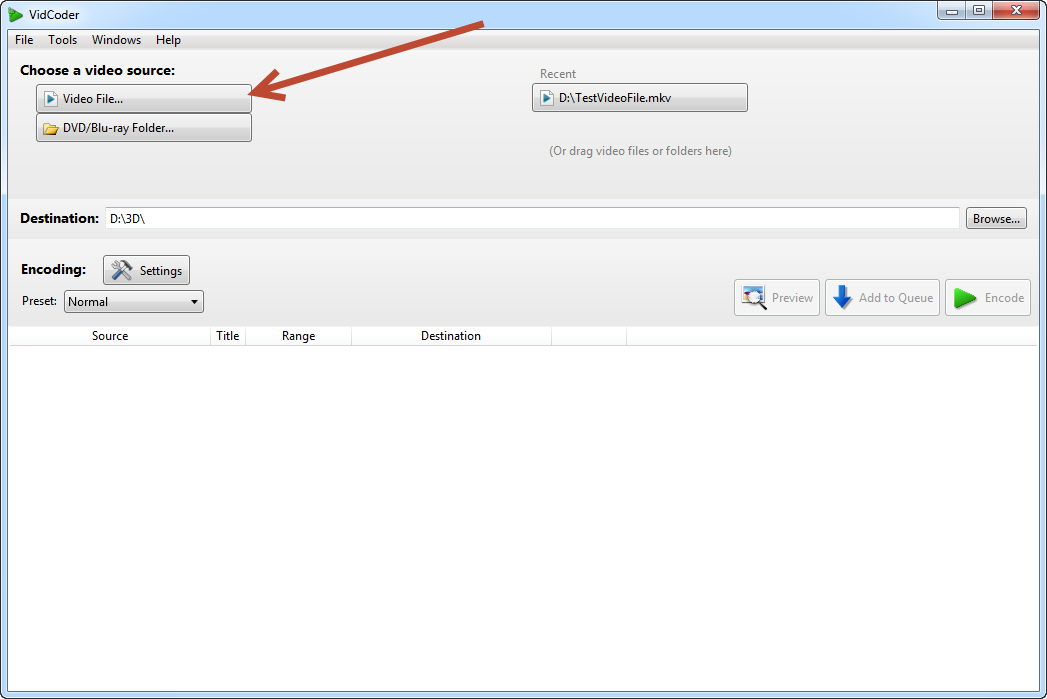
  2. Run the app and choose the file you want to encode.
No sound in vr gear 03 — No Sound in Gear VR movies

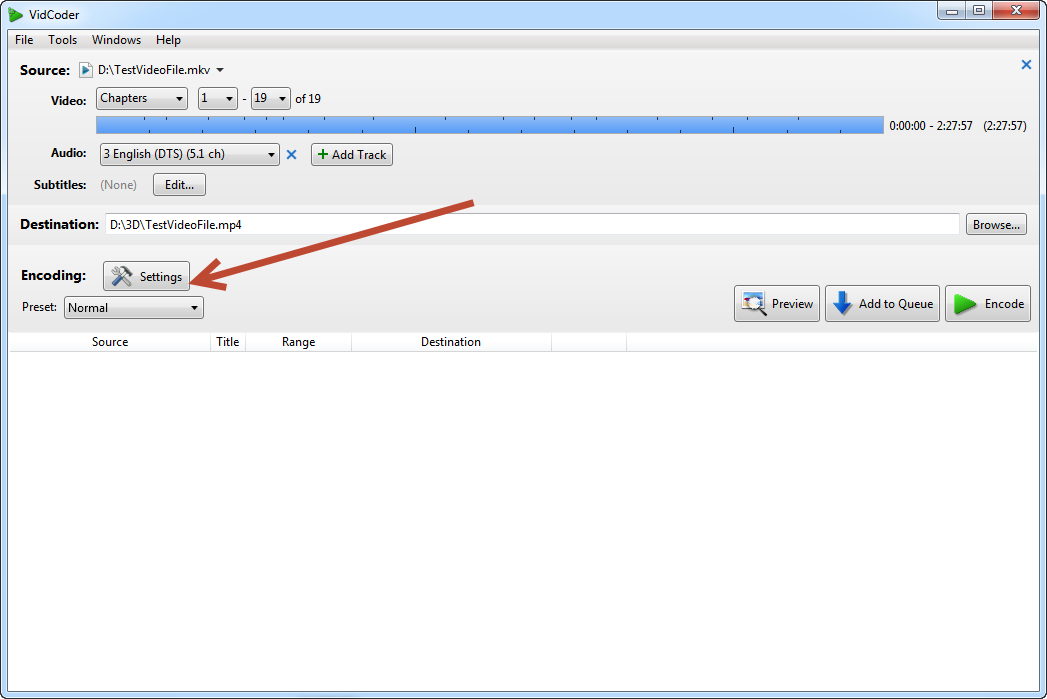
3. Than choose the folder you want the encoded file to be saved and hit Settings button, we will create a preset so next time when you need to encode the movies the further steps would be unneeded.


No sound in vr gear 04 — No Sound in Gear VR movies

Pay attention, that in case your movie has several languages, you need to choose and audio track you want to use.

Settings screen has 4 tabs, but we will need just 2 of them.

No sound in vr gear 05 — No Sound in Gear VR movies

In Picture tab, select Container MP4 and make sure no cropping would be done to the output file. That means that the picture will not be resized and there will no quality loss for the picture.

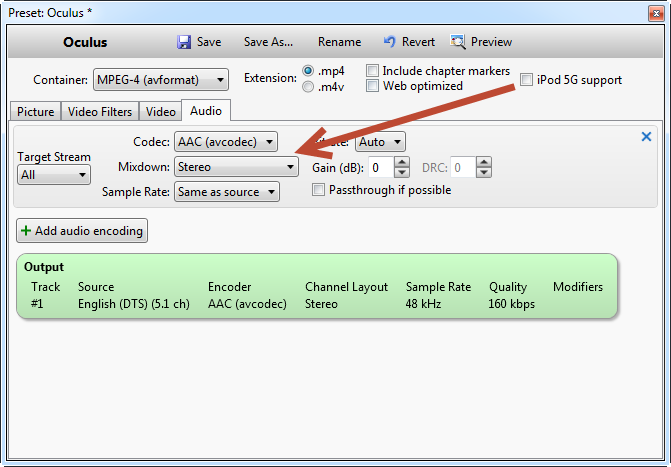
4. Now move to the Audio Tab
No sound in vr gear 06 — No Sound in Gear VR movies

Choose AAC or MP3 as the codec and set Stereo as Mixdown (of course if you have fancy 5.1 earphones you can leave at as default).

5. Now hit Save button and enter the name of the template, so the next time you won’t need to enter the settings again.

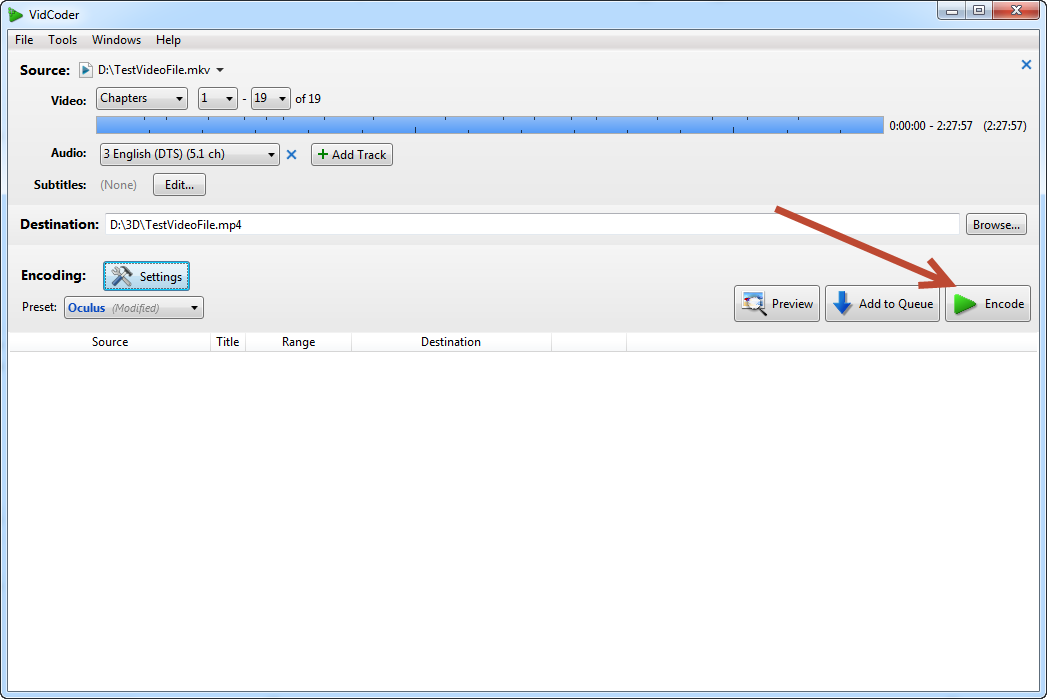
6. Now go back to the VidCoder home screen and press Encode button.
No sound in vr gear 07 — No Sound in Gear VR movies

Now wait till the process is completed and copy the file from your computer to the phone.

That’s it! By the way, this program works perfectly fine with 3D movies as well, and won’t need to change the Settings to encode your 3D video, however you might need some few extra steps to play 3D on Gear VR. We will tell you about the ways to play top-bottom and side-by-side 3D movies on Gear VR in one of our future articles.



 

  • On September 21, 2016
  • 0 Comment

Leave Reply Cancel reply

Your email address will not be published. Required fields are marked *

Recent Posts
  • The Production Incident Class Your Postmortem Template Doesn’t Have
  • Why Load Test Numbers Lie
  • When Config Became Executable: The Twenty-Year Pattern Behind Supply Chain Attacks
  • How Software Became a Medical Device
  • Compliant With What? A Working Map of GDPR, HIPAA, SOC 2 and ISO 27001
Categories
  • ai (8)
  • android (18)
  • apple (36)
  • chart (18)
  • cloud (1)
  • fix (42)
  • games (11)
  • google (31)
  • hardware (73)
  • healthcare (3)
  • how to (231)
  • internet (92)
  • ios (23)
  • macos (3)
  • microsoft (82)
  • mobile (36)
  • news (74)
  • optimization (17)
  • osx (4)
  • outsourcing (8)
  • qa (3)
  • regulation (7)
  • review (120)
  • security (38)
  • software (159)
  • windows (150)
Archives
  • August 2026
  • July 2026
  • June 2026
  • May 2026
  • August 2025
  • March 2025
  • February 2025
  • April 2023
  • March 2023
  • February 2023
  • January 2023
  • March 2022
  • January 2022
  • December 2021
  • November 2021
  • October 2021
  • September 2021
  • August 2021
  • July 2021
  • June 2021
  • May 2021
  • April 2021
  • March 2021
  • February 2021
  • January 2021
  • December 2020
  • November 2020
  • October 2020
  • September 2020
  • August 2020
  • July 2020
  • June 2020
  • May 2020
  • April 2020
  • March 2020
  • February 2020
  • January 2020
  • December 2019
  • November 2019
  • October 2019
  • September 2019
  • August 2019
  • April 2019
  • March 2019
  • February 2019
  • January 2019
  • December 2018
  • November 2018
  • October 2018
  • September 2018
  • June 2018
  • May 2018
  • April 2018
  • February 2018
  • January 2018
  • December 2017
  • November 2017
  • October 2017
  • June 2017
  • May 2017
  • April 2017
  • March 2017
  • February 2017
  • January 2017
  • December 2016
  • November 2016
  • October 2016
  • September 2016
  • August 2016
  • July 2016
  • June 2016
  • May 2016
  • April 2016
  • March 2016
  • February 2016
  • January 2016
  • December 2015
  • November 2015
  • October 2015
  • September 2015
  • July 2015
  • January 2015
Archives
  • August 2026
  • July 2026
  • June 2026
  • May 2026
  • August 2025
  • March 2025
  • February 2025
  • April 2023
  • March 2023
  • February 2023
  • January 2023
  • March 2022
  • January 2022
  • December 2021
  • November 2021
  • October 2021
  • September 2021
  • August 2021
  • July 2021
  • June 2021
  • May 2021
  • April 2021
  • March 2021
  • February 2021
  • January 2021
  • December 2020
  • November 2020
  • October 2020
  • September 2020
  • August 2020
  • July 2020
  • June 2020
  • May 2020
  • April 2020
  • March 2020
  • February 2020
  • January 2020
  • December 2019
  • November 2019
  • October 2019
  • September 2019
  • August 2019
  • April 2019
  • March 2019
  • February 2019
  • January 2019
  • December 2018
  • November 2018
  • October 2018
  • September 2018
  • June 2018
  • May 2018
  • April 2018
  • February 2018
  • January 2018
  • December 2017
  • November 2017
  • October 2017
  • June 2017
  • May 2017
  • April 2017
  • March 2017
  • February 2017
  • January 2017
  • December 2016
  • November 2016
  • October 2016
  • September 2016
  • August 2016
  • July 2016
  • June 2016
  • May 2016
  • April 2016
  • March 2016
  • February 2016
  • January 2016
  • December 2015
  • November 2015
  • October 2015
  • September 2015
  • July 2015
  • January 2015

USB Device Not Recognized? How to Fix?

Previous thumb

Work with Google Chrome faster

Next thumb
Scroll

Services

  • Software Development
  • Quality Assurance
  • Customer Support
  • Managed Services
  • 24/7 Emergency IT Support
  • Competency Center
  • Local AI Agent Development
  • Software as a Medical Device

Compliance

  • Compliance Audit
  • GDPR Compliance
  • What is GDPR
  • ISO 9001:2015 Certification

Company

  • About Us
  • All Services
  • Projects
  • Case Studies
  • Articles
  • Contact
About HiTech Service

With 10 year experience of working together, we have reached tangible synergetic effect in performance and productivity, which results in highest quality services and satisfied clients.

Privacy Policy   Cookie Policy


  • Facebook
  • X
  • LinkedIn
CONTACT INFO
  • 900 Foulk Rd, Suite 201, Wilmington, DE, USA, 19803
  • Kudryavs’kyi descent 5b, Kyiv, Ukraine, 04053
  • +1 646.844.5712 (US)
ISO 9001:2015 certificate issued to HiTech Service LLC by Veritas
RIPE Atlas logo, the network measurement community HiTech Service takes part in
BrainBasket Foundation logo, IT education initiative HiTech Service supports
HiTech Service LLC membership badge of the Hi-Tech Office Ukraine association Dun & Bradstreet verified business badge for HiTech Service LLC
YouTeam partner badge for HiTech Service LLC
Hitech Service LLC

Copyright 2026