Have any questions? +1 646.844.5712 (US)

  • Facebook
  • LinkedIn
  • Twitter
HiTech ServiceHiTech Service
  • Home
  • About
  • Services
    • Software Development
    • Customer Support
    • Quality Assurance
    • Managed Services
    • Compliance Audit
    • GDPR Compliance
    • Competency Center
    • Emergency IT Support
    • Software as medical device
    • Local AI Agent Development
  • Projects
  • GDPR
  • Articles
  • Case Studies
  • Contact
Menu
  • Home
  • About
  • Services
    • Software Development
    • Customer Support
    • Quality Assurance
    • Managed Services
    • Compliance Audit
    • GDPR Compliance
    • Competency Center
    • Emergency IT Support
    • Software as medical device
    • Local AI Agent Development
  • Projects
  • GDPR
  • Articles
  • Case Studies
  • Contact
How to set up FTP server

How to set up FTP server

You want to have access to your files at your home or office computer from anywhere, but do not want want to use some third party internet storage services? Or maybe you want to save a 100GB HD video file or a game to or from your home computer, but such big volumes will take much more time  to get transferred through internet file storage than a direct transfer?  Then FTP is exactly what you need. This is a rather old type of direct data transfer protocol, but it is still widely used all over the world, because it’s simple, and thus extremely fast and reliable when it comes to data transfer.


FTP server can be configured within 10 minutes, enabling you to browse your remote computer file system as an additional network drive. It’s extremely convenient and  and supports all the features like read/write/delete and append. That is important if you do not want to start your file transfer from the scratch in case internet connection was interrupted for some reason.

If you want to setup the access to your computer file system from outside, you would need to install and configure an FTP server. We recommend using FileZilla FTP server because it’s fast, user friendly and has all the features that FTP server should have. Oh, forgot, it is free!

The first step will be to download FileZilla and install it on your computer. It can be downloaded for free from https://filezilla-project.org/ web site. Just navigate there and follow the links to download FTP server installation file (not FTP client, be careful).
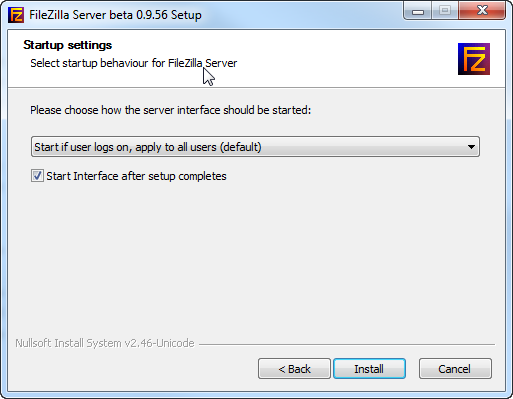
Once you have the installation package downloaded, install the server using default configurations. This will allow FileZilla server to start automatically with your operating system.
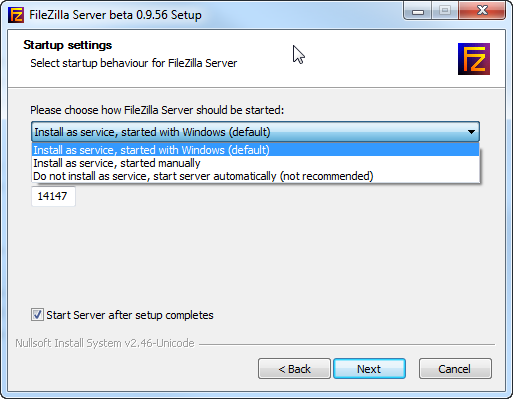
How to set up ftp server 01 — How to set up FTP server

How to set up ftp server 02 — How to set up FTP server

When installation is complete, the program will start automatically. Hit OK on the small window to access FTP server console window. No need to change anything, it will allow you to connect as is.
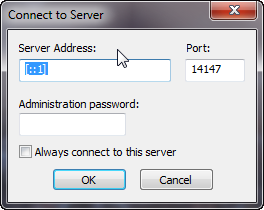
How to set up ftp server 03 — How to set up FTP server

FileZilla server interface is very simple. First we need to create Users who will have access to this computer. Navigate to Edit => Users.
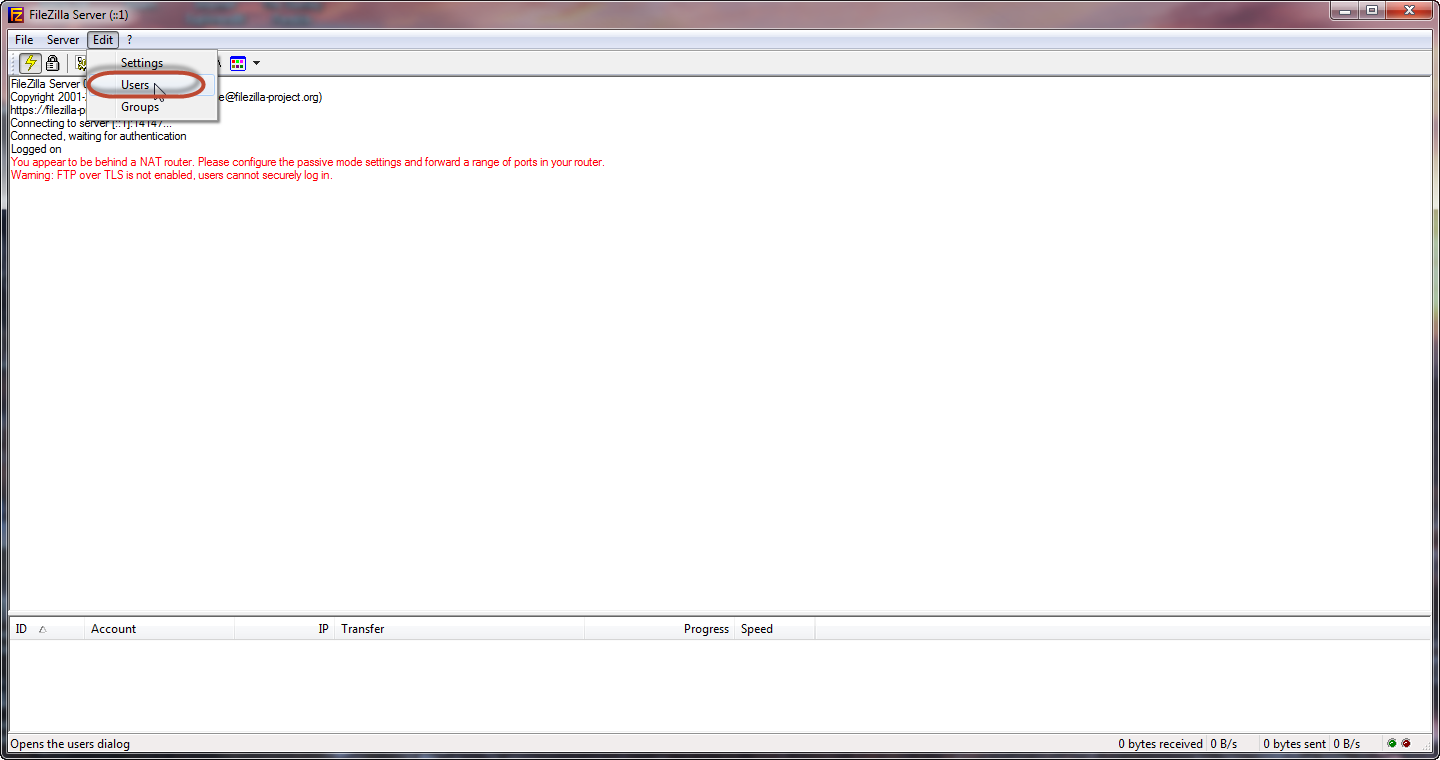
How to set up ftp server 04 — How to set up FTP server


In here, click Add button, fill in username for your future User and hit OK.
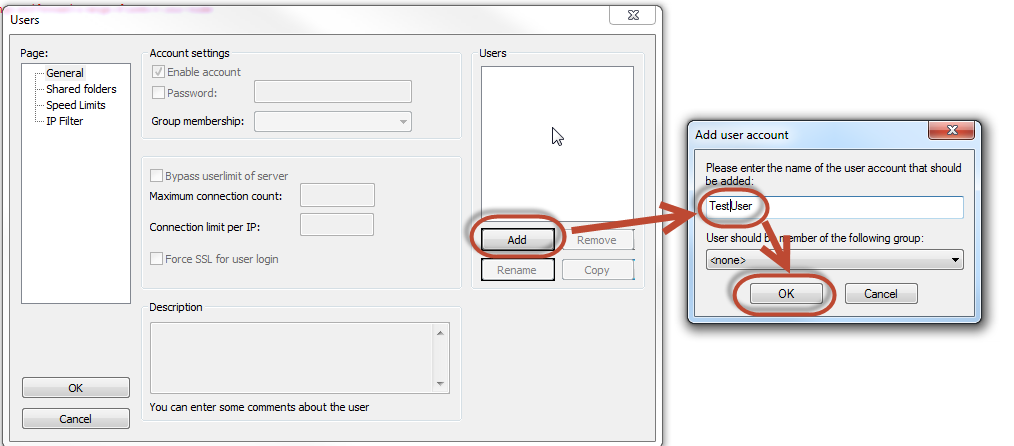
How to set up ftp server 05 — How to set up FTP server

Then set a password for this User. Put the checkmark next to Password and enter your defined password into the text box.
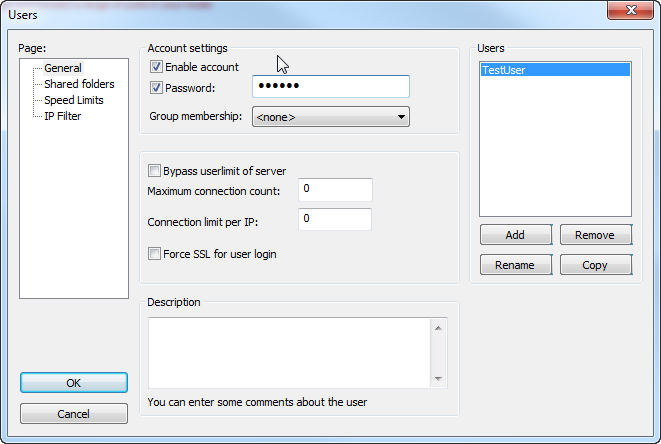
How to set up ftp server 06 — How to set up FTP server

Now let’s tell the FTP server what folders and actions will be accessible for the newly created User. Switch to Shared folders section, click Add button, select the desired folder and hit OK.
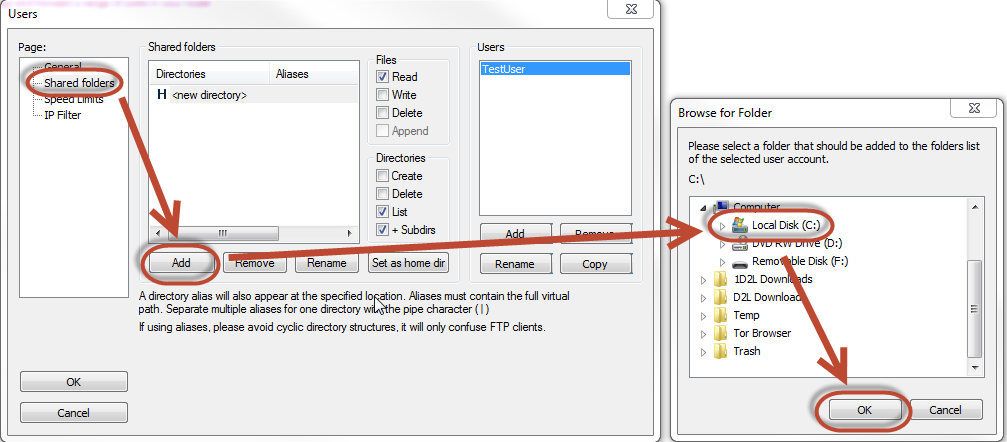
How to set up ftp server 07 — How to set up FTP server

Once the shared folder is set, you can configure access permissions to this folder. These are located on the right from the list of shared folders. Mark the desired options and hit Ok to save and close Users screen.
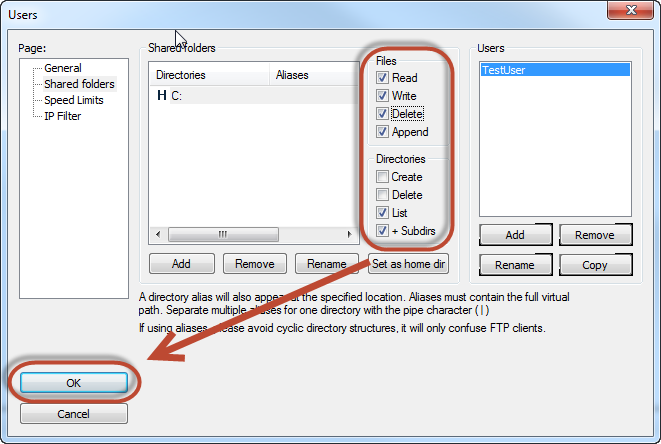
How to set up ftp server 08 — How to set up FTP server

Now your FTP server is configured enough to allow you to access this computer from outside. The only thing you need is File Explorer on a remote computer and the IP address of the computer where you have your FTP server running. In my case, for instance, I would need to open windows Explorer (not Internet Explorer) and type in ftp:192.168.100.59  into the address bar and hit enter.

How to set up ftp server 09 — How to set up FTP server

System will ask me for username and password, and when entered, will let me in to the remote computer where I have my FTP server configured.
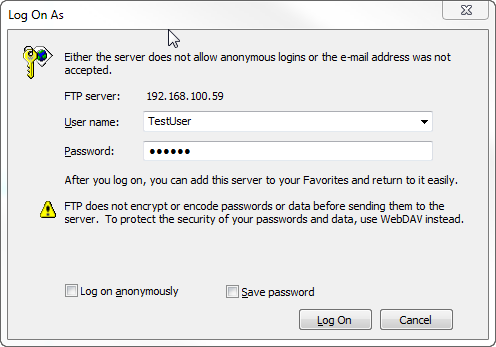
How to set up ftp server 10 — How to set up FTP server

You can also use any Internet browser with the same address to access your remote file system, but this is not very convenient in case you need to move or drag-n-drop files from or to remote storage.


  • On March 3, 2016
  • 0 Comment

Leave Reply Cancel reply

Your email address will not be published. Required fields are marked *

Recent Posts
  • How AI and Automation Are Changing IT Service Delivery
  • Managed IT Services vs. In-House IT: What Should You Choose?
  • When the Model Is the Vendor: What Happens to Compliance When You Don’t Own the Weights
  • The Edge Device Is the Perimeter: Why the Box You Bought to Keep Them Out Is How They Get In
  • The Password Memo Was Honest. The Checklist Wasn’t.
Categories
  • ai (10)
  • android (18)
  • apple (36)
  • chart (18)
  • cloud (1)
  • fix (42)
  • games (11)
  • google (31)
  • hardware (73)
  • healthcare (3)
  • how to (231)
  • internet (92)
  • ios (23)
  • macos (3)
  • microsoft (82)
  • mobile (36)
  • news (74)
  • optimization (17)
  • osx (4)
  • outsourcing (9)
  • qa (3)
  • regulation (8)
  • review (120)
  • security (41)
  • software (160)
  • windows (150)
Archives
  • September 2026
  • August 2026
  • July 2026
  • June 2026
  • May 2026
  • August 2025
  • March 2025
  • February 2025
  • April 2023
  • March 2023
  • February 2023
  • January 2023
  • March 2022
  • January 2022
  • December 2021
  • November 2021
  • October 2021
  • September 2021
  • August 2021
  • July 2021
  • June 2021
  • May 2021
  • April 2021
  • March 2021
  • February 2021
  • January 2021
  • December 2020
  • November 2020
  • October 2020
  • September 2020
  • August 2020
  • July 2020
  • June 2020
  • May 2020
  • April 2020
  • March 2020
  • February 2020
  • January 2020
  • December 2019
  • November 2019
  • October 2019
  • September 2019
  • August 2019
  • April 2019
  • March 2019
  • February 2019
  • January 2019
  • December 2018
  • November 2018
  • October 2018
  • September 2018
  • June 2018
  • May 2018
  • April 2018
  • February 2018
  • January 2018
  • December 2017
  • November 2017
  • October 2017
  • June 2017
  • May 2017
  • April 2017
  • March 2017
  • February 2017
  • January 2017
  • December 2016
  • November 2016
  • October 2016
  • September 2016
  • August 2016
  • July 2016
  • June 2016
  • May 2016
  • April 2016
  • March 2016
  • February 2016
  • January 2016
  • December 2015
  • November 2015
  • October 2015
  • September 2015
  • July 2015
  • January 2015
Archives
  • September 2026
  • August 2026
  • July 2026
  • June 2026
  • May 2026
  • August 2025
  • March 2025
  • February 2025
  • April 2023
  • March 2023
  • February 2023
  • January 2023
  • March 2022
  • January 2022
  • December 2021
  • November 2021
  • October 2021
  • September 2021
  • August 2021
  • July 2021
  • June 2021
  • May 2021
  • April 2021
  • March 2021
  • February 2021
  • January 2021
  • December 2020
  • November 2020
  • October 2020
  • September 2020
  • August 2020
  • July 2020
  • June 2020
  • May 2020
  • April 2020
  • March 2020
  • February 2020
  • January 2020
  • December 2019
  • November 2019
  • October 2019
  • September 2019
  • August 2019
  • April 2019
  • March 2019
  • February 2019
  • January 2019
  • December 2018
  • November 2018
  • October 2018
  • September 2018
  • June 2018
  • May 2018
  • April 2018
  • February 2018
  • January 2018
  • December 2017
  • November 2017
  • October 2017
  • June 2017
  • May 2017
  • April 2017
  • March 2017
  • February 2017
  • January 2017
  • December 2016
  • November 2016
  • October 2016
  • September 2016
  • August 2016
  • July 2016
  • June 2016
  • May 2016
  • April 2016
  • March 2016
  • February 2016
  • January 2016
  • December 2015
  • November 2015
  • October 2015
  • September 2015
  • July 2015
  • January 2015

What is the most popular browser today

Previous thumb

Will your computer work with Virtual Reality?

Next thumb
Scroll

Services

  • Software Development
  • Quality Assurance
  • Customer Support
  • Managed Services
  • 24/7 Emergency IT Support
  • Competency Center
  • Local AI Agent Development
  • Software as a Medical Device

Compliance

  • Compliance Audit
  • GDPR Compliance
  • What is GDPR
  • ISO 9001:2015 Certification

Company

  • About Us
  • All Services
  • Projects
  • Case Studies
  • Articles
  • Contact
About HiTech Service

With 10 year experience of working together, we have reached tangible synergetic effect in performance and productivity, which results in highest quality services and satisfied clients.

Privacy Policy   Cookie Policy


  • Facebook
  • X
  • LinkedIn
CONTACT INFO
  • 900 Foulk Rd, Suite 201, Wilmington, DE, USA, 19803
  • Kudryavs’kyi descent 5b, Kyiv, Ukraine, 04053
  • +1 646.844.5712 (US)
ISO 9001:2015 certificate issued to HiTech Service LLC by Veritas
RIPE Atlas logo, the network measurement community HiTech Service takes part in
BrainBasket Foundation logo, IT education initiative HiTech Service supports
HiTech Service LLC membership badge of the Hi-Tech Office Ukraine association Dun & Bradstreet verified business badge for HiTech Service LLC
YouTeam partner badge for HiTech Service LLC
Hitech Service LLC

Copyright 2026